Anthropic ships Claude Desktop on Linux for Ubuntu and Debian only, and its own docs still say that only Debian-based distributions are supported today. Fedora users aren’t stuck with the terminal anymore, though. A community script now pulls Anthropic’s signed Linux build, checks it against Anthropic’s key and unpacks it into your home directory, so the same app runs on a Fedora GNOME desktop without a single repackaged binary from a stranger.
We cover all three routes here: the official apt repository on Ubuntu and Debian, the unofficial script on Fedora, and the Claude Code CLI, whose official dnf repository covers Fedora and RHEL and works the same on Rocky Linux and AlmaLinux. We ran the Fedora and Rocky steps again in November 2026 on Fedora 45 Workstation and Rocky Linux 10, with Claude Desktop 5.11492.2 and Claude Code 2.1.311. Our verdict up front: on Fedora the script works well enough to use daily, while on RHEL clones you should stick with the CLI.
Claude Desktop vs Claude Code CLI: which one runs where
You’re dealing with two separate downloads with two separate repositories, and they authenticate differently. Picking the wrong one is the thing that trips people up, so start here.
| Claude Desktop app | Claude Code CLI | |
|---|---|---|
| Package | claude-desktop | claude-code |
| Interface | Graphical (Chat, Cowork, Code tabs) | Terminal |
| Supported Linux | Ubuntu 22.04+, Debian 12+ (beta) | Ubuntu 20.04+, Debian 10+, Alpine 3.19+ (dnf repo for Fedora and RHEL) |
| Sign-in | Claude account or SSO (API key only through the managed Desktop on 3P setup) | Claude account or an API key |
| Best for | A GUI on your Linux desktop | Servers, RHEL or Fedora boxes, headless and CI use |
Note on Fedora and RHEL: Anthropic does not support the desktop app on either. A community script installs Anthropic’s own Debian build on Fedora anyway, and the Fedora section below walks through it.
The single most important line in that table is the sign-in row. The desktop app authenticates over OAuth against your Claude account and never reads ANTHROPIC_API_KEY, so a key sitting in your environment does nothing for it. Anthropic does offer a way to run Desktop against an API key, Bedrock or a gateway, but that’s the managed Claude Desktop on 3P configuration aimed at organizations. For one person with a key, the CLI is the simple path, which is why it’s the right tool on a server or anywhere you bill against the Console.
Before you start
For the official desktop app you need a 64-bit Ubuntu 22.04 or later, or Debian 12 or later, on x86_64 or arm64, plus a Claude account. A Free account can sign in and chat, while the Code tab and Cowork need Pro, Max, Ultra, Team, or Enterprise. The Fedora route needs a graphical session (we used Fedora 45 Workstation on GNOME) and a normal user account, because the script installs into ~/.local and only uses sudo for its dependencies. For the CLI you need 4 GB of RAM, any of the supported distros above, and either a paid plan (Free does not include Claude Code) or an API key from the Claude Console. The packages come from Anthropic’s signed repositories and the Fedora script from GitHub releases, so a normal internet connection is the only network requirement. MCP servers you add later can need more: chrome-devtools-mcp, for example, refuses to start on an old Node.js, and our Chrome DevTools MCP guide shows how to get a supported Node.js on Ubuntu before you install it.
Install Claude Desktop on Linux (Debian and Ubuntu)
Ubuntu and Debian get the supported path, and it’s still the one to use if you have a choice of distro. Install from the apt repository rather than a one-off download, because then updates ride along with your normal system upgrades instead of going stale. The repository lines below match Anthropic’s Linux desktop documentation as of this month.
Add Anthropic’s apt repository
Download the signing key into the keyrings directory:
sudo curl -fsSLo /usr/share/keyrings/claude-desktop-archive-keyring.asc https://downloads.claude.ai/claude-desktop/key.ascThen register the repository so apt knows where to find the package:
echo "deb [arch=amd64,arm64 signed-by=/usr/share/keyrings/claude-desktop-archive-keyring.asc] https://downloads.claude.ai/claude-desktop/apt/stable stable main" | sudo tee /etc/apt/sources.list.d/claude-desktop.listNow apt has a one-line source entry pointing at Anthropic’s stable channel, which it reads on the next update. Stable is the channel Anthropic’s docs use, so the app’s version follows whatever Anthropic promotes there.
Verify the signing key
Before you trust the repository, confirm the key actually belongs to Anthropic:
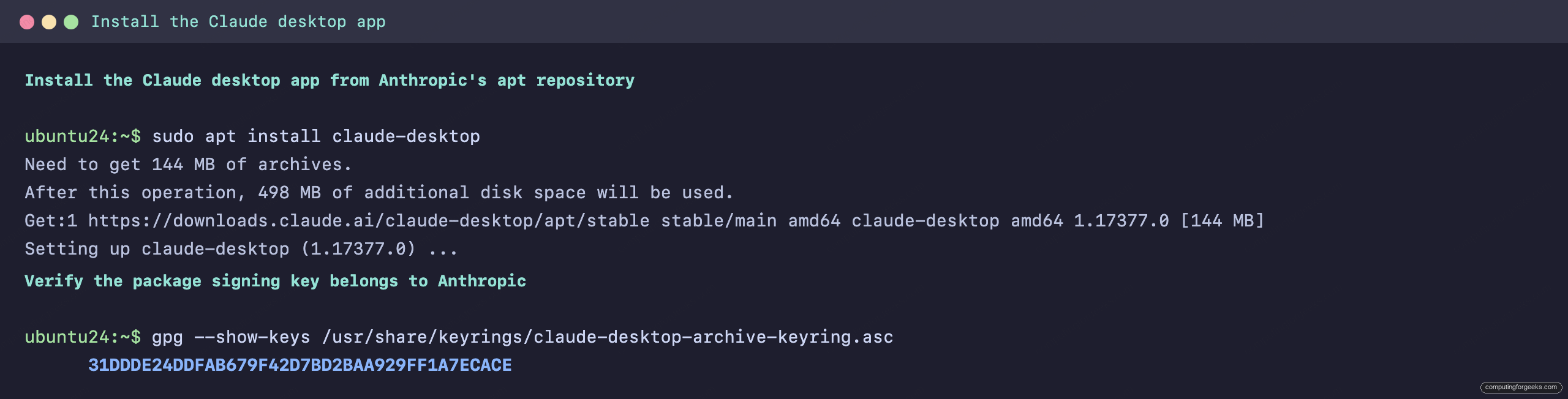
gpg --show-keys /usr/share/keyrings/claude-desktop-archive-keyring.ascThe fingerprint should read 31DD DE24 DDFA B679 F42D 7BD2 BAA9 29FF 1A7E CACE. The same key signs the CLI repository too, and the Fedora script checks against it, so you’ll see it twice more below.
Install the package
Refresh the package index and install:
sudo apt update && sudo apt install claude-desktopExpect a big download, because the package ships its own Electron runtime: the current build unpacks to 627 MB. Here is the install from our original Ubuntu 24.04 run in July, with the key fingerprint check alongside it:
If you’d rather start from a downloaded file, Anthropic’s docs fetch the newest .deb for your architecture straight from the repository index:
curl -fLO "https://downloads.claude.ai/claude-desktop/apt/stable/$(curl -s "https://downloads.claude.ai/claude-desktop/apt/stable/dists/stable/main/binary-$(dpkg --print-architecture)/Packages" | grep '^Filename: pool/main/c/claude-desktop/claude-desktop_' | sort -V | tail -n 1 | cut -d' ' -f2)"
sudo apt install ./claude-desktop_*.deb
The package registers the same apt repository itself during install, so updates still arrive through apt. Put CLAUDE_DESKTOP_ADD_REPO="false" in /etc/default/claude-desktop first if you don’t want that.
Launch Claude and sign in
Launching and signing in is the same on any Debian-based system, so it gets its own section instead of hiding inside the install steps. Open Claude from your application launcher, or start it from a terminal:
claude-desktopYou land on the welcome view first. Here’s the app running on an Ubuntu desktop session:
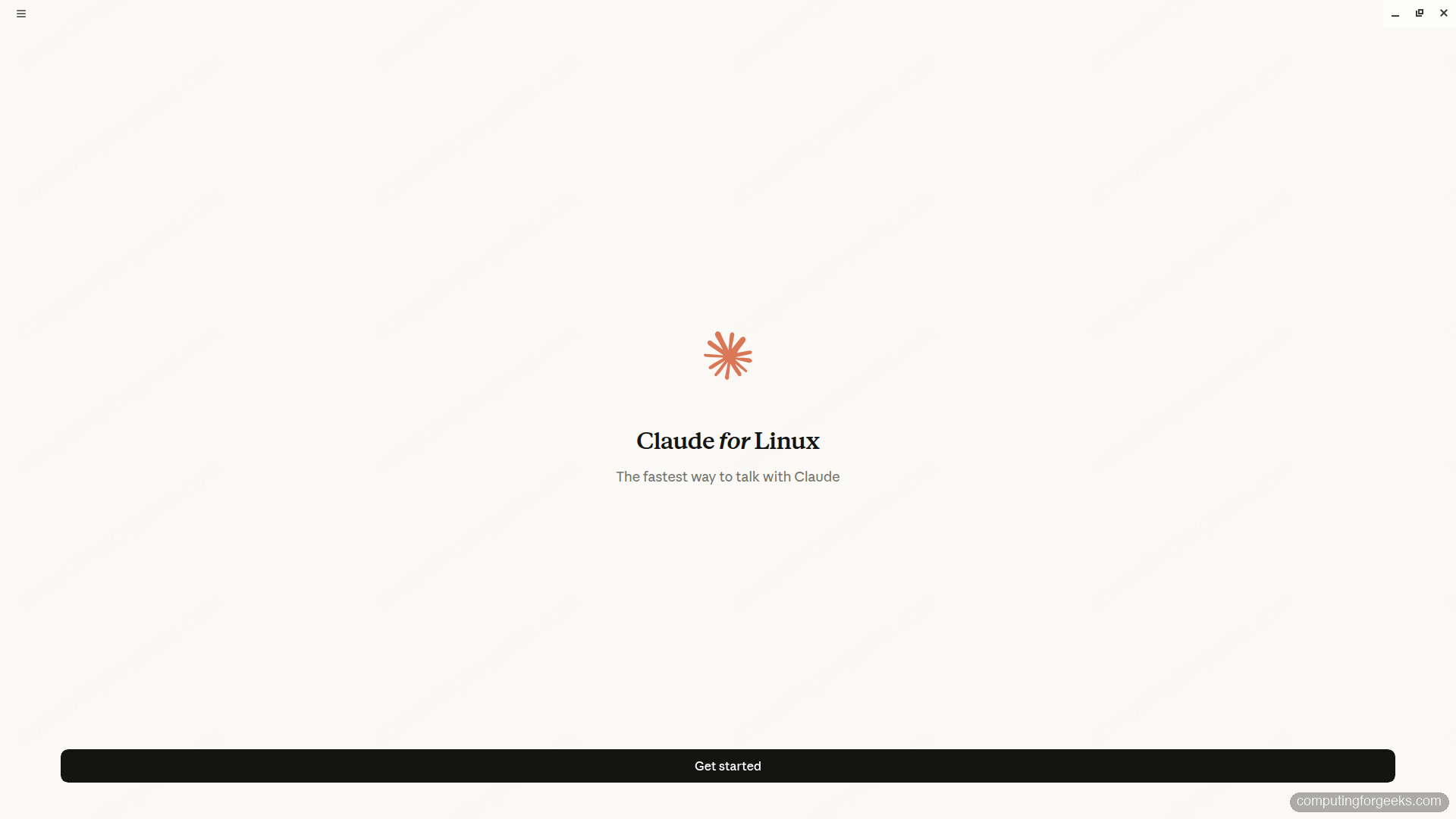
Click Get started and you land on the sign-in screen. Continue with Google or with an email address tied to your Claude account. Remember the table earlier: this is an account login, not an API key, and the Code tab needs a paid plan behind that account.
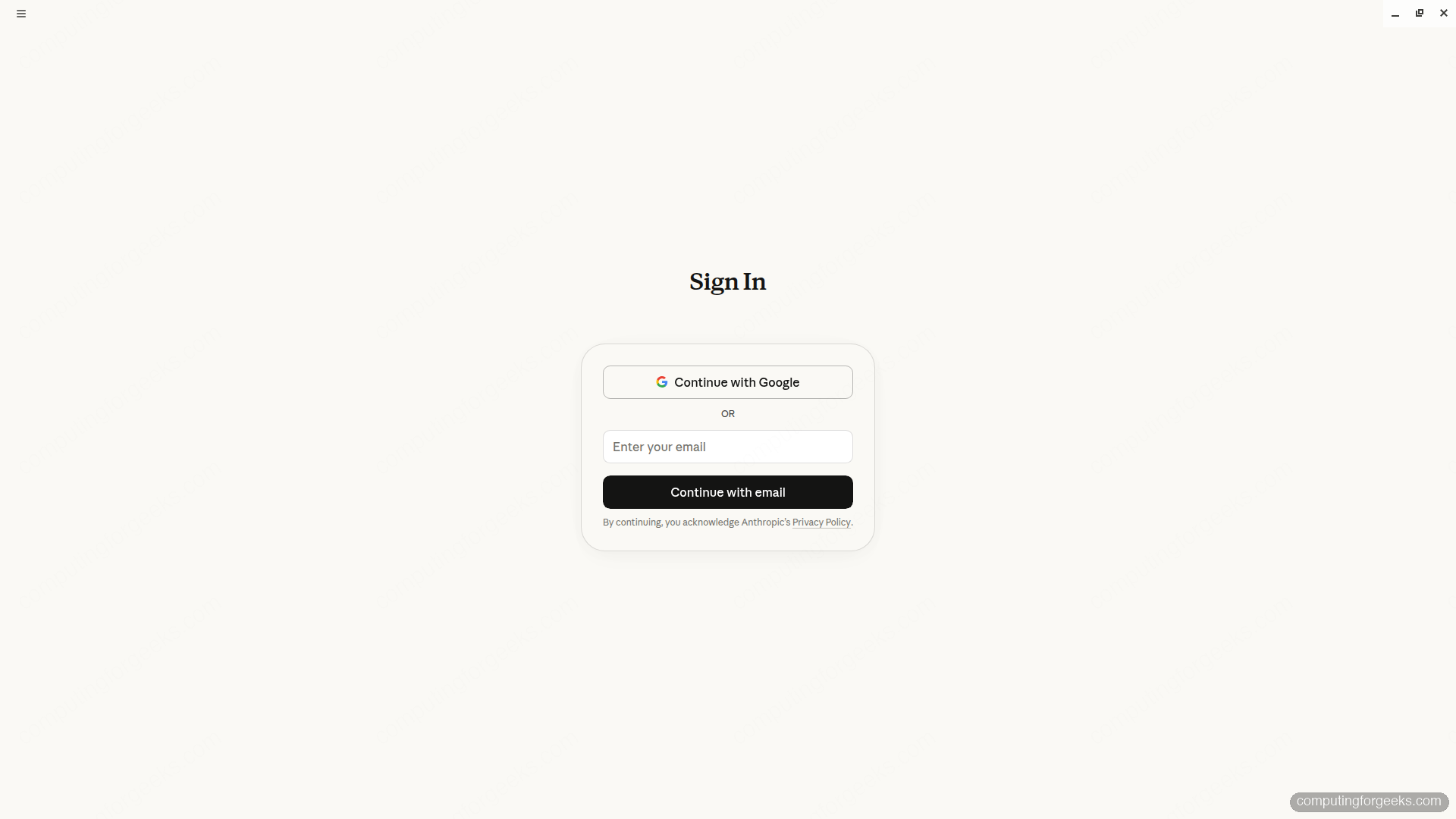
Once you are in, the app has three tabs across the top. Chat is a plain conversation with no file access, like claude.ai. Cowork runs longer agentic tasks inside a local virtual machine, which is why it has its own requirements below. Code is the one you came for: it opens a local folder, proposes edits, and shows each change in a diff view with Accept and Reject buttons before anything touches your files. It also gives you parallel sessions in separate Git worktrees, an integrated terminal you open with Ctrl+`, and a live preview of your dev server.
One note from running it on virtual machines: this is a full Electron GUI, so it expects a real graphical session with working GPU or software rendering. On a plain headless server there is nothing to draw to, which is the other reason the CLI exists.
What is not in the Linux beta yet
Anthropic still calls the Linux build a beta, and its gaps are worth knowing before you rely on it. These come from Anthropic’s Linux docs, and the Fedora route runs the same build (though the script’s README reports dictation working on Fedora):
- Computer Use: not available
- Voice dictation: not available (the CLI has its own)
- Quick Entry hotkey: works on X11, needs the GlobalShortcuts portal on native Wayland
- Cowork: needs KVM, QEMU, OVMF firmware and virtiofsd, access to
/dev/kvmand/dev/vhost-vsock, and thevhost_vsockmodule
The Cowork list is the one that bites on laptops with virtualization turned off in firmware, and on cloud VMs without nested KVM. There is also no official Fedora or RHEL build, which is the gap the next section fills on Fedora and the CLI fills everywhere else.
Install Claude Desktop on Fedora (unofficial script)
The route we tested is claude-desktop-rpm, an MIT-licensed Bash script. Despite the name it doesn’t build an RPM or add a dnf repository. It downloads the same .deb that apt would install from Anthropic’s stable repository, verifies the repository signature, the package index hash and the package hash against Anthropic’s key, then unpacks the app into ~/.local without root. Nothing about it is supported by Anthropic, so if the app misbehaves on Fedora, file it with the script’s maintainer, not Anthropic.
Its maintainer tests on Fedora 44 GNOME and runs a Fedora 44 container test on every pull request. Fedora 45 isn’t listed upstream, so our run is the only Fedora 45 data point here. We used Fedora 45 Workstation on GNOME Wayland, because that’s the default desktop most Fedora readers will be on, and every step below ran there.
Install the dependencies
Four tools do the work: curl, GnuPG, binutils (for ar, which opens the .deb) and tar. On our fresh Fedora 45 Workstation only binutils was missing:
sudo dnf install -y curl gnupg2 binutils tarConfirm all four are present before moving on:
rpm -q curl gnupg2 binutils tarEach package should print a version rather than “is not installed”:
curl-8.21.0-9.fc45.x86_64
gnupg2-2.4.9-18.fc45.x86_64
binutils-2.47-1.fc45.x86_64
tar-1.35-10.fc45.x86_64
Without binutils the script can’t open the .deb at all, so don’t skip this on a minimal Fedora install either.
Download and verify the pinned script
Upstream’s README fetches from releases/latest, but we pin the tag we tested so the checksum you verify is the one we verified. Bump the tag when a newer release appears on the releases page:
export CDR_TAG="v1.2.0" # pin: tag tested in this guide #https://github.com/ajithakdev/claude-desktop-rpm/releases
cd ~
curl -fsSLO https://github.com/ajithakdev/claude-desktop-rpm/releases/download/${CDR_TAG}/claude-desktop-rpm.sh
curl -fsSLO https://github.com/ajithakdev/claude-desktop-rpm/releases/download/${CDR_TAG}/SHA256SUMS
sha256sum -c SHA256SUMS
You want claude-desktop-rpm.sh: OK from that last command. Anything else means the download is not what the release published, so stop there and download it again. Read the script before you run it, too: it’s one Bash file, and it’s about to unpack an app into your home directory.
Run the installer
Run it as your normal user, not with sudo. The app lands in your home directory, and a root run would put it in root’s:
chmod +x claude-desktop-rpm.sh && ./claude-desktop-rpm.sh installHere are the checksum and install together, as they ran on our Fedora 45 box. Look for the “checking Anthropic’s signed repository” line first, because that’s the signature check passing before any download starts:

Auto-update is already on, as the last line says. It’s a systemd user timer rather than a dnf repo, so it’s covered with the file layout further down, not with your system updates.
Check the install with doctor
During install the script copies itself to ~/.local/bin/claude-desktop-rpm, and its doctor command checks the app, the keyring and everything Cowork needs:
claude-desktop-rpm doctorOn Fedora 45 Workstation every check passed except kvm group membership:

Our Fedora 45 Workstation VM already had QEMU, the edk2 OVMF firmware and virtiofsd, so Cowork only needed your user in the kvm group. Run the fix doctor prints, claude-desktop-rpm cowork, then log out and back in. Skip it if you only want Chat and Code. We also ran ldd against the app binary on Fedora and got zero missing libraries, which matters for the RHEL section later.
Launch Claude on GNOME Wayland
The installer registers a desktop entry and a GNOME search provider, so press the Super key and type Claude:

On the first start GNOME asked whether Claude may register a global shortcut. This is the GlobalShortcuts portal that the Quick Entry hotkey needs on Wayland, and it proposes Ctrl+Alt+Space:

- 1edit pencil
- 2Add
- Click the edit pencil on the shortcut row if
Ctrl+Alt+Spaceclashes with something you already use. - Click Add. Cancel skips the hotkey.
You can change it later in the app’s page under GNOME Settings, as the dialog says. After Add, the same welcome screen as on Ubuntu appears, running natively on Wayland (the GPU process starts with --ozone-platform=wayland):

From here sign-in works the way the Ubuntu section describes. If a “keyring is locked” prompt shows up before the window does, jump to the troubleshooting section, because cancelling it leaves you with a blank white window.
Where the files live
Everything sits under your home directory, which is why no sudo was needed. Knowing the paths helps when you back up a profile or clean up by hand:
~/.local/bin/claude-desktop: the launcher~/.local/bin/claude-desktop-rpm: the manager script~/.local/lib/claude-desktop: the app itself, 627 MB~/.local/share/applications/com.anthropic.Claude.desktop: the menu entry~/.config/Claude: your sign-in and chats
The launcher also sets a dark GTK theme when GNOME is in dark mode and accepts --profile NAME for a second account, which keeps its data in a separate Claude-NAME folder.
Updates and removal
Because the app isn’t an RPM, dnf upgrade never touches it. The script installs a systemd user timer that runs claude-desktop-rpm update --auto once a day instead:
systemctl --user list-timers claude-desktop-rpm-update.timerRight after install, the timer had its first run queued for the next day, with up to an hour of random delay:
NEXT                        LEFT LAST PASSED UNIT                            ACTIVATES
Sat 2026-11-14 00:38:51 UTC  14h -         - claude-desktop-rpm-update.timer claude-desktop-rpm-update.service

1 timers listed.
To check by hand, run claude-desktop-rpm update. It goes through the same signature check and printed already up to date (5.11492.2) for us. If you’d rather approve updates yourself, claude-desktop-rpm auto-update off disables the timer. Removal is one command:
claude-desktop-rpm uninstallOn our box it removed the app, the launcher, the timer and the manager script itself, and printed one line:
==> removed Claude Desktop (your sign-in and chats in ~/.config/Claude and any Claude-<profile> folders are kept)Delete ~/.config/Claude yourself if you want the sign-in gone too. Since the script never touched dnf, there is no repo file or imported key to clean up afterwards.
Other unofficial Fedora routes
Other community routes exist. We read each of these projects’ current README or build files this month but did not install them, so treat the table as a map, not a test result:
| Project | What it installs | Updates | Tested here |
|---|---|---|---|
| ajithakdev/claude-desktop-rpm | Anthropic’s verified .deb, unpacked into ~/.local | Daily systemd user timer | Yes, Fedora 45 (Rocky 10: install and library check only) |
| aaddrick/claude-desktop-debian (also published as carmelosantana/claude-garden, whose README sends issues to aaddrick’s repo) | Anthropic’s Linux .deb repackaged as an .rpm, from a DNF repo with the package claude-desktop-unofficial | Through dnf | No |
| breitburg’s build script (GitHub gist) | A local RPM you build from the verified .deb with rpm-build | None, rebuild by hand | No |
| christian-korneck/claude-desktop-rpm | The Windows Electron app repackaged for Linux; README reports testing on Fedora Asahi 44 aarch64 with a build dated 10 Jun 2026 | Rebuild by hand | No |
Our pick stays the script we tested. It verifies every download against Anthropic’s own key, updates itself on a timer, and its install, update and uninstall steps never use sudo (only the optional cowork step does). A DNF repo is more convenient, but it means trusting a third party’s signing key with root-level package installs, which is a bigger ask than a script you can read in one sitting. The local RPM builds avoid that trust question but leave updates to you. If you run both assistants, our guide to the ChatGPT desktop app on Linux walks through OpenAI’s side on Ubuntu and Fedora.
Run it on RHEL, Rocky Linux and AlmaLinux
The script’s README says RHEL clones “probably work” and leaves it unverified, so we ran it on a Rocky Linux 10 cloud VM. The install itself went through in under 15 seconds, the signature checks passed and the update timer came up, exactly as on Fedora. The problems start after that.
A minimal or server install of Rocky has none of the desktop libraries an Electron app links against. ldd showed 16 missing, from libgtk-3 and libX11 to libasound and libgbm. Installing six packages from the stock Rocky repositories brought that to zero:
sudo dnf install -y gtk3 nss alsa-lib mesa-libgbm cups-libs at-spi2-atkBelow are the before and after counts, with the package versions Rocky 10 installed:

doctor on the same VM warned that there was no keyring, so you’d sign in on every launch, and that /dev/kvm, QEMU, the OVMF firmware and virtiofsd were all missing. That VM had no graphical session, so we never launched the app on Rocky, and we can’t tell you it draws a usable window there. A Rocky or Alma workstation installed with the Server with GUI or Workstation group already has the GTK stack, which takes care of the library problem, but nobody upstream has verified the rest.
For RHEL and its clones, use the Claude Code CLI below. It’s supported by Anthropic, it’s a single native binary with no GUI dependencies, and it’s what you’d want on a RHEL server anyway. Try the script only on a RHEL-family desktop you’re willing to debug yourself.
Install Claude Code (the CLI) on any distribution
The CLI is the same Claude Code engine as the desktop Code tab, and it runs on far more distributions. It also takes an API key straight from your environment, so it is what you install on a Rocky or Fedora workstation, on a server over SSH, or in a pipeline. The package name is claude-code everywhere; only the package manager changes. Pick your distro family below.
Debian and Ubuntu (apt)
The CLI has its own repository, separate from the desktop one. Create the keyrings directory and pull the key:
sudo install -d -m 0755 /etc/apt/keyrings
sudo curl -fsSL https://downloads.claude.ai/keys/claude-code.asc -o /etc/apt/keyrings/claude-code.asc
Register the repository and install the package:
echo "deb [signed-by=/etc/apt/keyrings/claude-code.asc] https://downloads.claude.ai/claude-code/apt/stable stable main" | sudo tee /etc/apt/sources.list.d/claude-code.list
sudo apt update && sudo apt install claude-code
The fingerprint from the desktop section applies here too, so a quick gpg --show-keys /etc/apt/keyrings/claude-code.asc should match. The install finishes in seconds because the package is a single native binary:
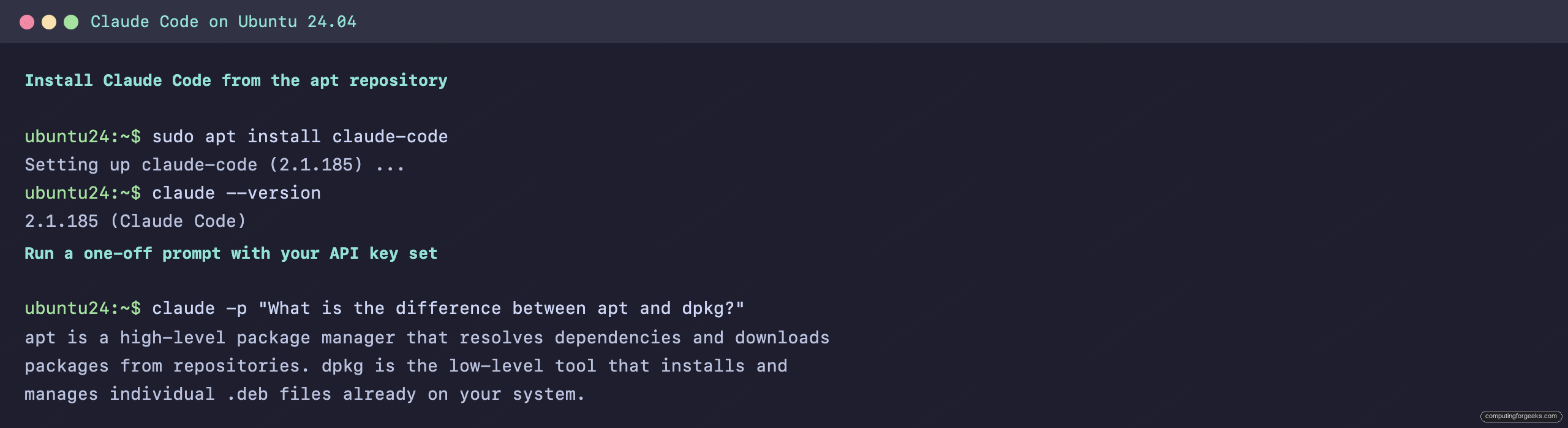
For the longer Ubuntu walkthrough, including the Node and npm options, the dedicated Claude Code install guide goes deeper.
RHEL, Rocky Linux, AlmaLinux, and Fedora (dnf)
This is the part the desktop app cannot do for you officially. Anthropic publishes a signed dnf repository, so the CLI is a first-class citizen on the Red Hat side. Create the repo file:
sudo vim /etc/yum.repos.d/claude-code.repoAdd the repository definition:
[claude-code]
name=Claude Code
baseurl=https://downloads.claude.ai/claude-code/rpm/stable
enabled=1
gpgcheck=1
gpgkey=https://downloads.claude.ai/keys/claude-code.asc
Then install. On the first install dnf downloads the key and shows you the fingerprint before it imports it:
sudo dnf install claude-codeHere it is on Fedora 45, where dnf5 prints the fingerprint without spaces. Check it against the one from the desktop section before you accept:

Rocky Linux 10 pulled the same build from the same repository earlier that day, a 127 MB package. This is the original July run on Rocky, with the key import and version check; AlmaLinux and RHEL use the identical repo file:
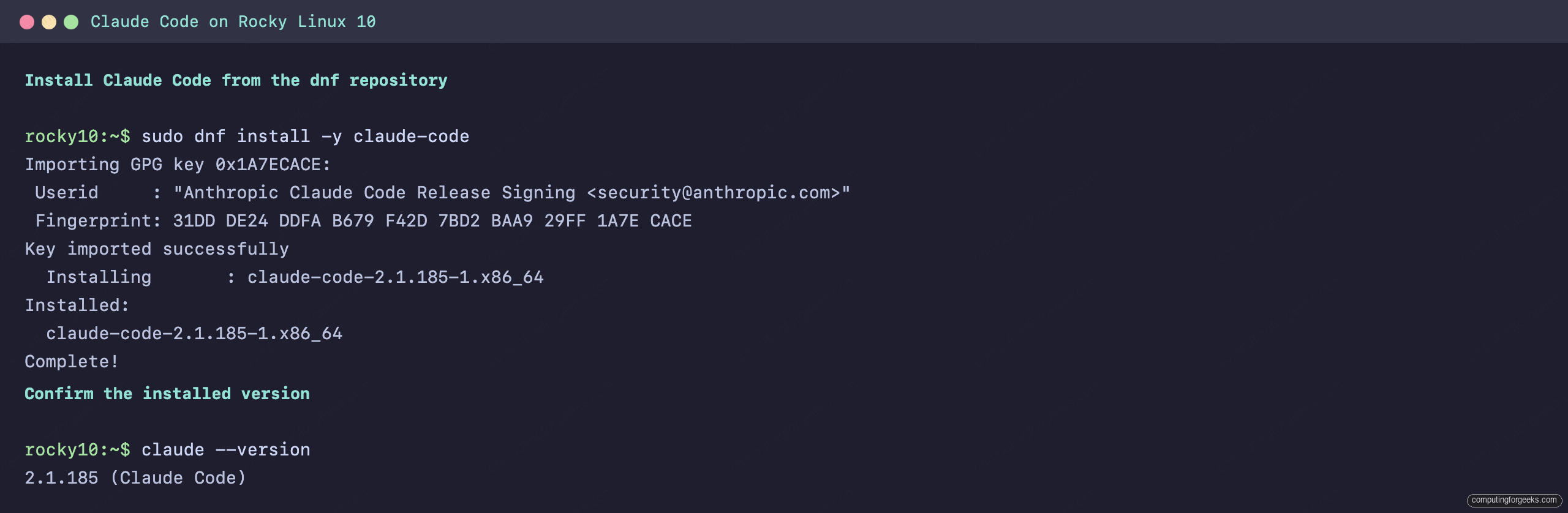
Alpine users get an apk repository instead, and on any distro the package managers do not cover there is a one-line native installer, curl -fsSL https://claude.ai/install.sh | bash, which auto-updates itself. Package-manager installs do not auto-update, so you upgrade them with the system, covered at the end.
Sign in to Claude Code
Authentication is identical on every distro, so do it once after installing. There are two ways in, and most people want the first.
Log in with your Claude subscription (default)
If you already pay for Claude Pro, Max, Ultra, Team, or Enterprise, just start Claude Code and log in with that account. Run it with no arguments inside any project directory:
claudeThe first launch opens a browser to sign in, then drops you back at the prompt. Over SSH or on a headless box where no browser opens, press c to copy the login URL, open it on your laptop, and paste the code back at the Paste code here if prompted prompt. Inside a session you switch accounts any time with /login and /logout. This bills against your plan rather than per token, and it is what most readers want.
Or authenticate with an API key
On a server, in a CI pipeline, or when you want Console per-token billing, skip the browser and hand Claude Code a key from the Console instead. Export it and run a one-off prompt to confirm it works:
export ANTHROPIC_API_KEY="your-anthropic-api-key"
claude -p "In one short sentence, what does the chmod +x command do?"
The headless -p flag uses the key directly and prints the answer, which is the proof that authentication worked:

A couple of behaviours are worth knowing. In an interactive session Claude Code asks once whether to use the detected key and remembers your choice. If you have both a subscription login and ANTHROPIC_API_KEY set, the API key wins after approval, so run unset ANTHROPIC_API_KEY when you want to fall back to your plan. And for long-running CI where no browser is available but you still want subscription billing, claude setup-token mints a one-year token you export as CLAUDE_CODE_OAUTH_TOKEN.
Use Claude Code
With the CLI installed and authenticated, point it at a real task. Working in any project directory is the same regardless of which distro you installed on. This run asks it to write a small program and then runs the result:
claude --permission-mode acceptEdits -p "Create primes.py with is_prime(n) and print every prime below 30"Claude Code writes the file and reports back what it built, then the script runs on its own:

Watch the permission mode here: acceptEdits auto-approves file edits and a short list of file commands such as mkdir, mv and cp inside the working directory, but not other shell commands. Asking it to chmod +x a script shows the split, where the edit applies while the chmod still needs your approval. That is the safety model working as intended, and it is the same diff-then-approve loop the desktop Code tab gives you with buttons. From here the CLI shares everything the GUI uses, including your CLAUDE.md files, MCP servers, subagents, and hooks, and the command cheat sheet covers the day-to-day shortcuts. If you want the CLI to click through GUI apps on Ubuntu instead of only editing files, set up agent-desktop with Claude Code. For web pages, chrome-devtools-mcp is an MCP server that lets you drive the Kitesurf browser engine from Claude Code.
Troubleshooting
Both of these came up in our lab runs this month, on Fedora 45 and Rocky Linux 10.
“An application wants access to the keyring “Login”, but it is locked”
Our Fedora 45 VM logged in automatically, which leaves the Login keyring locked, so the first launch stopped at this prompt:

We clicked Cancel, and the app opened a blank white window and stayed that way. The journal showed Chromium’s secret store giving up on the prompt (Prompt call returned no response). Fedora 45 provides the Secret Service through oo7 rather than gnome-keyring, and doctor had reported the keyring as ok on the same box, so a clean doctor run doesn’t rule this out. Type your login password and click Unlock if you know it. To get past it without the keyring, quit Claude and start it from a terminal with Chromium’s basic password store:
claude-desktop --password-store=basicThat launch went straight to the shortcut dialog and the welcome screen. The flag only applies to that launch: starting Claude from the GNOME menu or search runs the desktop entry without it, and the prompt comes back. The basic store also keeps your session token without the keyring’s protection. The lasting fix is to unlock the keyring, or turn automatic login off so your password unlocks it at sign-in.
libgtk-3.so.0 => not found on Rocky Linux
On a minimal RHEL-family system the app installs fine and then can’t start, because the GTK, X11, ALSA and GBM libraries aren’t there. Count what’s missing with ldd ~/.local/lib/claude-desktop/claude-desktop | grep "not found". On Rocky 10 the six packages from the RHEL section (gtk3 nss alsa-lib mesa-libgbm cups-libs at-spi2-atk) cleared all 16, but a server without a desktop session still has nothing to draw on, so the CLI is the better answer there.
Keep Claude updated, or remove it
The official desktop app does not update itself on Linux. New versions arrive with your normal system upgrades, so sudo apt update && sudo apt upgrade keeps it current, and your graphical software updater will pick it up too. On Fedora the script’s daily timer does that job, as shown earlier. The CLI repositories behave like any other repo: upgrade with sudo apt upgrade claude-code or sudo dnf upgrade claude-code. Each CLI repository offers a stable channel (about a week behind, skipping known-bad releases) and a latest channel that ships every release immediately. The commands above use stable; swap the suite name in the repo file if you want the newest builds first.
Removing any of them is just as clean. Drop the desktop app with sudo apt remove claude-desktop and delete its /etc/apt/sources.list.d/claude-desktop.list entry, or run claude-desktop-rpm uninstall on Fedora. The CLI comes off with sudo apt remove claude-code or sudo dnf remove claude-code plus the matching repo file, and on apt also /etc/apt/keyrings/claude-code.asc. If you’re choosing today, run the official app on Ubuntu or Debian, the community script on a Fedora desktop where you accept that Anthropic won’t help you, and the CLI on every RHEL machine and server.