Overview
App permissions determine when ChatGPT can read information from a connected account or take an action on your behalf.
These settings control how an app is used once access is available. They do not connect accounts, grant provider permissions, change source-system access, or override workspace policies. Account-wide or workspace-wide defaults can be configured before an individual app account is connected.
For account setup and disconnection, see: Connecting and managing app accounts in ChatGPT.
Availability
Available settings depend on your account, the app, the connected account, and your workspace.
Personal accounts may see Permissions after installing a plugin that includes an app. Connection-specific controls can require an eligible connected account. Managed-workspace members may instead see approval prompts governed by workspace policy.
Understand permission options
On the web, you may see these options in Plugins, depending on your account and the app. In Apps, the labels may refer to actions instead of tools.
Always ask: ChatGPT asks before reading app information or making changes.
Allow read-only tools: ChatGPT can read without asking but asks before making changes.
Allow low-risk tools: ChatGPT automatically approves low-risk actions. Higher-risk actions may require confirmation or be denied. This setting applies when no account, workspace, app, or connection policy overrides it.
Allow all tools: ChatGPT can perform supported actions without additional approval prompts. This option carries elevated risk.
For more information about security warnings on sensitive capabilities, see: Elevated Risk labels.
The standard account-wide and workspace-wide permission selectors do not offer Allow all tools. It may be available for an individual app or connected account, and existing workspace policies can differ.
Some menus shorten these labels to Allow read, Allow low-risk, or Allow all.
Note: For trades and actions involving financial transactions initiated during usage of a finance related plugin (e.g. Coinbase) a saved ChatGPT app permission does not replace the provider’s explicit confirmation for each transaction. Allow all tools or Always allow does not grant standing permission for these trades, including through an automated or scheduled task.
Understand action risk
An action may require additional review when it can affect another service, expose sensitive information, or be difficult to undo.
Examples can include:
Sending an email, message, comment, or invitation.
Creating, editing, or deleting a file or record.
Changing account, access, sharing, or security settings.
Making a purchase or other financial transaction.
Sharing sensitive personal, financial, health, or identity information.
Actions are evaluated against the available app capabilities, provider permissions, workspace policies, and safety protections. Some requests may be denied instead of showing an approval prompt.
For financial transactions, review the provider, account, and transaction details before confirming. Confirmation is not a guarantee that a transaction will complete or that it is free of risk.
Set your default permission
For an eligible personal account, use the steps below if Settings shows Plugins.
If Settings shows Apps instead, open Apps to review the permission controls available to your account. The same account-wide selector may not be available.
Open your profile menu and select Settings.
Select Plugins.
Open Permissions.
Choose the default permission you want to use.
The overall setting can appear after you install a plugin that includes an app. Controls for a specific app or account can require an eligible connection, and not every app supports the same settings.
Set a permission for one connected account
On the web, open Settings and select Plugins.
Select the plugin or app, then select Permission.
If Use for all accounts is on, turn it off to choose a permission for just one account.
Under Connected accounts, select the account you want to change. If only one account is connected, you may already see its permissions.
Select a permission. If you see Save, select it.
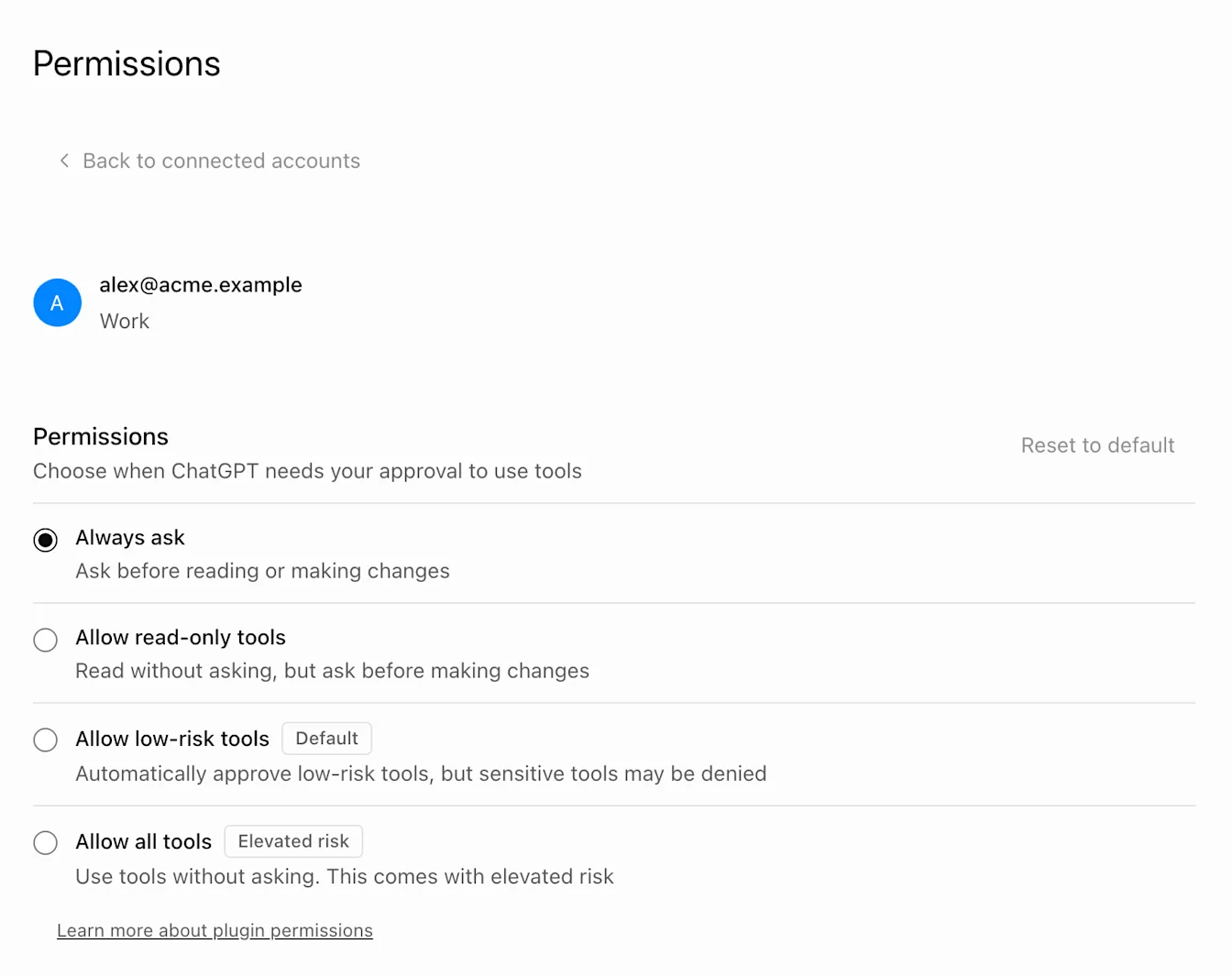
To use the default permission again, select Reset to default. If your settings show Apps instead of Plugins, open the app and look for Permissions. The available controls can vary by app.
Respond to an approval prompt
Before a supported action runs, ChatGPT may show an approval card describing the app and the proposed action.
Depending on the action and your account, the available controls may include:
Deny or Decline: Do not perform the requested action.
Allow or Allow once: Approve the current action.
Allow low-risk actions: Approve the current action and allow future low-risk actions using the same connected account. Higher-risk actions may require confirmation or be denied.
Always allow: When offered for an eligible, explicitly connected personal account, allow supported future actions without repeated prompts.
For the app action approvals described here, Always allow is not offered as a persistent permission to managed-workspace members, for automatically available connections, or for actions that require additional safety review.
Review the app, account, and proposed action before approving a request. A saved approval does not override workspace restrictions, provider permissions, or safety protections. Depending on the product surface, a sensitive action may be denied instead of showing an approval prompt.
For a supported third-party financial transaction, distinguish a ChatGPT action approval from the provider’s transaction confirmation. Check the provider’s result before treating the transaction as complete.
Understand workspace restrictions
In a managed workspace, different settings control different parts of app access:
Plugin installation settings determine whether the plugin is available.
Workspace app settings determine whether the underlying app can be used.
Enterprise and Edu role controls can limit which members can access an app.
Provider authorization determines which external account and permissions are connected.
Action controls determine which app actions are available.
App permissions determine when ChatGPT asks before using an available action.
Business administrators can control whether an app is enabled for the workspace. Enterprise and Edu administrators can also configure role-based access where supported.
Controls that restrict direct app actions do not necessarily restrict information retrieved from synced data. Sync content-selection settings do not necessarily restrict separate live app actions.
Workspace Agents use separate agent-level action-safety settings that remain subject to workspace policies.
For administrator guidance, see: Admin controls, security, and compliance for plugins and apps.
Remove an app's access
Changing an app permission does not disconnect the app or revoke access already granted to a provider account.
To stop future access through an individual account, open Settings, select Apps or Plugins, choose the app, and disconnect the account. The provider may also offer separate account-unlinking controls.
Disabling an app for a workspace can affect other members, dependent plugins, or an administrator-managed index. Review the warning shown before changing workspace-wide access.
App permissions are separate from Memory, personalization, data retention, and model-training controls.
For data handling, see: Connected apps in ChatGPT.
