Overview
The Meetings plugin takes notes for you and saves personalized summaries with action items in ChatGPT Space. You can then use and act on those notes in ChatGPT.
Meetings is available as a plugin in the ChatGPT macOS desktop app. Use Meetings for online calls or in-person conversations, without a bot joining the call.
Availability
Eligible plans
Meetings is available in beta in the ChatGPT desktop app on macOS for all Pro plans and all Business plans. Support for iOS, Android, and Windows is coming soon.
Enterprise availability
Meetings is not generally available for ChatGPT Enterprise yet. We’re testing it with a limited group of Enterprise customers through an alpha program. Contact your account manager to ask about participating in the alpha.
Getting started
Set up Meetings
Open the ChatGPT desktop app on your Mac.
Open Plugins in the sidebar.
Find Meetings and install it.
Open Meetings in the sidebar and go through the onboarding flow.
When prompted, allow access to your microphone and system audio.
Connect a calendar for meeting reminders
No. You can start taking notes manually without connecting a calendar. To receive meeting reminders and see upcoming meetings, connect your calendar using the Google Calendar or Outlook Calendar plugin.
Taking meeting notes
Get consent before taking notes
Tell everyone in the meeting that you’ll be taking notes from the meeting and get everyone’s consent before you start. The consent reminder in your app is visible to you. It does not notify other participants or obtain their consent for you.
Take notes for a meeting
Open Meetings in the ChatGPT app.
Select Take notes to start taking notes from the meeting. Before you start, make sure all participants have consented.
Add your own notes to the meeting page to capture personal thoughts, questions, or extra context.
Stop taking notes when you’re finished.
Meetings uses the transcript, your notes, and relevant context from connected apps you’ve authorized to add a personalized summary and suggested action items to the same page. Your own notes are preserved alongside them.
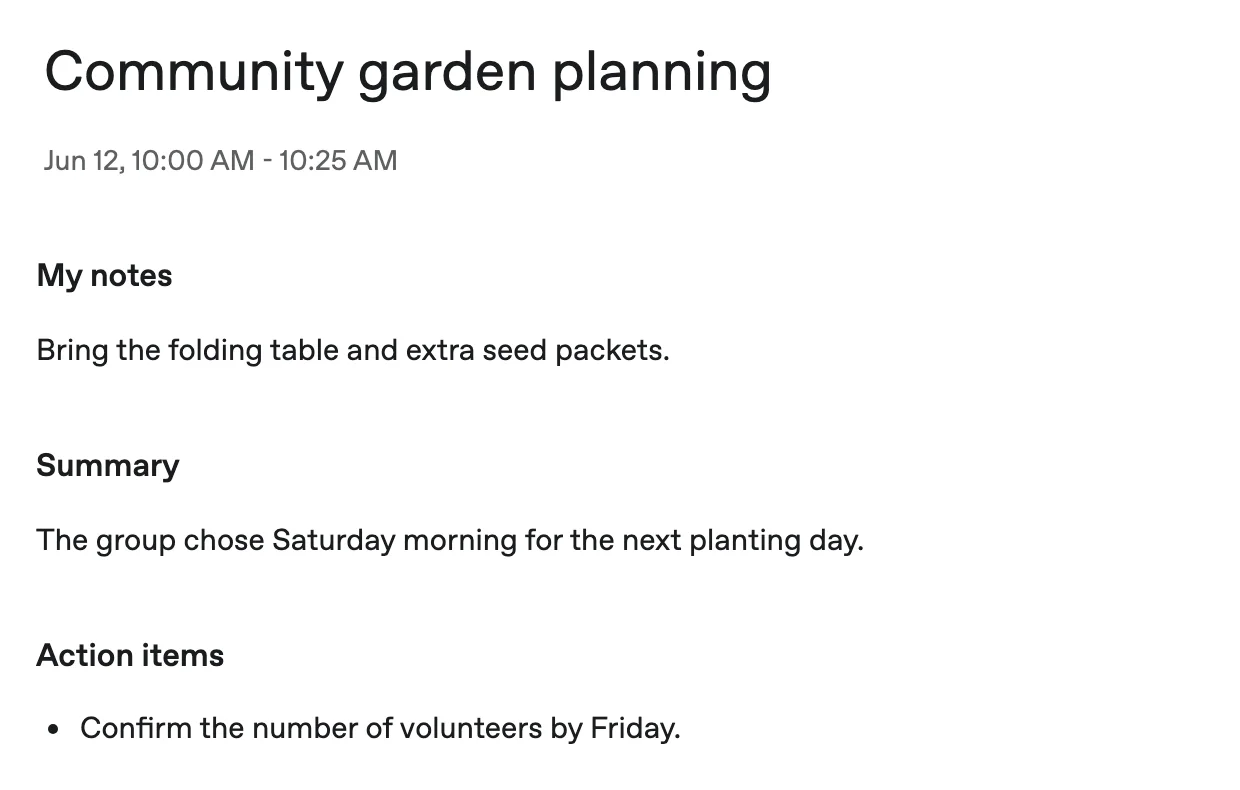
You can share the page with others or review and start suggested action items to have ChatGPT work on them.
Working with meeting notes
Find your meeting notes
Open Meetings in the sidebar or open a meeting page in ChatGPT Space. Review important details before relying on the notes or sharing them.
You can also ask ChatGPT a question about the meeting. For example:
“What was discussed in our team’s sync today?”
“When did I agree to schedule the follow-up with John in our last meeting?”
Understand summaries and action items
Meetings uses ChatGPT Work and relevant context from your connected apps to enrich your meeting summaries and suggest follow-up action items, such as drafting an email or updating a project plan.
On your meeting page, you can review and edit each suggested action item, then start it with one click to have ChatGPT work on it.
Privacy and data
Meeting note access
Pages created for your meeting notes are private by default. You choose whether to share them. When you share a meeting page, the people you share it with can access the notes, but not the transcript.
Audio processing
Meetings uses microphone and system audio from your Mac and streams it to OpenAI to generate meeting notes. Once your notes are ready, the audio is deleted from your Mac and OpenAI’s servers and can’t be replayed.
If you’re offline or processing is incomplete, audio may remain temporarily on your Mac while it waits to upload or finish processing.
Troubleshooting
Meetings is unavailable
Check that:
You’re using the ChatGPT desktop app on macOS.
You’re signed in to an account and workspace with an eligible plan.
You’ve installed Meetings from Plugins.
If you’re on a Business plan, ChatGPT Space and the Meetings plugin are enabled for your workspace. If either is disabled, contact your workspace administrator.
Meetings is separate from the Record feature in the older ChatGPT desktop app.
Missing transcript content
Meetings needs access to both your microphone and system audio:
Microphone: provides audio of your voice and people speaking near your Mac.
System audio: provides audio playing on your Mac, including other participants in an online meeting.
Check that both permissions are enabled. If your voice is missing, also check that the microphone you intend to use is connected and working.
Understand reminders and automatic stopping
Meetings can remind you to start or stop taking notes:
Upcoming meetings: If you’ve connected your calendar and enabled meeting reminders, you’ll receive reminders for upcoming meetings.
Detected meetings: Meetings can detect when you’re in a call and offer to take notes, even if the meeting isn’t on your calendar.
Reminders to stop: If no audio is detected for a few minutes, Meetings reminds you to stop taking notes if your meeting has ended.
Meetings also stops taking notes automatically when you close your laptop lid, when no audio is detected for an extended period, or when a session reaches four hours. You can stop taking notes manually at any time.
Missing meeting reminders
Check that you’ve connected your calendar and meeting reminders are enabled in your settings. You can always open Meetings and start taking notes manually.
Delayed meeting notes
Meetings creates notes after your audio has uploaded and finished processing. This process may take a few minutes after you stop taking notes.
If your Mac was offline during the meeting, check your internet connection so the audio can upload. Audio may remain on your Mac while it waits to upload or finish processing.
