Overview
By default, ChatGPT uses your browser or device language if it’s supported. You can choose a different language for menus and controls in Settings.
If you want ChatGPT to reply in another language, you can ask in the chat without changing this setting.
Choose a language for menus and controls
Follow the steps for your device when you’re signed in. If you’re signed out on the web and Settings appears in the sidebar, go to Settings > General. Select your language from the Language menu.
On the web
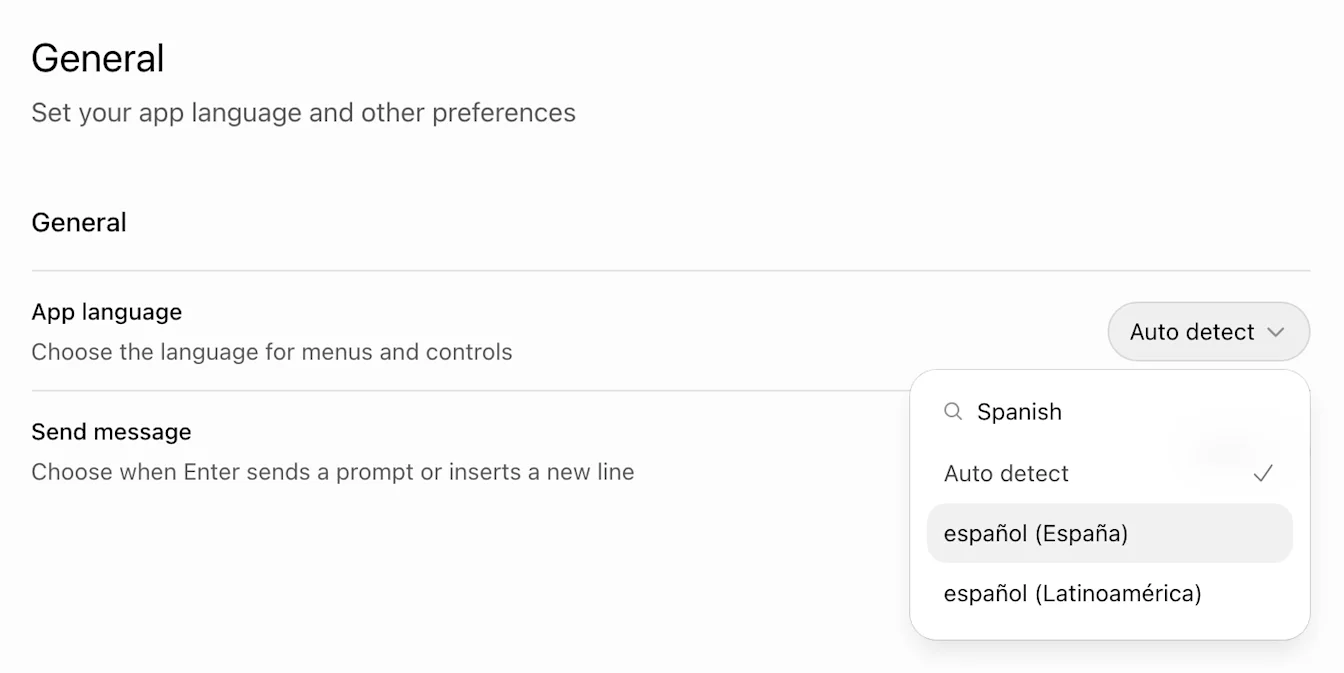
Open your profile menu and go to Settings > General.
Open the App language menu.
Select your language. You can search for it by name.
To use your browser’s language again, select Auto detect in the App language menu.
In the mobile app
If you see the Home tab, select it. Then open the sidebar.
Select your profile icon to open Settings, then go to General > App language.
On Android, select your language in ChatGPT.
On iPhone or iPad, ChatGPT opens its settings on your device. Select your language there.
Check which language Chrome uses
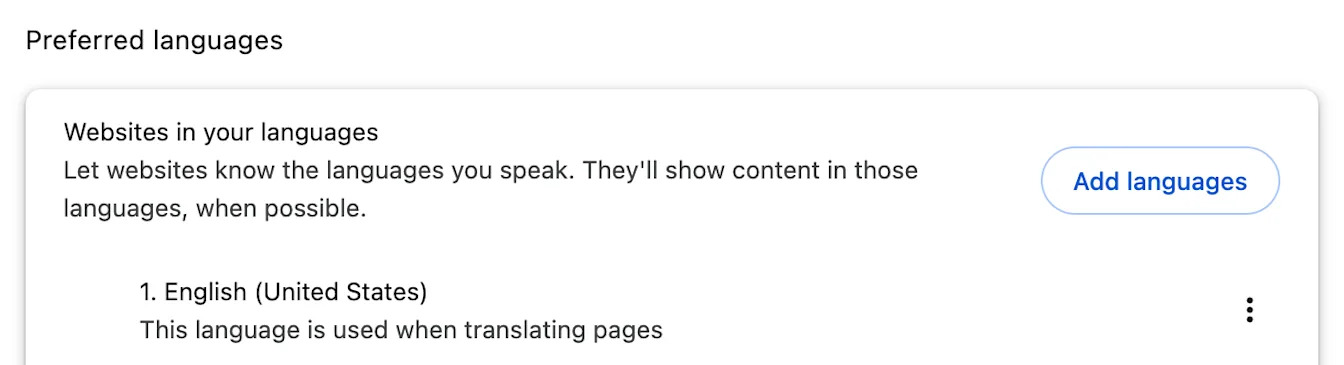
In Chrome on your computer, open the more options menu (•••) and go to Settings > Languages. You can also enter chrome://settings/languages in the address bar.
Languages available for menus and controls
Available languages vary by platform. Some languages have regional options.
Albanian
Amharic
Arabic
Armenian
Bengali
Bosnian
Bulgarian
Burmese
Catalan
Chinese
Croatian
Czech
Danish
Dutch
English
Estonian
Filipino (Tagalog)
Finnish
French
Georgian
German
Greek
Gujarati
Hindi
Hungarian
Icelandic
Indonesian
Italian
Japanese
Kannada
Kazakh
Korean
Latvian
Lithuanian
Macedonian
Malay
Malayalam
Marathi
Mongolian
Norwegian
Persian
Polish
Portuguese
Punjabi
Romanian
Russian
Serbian
Slovak
Slovenian
Somali
Spanish
Swahili
Swedish
Tamil
Telugu
Thai
Turkish
Ukrainian
Urdu
Vietnamese
