
## Intro
SQL Spreads is a data management solution where a Designer creates database connected Excel documents: SQL Spreads documents. The SQL Spreads documents can then be shared with non-technical users (Data Editors) who are responsible for the data and can use the SQL Spreads documents to manage your database data through Excel.
This part of the knowledgebase will go through how you create and setup SQL Spreads Excel documents to maintain data in SQL Server, PostgreSQL, Snowflake, Fabric and Databricks.
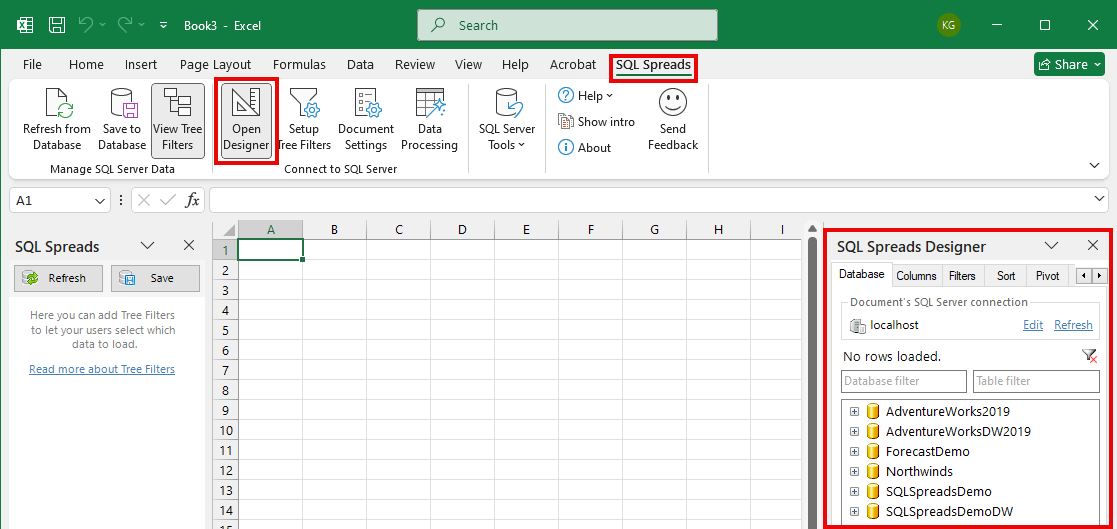
SQL Spreads documents are created using the SQL Spreads Designer that is shown on the right-side of Excel. Click the Open Designer button in the SQL Spreads tab in Excel to open the SQL Spreads Designer:
Video - Create your first SQL Spreads document

Working with multiple tables, databases and SQL Servers
- You can connect several database tables (from the same or different databases) to a SQL Spreads document by adding them into separate sheets in the Excel document.
- One SQL Spreads document connects to one database instance. If you have several SQL Servers, you will have to create one SQL Spreads document per SQL Server.
All settings are stored in the document
When you create a new SQL Spreads document, all the configurations that you do in the SQL Spreads Designer are stored within the Excel file. So you can easily share your new solution by just sending the file to other users. All users will need to have the SQL Spreads Add-In installed with a valid license.
The Data Editor role
To let business users manage SQL Server data without changing the setup, they use SQL Spreads in the Data Editor role, where the Designer and all configuration options are locked. See The Designer and Data Editor roles for what the Designer controls.
A Data Editor can only work with data in SQL Spreads documents created by a Designer.
The Data Editor mode/role is controlled by the license key. You will need to purchase a separate Data Editor license for each of your end users that need to make changes to your SQL Spreads documents that your Designer has created.
Additional Data Editor licenses can be purchased through the pricing page.
