1. Overview
In this tutorial, we’ll learn how to change the JDK version in IntelliJ projects. This will work on both Community and Ultimate Editions of IntelliJ. Developers might change the JDK version to use new features or meet specific project requirements.
2. Project Structure Settings
IntelliJ stores the JDK version used by the project within its Project Structure. There are two ways to locate this:
- Via menu navigation:
- Navigating to File -> Project Structure
- Via keyboard shortcut:
- For macOS, we press ⌘ + ;
- For Windows, we press Ctrl + Shift + Alt + S
These are the default settings, but we need to make sure that these shortcuts match our operating system settings if needed.
If everything works well, we’ll see a popup dialog appear that looks similar to this:

Under the Project SDK section, we’ll be able to select a new JDK to use for the project via the combo box, and all installed SDKs will be shown as Detected SDKs:

After updating to a new version of Java, the project will begin reindexing its source files and libraries to ensure that autocompletion and other IDE features are synchronized. Please note that reindexing might temporarily slow down the IDE as it updates the project files.
Another option is to download the JDK directly via IntelliJ:

This will allow us to install and index the JDK version properly, not only for this project but also for future ones. Please remember that if we want the change to be permanent, we can set a global default JDK for all projects in IntelliJ through the IDE settings.
To do that, we should click “New Projects Setup” on the Welcome screen and then select “Structure for New Projects“. If a project is already open, we choose File → New Projects Setup → Structure that will lead us to:

3. Setting the Language Level
We should note that Language level is an important configuration setting in IntelliJ. When we don’t manually configure the target bytecode version for the compiler, which is typically done at Settings → Build, Execution, Deployment → Compiler → Java Compiler, the target bytecode version will be the same as the project Language level setting. Further, the Language level defines coding assistance features that we can use in the editor.
We should set the Language level to be the same or lower than the project SDK. If we don’t do this, we may get an error or warning message similar to: Java: Invalid Source Release: 17.
To demonstrate, let’s set the Java SDK version as 17 along with the Language level as 21:
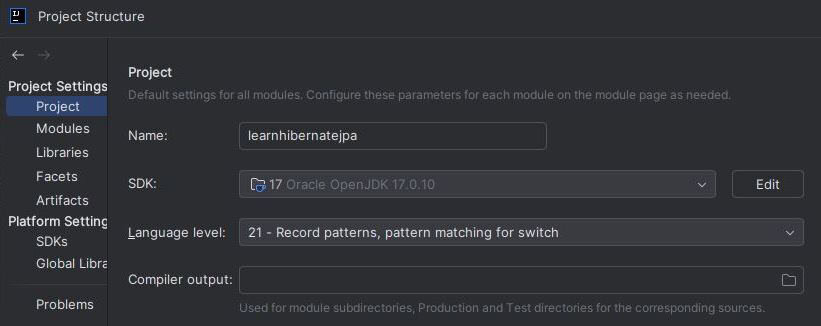
When we build or compile the project, we’ll get an error or warning message similar to:

To fix this message, we should set the SDK to be the same or higher than the Language level. Alternatively, we can change the Language level to be the same or lower than the SDK. For the example in the discussion, let’s increase the SDK to 21:
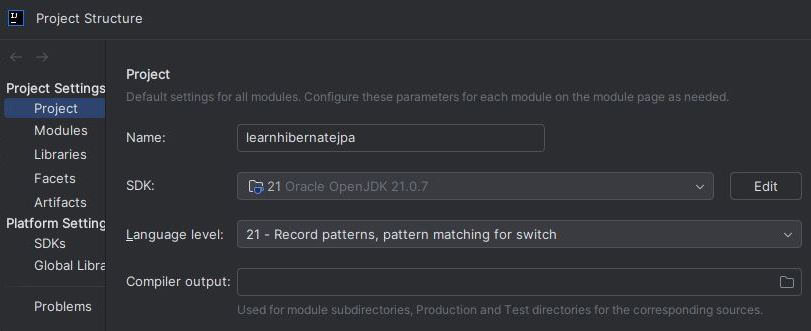
Now, when we rebuild or recompile the project, we won’t get that error or warning message regarding the source release. If needed, we can configure the language level for each module individually.
4. Common Gotchas
When changing the JDK, this only affects the JDK used by IntelliJ. Therefore, when running the Java project via the command line, it will still use the JDK specified in the JAVA_HOME environment variable.
Additionally, changing the Project SDK doesn’t change the JVM version of the build tools. So when using Maven or Gradle within IntelliJ, changing the Project SDK won’t change the JVM used for these build tools.
5. Conclusion
In this article, we illustrated two ways to change the Java version used within IntelliJ projects. We also highlighted the caveats we must be aware of when changing the Java version.
To learn more about IntelliJ’s Project Structure, visit the official documentation.


