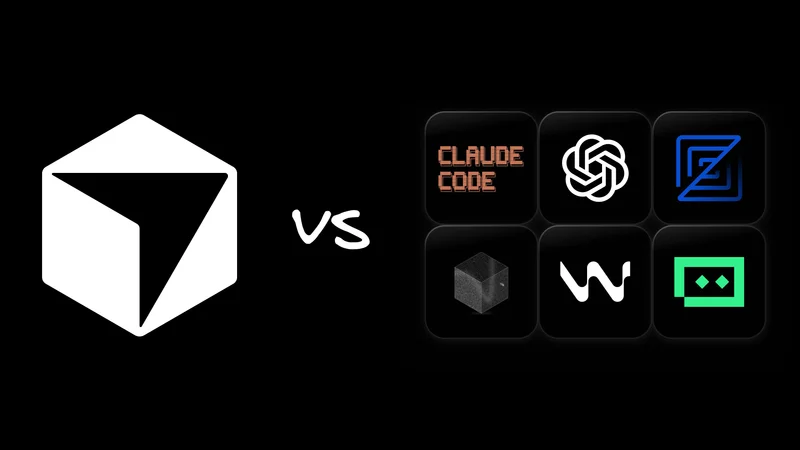
Cursor changed how we write code, transforming from a VS Code fork into the default editor for AI-native development. But in 2026, the landscape has shifted. It is no longer the only game in town.
Developers are moving past the novelty phase. We don't just want a chatbot that can read code; we want an agent that can ship it.
This isn't a "ditch Cursor" hit piece—Cursor is excellent. But for many teams, specialized alternatives now handle specific workflows (like terminal automation, design systems, or enterprise specs) better.
Here is the state of agentic IDEs in 2026, comparing Cursor to its strongest contenders.
What is Cursor (in 2026)?

Cursor is an AI-powered IDE built on top of VS Code. It adds a "Composer" agent for multi‑file edits, deep repo indexing, and inline chat that can read and modify your entire codebase. For many developers, Cursor has become the default way to work with large language models (LLMs) inside their editor.
Benefits of Cursor
Cursor is still the gold standard for "VS Code with a brain." Its superpower remains its context engine—the ability to index your entire repo and answer vague questions like "where is the auth logic handling token refresh?" accurately.
The "Composer" has matured into a reliable way to execute multi-file edits, and because it’s a VS Code fork, you don't have to relearn your keybindings or abandon your favorite extensions. If you want to tune that setup further, we put together a separate guide on the best VS Code extensions for 2026.
Downsides to Cursor
However, a few cracks have appeared as the tool and its user base have scaled.
- Performance: Indexing massive monorepos still chews up RAM, and on lower-powered laptops, the Electron overhead is real.
- Cost complexity: The "Ultra" tiers for teams have become a significant line item, and many engineering managers are questioning if every junior dev needs a $40/mo seat just for autocomplete.
- Workflow lock-in: Cursor enforces a "chat-sidebar + inline-diff" workflow. If you prefer staying in the terminal or need a visual canvas, Cursor fights you—it wants to be the center of your universe.
So if Cursor is the baseline, here is how the alternatives carve out their own niches. If you want a deeper look into Cursor itself (including setup tips and power‑user tricks), we've got you covered.
How to choose: A selection framework
Don't just pick the tool with the coolest demo video. When evaluating these alternatives, look at four specific axes:
- Local vs. cloud vs. hybrid: Does the agent run on your machine (privacy, offline capable), in a cloud sandbox (infinite compute), or a hybrid of both?
- Agentic depth: Is it just fancy autocomplete, a chatbot that can read files, or a true agent that can run terminal commands, create files, and fix its own lint errors?
- Ecosystem: Will you lose your VS Code extensions? Does it support your specific language server (LSP)?
- Team readiness: Can you share context and indexes with your team, or is every developer an island?
If you're still figuring out how to talk to these tools effectively, we also collected 50+ practical prompts for web developers that you can reuse across Cursor, Claude Code, Codex, and Fusion.
The "jump to" checklist
If you already know what matters most to you, here’s where to look:
- “I live in the terminal and hate GUIs” → Look at Claude Code.
- “I want to design and code simultaneously” → Look at Fusion.
- “I want a high-performance local editor (no Electron bloat)” → Check out Zed.
- “We want Cursor-ish UX, but with a different roadmap/pricing” → See Windsurf or Trae AI.
- “I want open-source privacy (no sending code to cloud)” → Check out Void.
- “We're all-in on Google Cloud / Firebase” → Explore Firebase Studio & Antigravity.
- “We need spec-driven, auditable enterprise workflows” → Read about Kiro.
Claude Code: For terminal nerds

If your IDE wasn't an app, but a CLI command, it would look like Claude Code. It started life as a terminal‑first agent, but today it also ships with a native VS Code extension, so you can use it either as a CLI that drives your editor or as a full GUI inside VS Code.
It’s built on the Claude models that power many of the best AI dev tools, but wrapped in a workflow that feels closer to git than to VS Code’s traditional “chat sidebar.”
With the VS Code extension, you get a dedicated Claude Code panel, inline diffs, plan mode, and conversation history right in the editor. For a lot of devs, the combo is effectively “VS Code + Claude Code” rather than a separate AI IDE.
Claude Code vs. Cursor
Claude Code excels at what you might call “agentic Git automation.” You can tell it: “Clone the analytics repo, find how the User event is defined, and update the tracking schema in this current repo to match it.” It will cd around, grep for answers, edit files, run tests, and even stage the commit. You just watch the stdout log (or, in the extension, review its plan and diffs).
Where Cursor feels like “VS Code with a built‑in agent,” Claude Code feels more like “an autonomous teammate that happens to live in your terminal and IDE.” Cursor keeps you in a more traditional editor model (files, tabs, and inline suggestions), while Claude Code is optimized for high‑level tasks that touch many files, branches, and repos.
We’ve written up a whole bunch of power user tips for Claude Code.
Who should pick Claude Code
- Ops & backend teams: If your work involves hopping between five different microservices and updating config files, a CLI agent is often faster than opening five IDE windows.
- Terminal‑native engineers: If you already live in tmux,
fzf, and giton the command line, Claude Code feels like a natural extension of that workflow. You can still pop into the VS Code GUI to inspect diffs and navigate files as needed. - Teams standardizing on VS Code: If your org is “all‑in on VS Code,” the official extension makes it feel less like adopting a new IDE and more like bolting a powerful agent onto the editor you already use.
Tradeoffs of Claude Code
You lose some of Cursor’s “always‑visible diff view” polish if you stick purely to the terminal. Reviewing changes there is harder than seeing a side‑by‑side diff in a GUI, but the VS Code extension closes much of that gap.
It also requires a mindset shift. You’re not just asking for autocomplete; you’re letting an agent drive your terminal and editor. You have to be comfortable delegating big, repo‑wide tasks and then reviewing its work after the fact. Until you trust it (and tune your safeguards), that can feel riskier than Cursor’s more incremental, inline suggestions.
Fusion: A visual IDE
Fusion is a visual-first agentic IDE built for frontend development and design systems. Instead of starting from a text editor, you work on a live canvas that understands your components, tokens, and layout rules, and writes production‑ready code back to your repo.
Fusion vs. Cursor
Fusion doesn’t try to be a general‑purpose editor. It sits on top of your existing stack—GitHub, Jira, Figma, Slack—and treats your UI as something you can see and manipulate:
- Click a component in the preview and ask the agent to “change the padding to match
spacing.md.” - Paste in a Jira ticket or tag
@Builder.ioin Slack and let Fusion spin up a branch, implement the feature, and iterate on feedback. - Import a Figma frame and have Fusion map it onto your real components, design tokens, and APIs.
Fusion 1.0 goes beyond being a “nice visual layer” for frontend devs. It’s an AI agent that speaks product, design, and code, keeps everything anchored to one Git repo, and keeps shipping until the PR is green.
Where Cursor is an AI‑native editor you live in all day, Fusion is the AI agent and visual IDE for the product surface of your app.
Who should pick Fusion
- Frontend devs & designers: If you spend half your time tweaking CSS or React props, Fusion’s canvas is far better than a text‑only chat window. It shines for visual regression fixes and understanding complex state or layout that’s invisible in a code tab.
- “No‑handoff” teams: As PMs, designers, and engineers all touch the same repo, Fusion lets them work together on the actual product instead of passing specs around. With MCP integrations (for example, the Supabase MCP server), it can pull live data or tickets (Linear/Jira) and generate code that actually compiles.
- Design‑system‑heavy orgs: Fusion is both text‑to‑code and visual‑to‑code. It understands that a “button” is more than just a JSX snippet. It’s a rendered component that must match Figma and your design system.
Tradeoffs of Fusion
Fusion isn’t meant to be your all‑purpose editor. You won’t write your Rust backend or wrangle Docker configs in it. It’s optimized for frontend and product workflows.
It’s designed to work alongside your IDE as a VS Code extension or desktop app, not replace it.
Windsurf: Cursor’s closest cousin

Windsurf, powered by the "Cascade" agent, is the Cursor look‑alike with a different brain and roadmap. It lives in the same VS Code family, but leans harder into agents that observe your workflow and suggest changes as you work.
Windsurf vs. Cursor
While the UI is similar, the philosophy differs slightly. Windsurf’s agent "watches" your actions more passively. It pays attention to what commands you run in the terminal and what files you open, building context without you explicitly tagging files as often. It attempts to "flow" with you rather than waiting for a "generate" command. The feeling is less like "stopping to ask a chatbot" and more like having a pair programmer who is silently reading your mind.
Its roadmap is also tied to Cognition (the makers of Devin). This implies a future where the IDE might offload massive tasks to a fully autonomous background agent ("Devin") while you keep working on the frontend.
Who should pick Windsurf
- The "Cursor curious": If you like the Cursor workflow but are unhappy with their specific pricing model, model choices, or UI quirks, Windsurf is the most painless switch. It’s familiar, but with a different flavor of AI integration.
Tradeoffs of Windsurf
The product focus has shifted a few times, and with the "Devin" integration looming, it’s unclear if Windsurf will remain a standalone IDE or become just a "cockpit" for a cloud agent.
Void: Open source AI coding
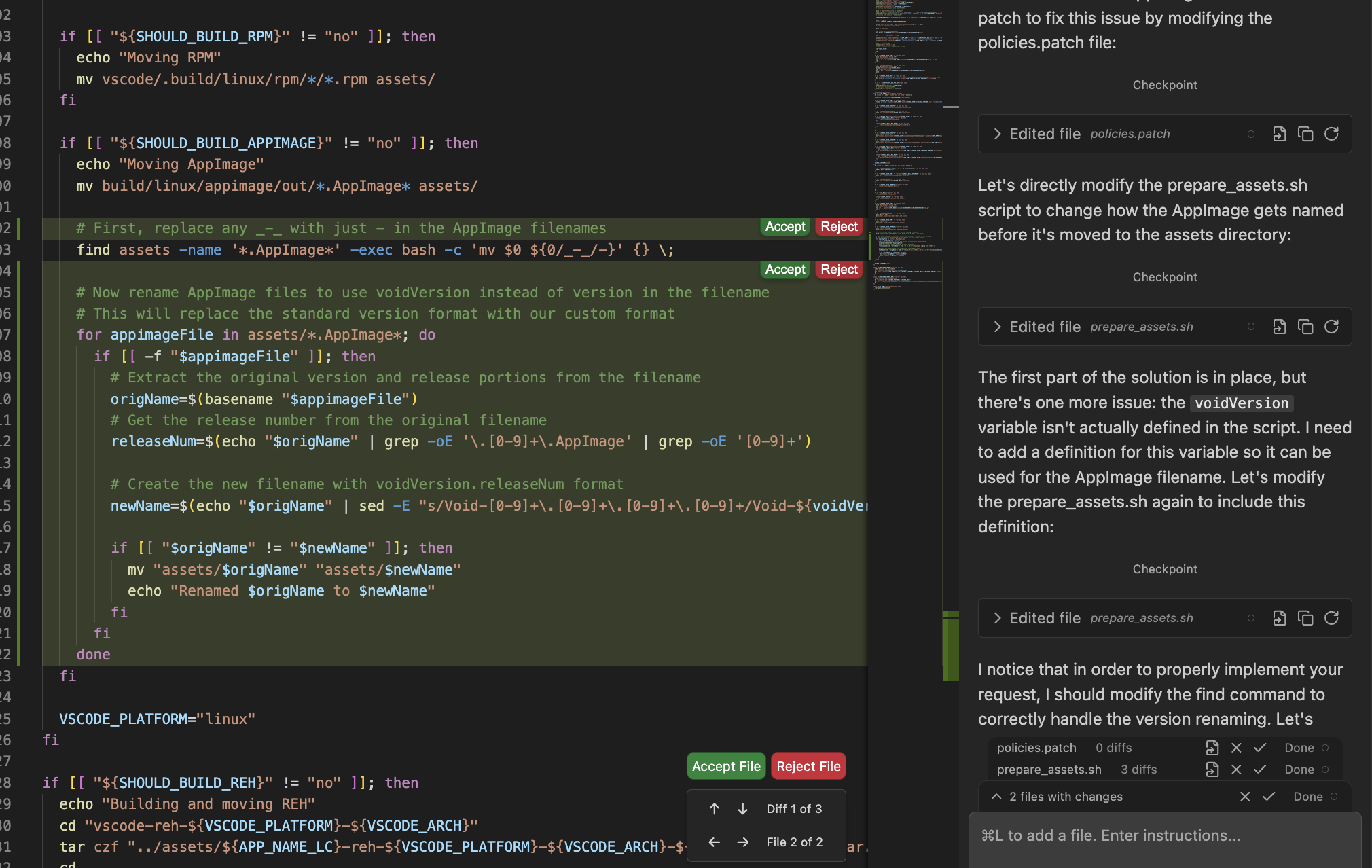
"What if Cursor, but you actually owned it?" Void is an open‑source fork of VS Code that aims to match Cursor’s feature set without the closed‑source lock‑in or hosted‑only assumptions.
Void vs. Cursor
Cursor is a black box; you send code to their servers (mostly), and you pay them a subscription. Void runs entirely locally or connects to your own API keys (Anthropic, OpenAI, Gemini). It gives you the same "inline diff" and "chat with repo" experience, but you control the plumbing.
Who should pick Void
- Privacy absolutists: If your legal team blocked Cursor because "we can't send IP to a startup," Void is your loophole. You can point it at a local LLM or a private enterprise instance.
- Open source zealots: If you fundamentally mistrust closed-source dev tools, Void aligns with your values.
Tradeoffs of Void
It's community-driven. You won't get the polished "User Experience" team of a VC-backed unicorn. Features might break, and the "polish" will always lag slightly behind the paid product.
Trae AI: A free(?) challenger

Trae is a fully free, ByteDance‑backed alternative that aims to match Cursor’s speed and polish. It aggressively targets price‑sensitive developers with a free tier that feels very close to Cursor’s paid experience.
Trae AI vs. Cursor
Trae copies Cursor’s UX almost pixel-for-pixel but removes the paywall (for now). It brings the speed and polish of a VC-backed tool but uses its "Free" status as a wedge to capture the market. Unlike Cursor’s sometimes opaque pricing, Trae is transparently using loss-leading tactics to gain adoption.
Who should pick Trae AI
- Students & Indie Devs: If $20/month is a dealbreaker, Trae offers a surprisingly capable free tier that handles small-to-medium repos well. It’s fast, familiar (VS Code fork), and currently subsidized by deep pockets.
Tradeoffs of Trae AI
The "Free" price tag comes with an asterisk. Trae is owned by ByteDance, and privacy-conscious developers have raised concerns about telemetry and data collection.
If you are working on sensitive IP or in a regulated industry, "free" might actually cost you your data sovereignty. Read the privacy policy carefully before cloning your company's monorepo.
Zed: Speed first, AI second

"What if your editor ran at the speed of a video game?" Zed is a high‑performance, native editor (written in Rust, GPU‑accelerated) with AI layered on top rather than bolted on as an afterthought.
Zed vs. Cursor
It is not based on VS Code. This is its greatest strength and weakness.
- Strength: It is blazing fast. Opening files is instant. Typing latency is non-existent. It makes Electron-based editors feel sluggish.
- Weakness: You don't get the massive VS Code extension marketplace (though Zed has its own growing one).
Zed’s approach to AI is less "batteries included" and more "bring your own juice." It supports inline generation and chat, but it feels more like a power-user tool where you wire up the models you want. You can easily plug in a local Llama 4 or Mistral model, keeping your code entirely on your machine. This is something Cursor makes difficult. It also shines in multiplayer: multiple developers can edit the same file in real-time (like Google Docs), which is a game-changer for remote pair programming.
Who should pick Zed
- Performance maximalists: If you rage-quit whenever your editor lags, Zed is your sanctuary.
- Pair programming teams: The built-in collaboration features are best-in-class.
Tradeoffs of Zed
The agentic workflows are less mature than Cursor’s. You might find yourself missing the "Apply to file" polish of Cursor’s Composer for a while longer.
OpenAI Codex: A cloud workspace

OpenAI’s Codex is a cloud‑native dev environment where the “IDE” is really a window into a remote agent. You give it a goal, and it spins up sandboxes, runs builds, and executes risky commands in the cloud instead of on your laptop.
There’s also a Codex CLI (npm i -g @openai/codex) that runs in your terminal. It can read, edit, and run code in your repo with an interactive UI and slash commands like /model, /review, /approvals, and AGENTS.md‑based instructions. From the CLI you can still launch Codex Cloud tasks and apply the resulting diffs locally.
If you also care about how it stacks up against Claude Code specifically, we've broken that down in detail.
Codex vs. Cursor
Cursor is local: a smart editor on your laptop where you open files, ask for changes, and accept diffs.
Codex is cloud‑first: it spins up sandboxed environments, runs builds and tests in the cloud, and streams the results back, which suits big repos and risky operations.
Cursor feels file‑centric; Codex is task‑centric. You describe an outcome, and Codex orchestrates tools and environments to get there. The Codex CLI gives you a terminal touchpoint, but the center of gravity remains the cloud agent, not a local editor window.
Who should pick Codex
- Teams needing “infinite” compute: If your laptop fans spin up just opening the monorepo, being able to offload builds and experiments to Codex Cloud is a relief.
- Python / data‑heavy workflows: The Jupyter‑style, environment‑oriented model fits data work and ML pipelines well.
- Teams standardizing on OpenAI: If you’re already all‑in on ChatGPT, Copilot‑style tools, and OpenAI infra, Codex gives you a first‑party agent that ties the stack together.
Tradeoffs of Codex
You are effectively renting your dev environment. If the internet goes down or OpenAI changes pricing, Codex is offline.
It also feels less “yours” than a local editor you’ve spent years customizing. And while there is a local CLI, the real power is in the cloud sandbox; if you want a deeply local, editor‑centric workflow, Cursor, Claude Code, or Zed will feel more natural.
Kiro: An enterprise specialist

Kiro is an “AI IDE for adults”: an agentic IDE + CLI from AWS that starts every feature with a spec, not a chat.
Instead of vibe‑coding straight into the codebase, you describe what you want and Kiro turns it into structured requirements, a design doc, and a sequenced task plan that agents can implement and keep in sync with your repo.
It’s built for teams that care about traceability, governance, and getting production‑grade systems out of AI—not just quick prototypes.
Kiro vs. Cursor
Kiro and Cursor start from opposite ends of the spectrum.
Cursor is conversational: you open files, describe what you want, and its agent edits inline as you go. Kiro is structured and spec‑first. You feed it a PRD, a high‑level prompt, or an existing system, and it generates requirements, design docs, and a task plan that agents execute against under strict guardrails—often with hooks and policies enforcing tests, docs, and security checks on every save.
Cursor optimizes for fast iteration inside a familiar editor; Kiro optimizes for teams that need every change to be justified, reproducible, and easy to audit months later.
Who should pick Kiro
- Large enterprises: If your CTO asks "where does the code go?" and "who authorized this change?", Kiro has the audit trails you need.
- Architects: It allows for "Spec-First Development." You write the requirements, Kiro writes the boilerplate.
Tradeoffs of Kiro
Kiro kills the “vibe coding” momentum. It demands you be an architect before you can be a coder.
If you just want to hack together a quick script or experiment with a new library, Kiro’s insistence on Specs, EARS notation, and "implementation plans" feels like filling out tax forms.
It’s powerful for complex systems, but suffocating for creative prototyping.
Google’s Cloud IDEs: Firebase Studio & Antigravity
Google’s own cloud IDEs sit at the intersection of Gemini and the GCP stack. If you already build on Firebase or Google Cloud, these tools promise an agent‑first workflow that stays close to your infra.
Firebase Studio: Browser-only, Firebase-native

Firebase Studio is an entirely web‑based workspace for full‑stack apps on Firebase. You open a browser, import a repo from GitHub/GitLab/Bitbucket (or local), and you’re building in minutes—no local setup. An App Prototyping agent can even scaffold a new app from natural‑language prompts, mockups, or screenshots, with Nix under the hood if you want a custom environment.
Because it’s Firebase‑native, the AI already knows data shape. Gemini in Firebase reads your rules, schema, and backend to help with coding, debugging, and tests, with Open VSX extensions, built‑in previews/emulators, and one‑click deploys to Firebase or Cloud Run.
If your stack is “Firestore, Functions, Hosting, Cloud Run,” Firebase Studio is the most opinionated, batteries‑included way to work with an AI‑aware IDE.
Antigravity: Agent-first Gemini IDE

Google Antigravity is Gemini’s agent‑first desktop IDE—a VS‑Code‑style editor with a second “mission control” view for agents. You get two faces:
- Editor view: Familiar VS Code‑like interface with files, terminal, and a chat panel.
- Agent Manager view: A dashboard where you spin up tasks, see plans and artifacts, and orchestrate multiple agents across workspaces in parallel.
Agents have direct access to the editor, terminal, and a browser via a Chrome extension. In Planning mode they generate Artifacts like task lists and implementation plans that you can review before execution, while Fast mode skips planning for quick edits.
The killer feature is the browser agent: Like Fusion, Antigravity can run and test your app in Chrome on its own—clicking through flows, filling forms, recording video, and feeding those results back into the plan. On top of that, you get multi‑agent orchestration, rules and allowlists/denylists, and the ability to swap between Gemini 3 Pro, Claude Sonnet 4.5, or other supported models.
Google Cloud IDEs vs. Cursor
Cursor is still the best fit if you want a single, local, file‑centric editor with a very polished inline UX. Google’s tools lean into a different thesis:
- Firebase Studio is ideal if you’re deep in the Firebase ecosystem and want a browser‑only IDE where Gemini already understands your database, auth rules, and hosting targets.
- Antigravity is for teams that want agents as first‑class citizens—a mission‑control view, artifact‑based planning, and full browser automation on top of their existing repos.
If your repo lives on GCP and you like the idea of agents that can plan, execute, and verify work across editor, terminal, and browser, Antigravity and Firebase Studio are the most “Google‑native” alternatives to Cursor today.
Honorable mentions
There is a graveyard of "AI coding tools" that aren't quite IDEs.
- Bolt.new / Lovable / v0: These are app generators, not IDEs. They are amazing for prototyping a React app from scratch. For Product Managers or Junior Devs, these might actually replace the IDE entirely for simple projects. But you generally wouldn't use them to maintain a 500,000-line backend repo. Use them to start, then move to Cursor/Zed to maintain.
- Replit Agent: A fantastic cloud agent, especially for beginners or quick scripts. It often lacks the deep local configuration power required by senior engineering teams.
The future of agentic IDEs is bright
In 2024, the answer to "what AI editor should I use?" was simple: Cursor. In 2026, the answer is: "It depends."
The era of the "one size fits all" IDE is ending. We are moving toward a world where you might use Claude Code to script a migration, Fusion to polish the UI, and Zed to write the high-performance Rust core (all on the same repo).
If you’re specifically building in React, we also put together a recommended React + AI stack for 2025 that pairs these IDEs with frameworks, libraries, and hosting choices that play especially well with AI agents.
So, don't let FOMO paralyze you. Stick with Cursor if it works. But if you feel the friction—if you hate the lag, miss the terminal, or need better collaboration—know that for the first time, you have genuine, powerful alternatives.