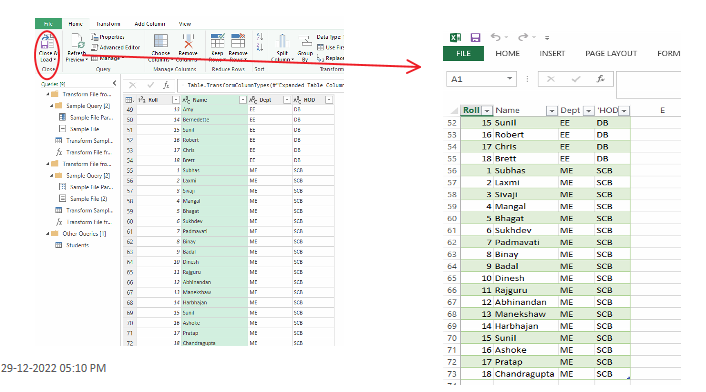
Merging content of all files in a folder using Microsoft Excel Power Query allows users to combine data from multiple files with the same structure into a single table. Instead of manually copying data, Power Query automatically imports and merges all files from a selected folder. The data can then be refreshed whenever new files are added.
Merging Content of All Files
Suppose we have multiple files in a folder that contain the same type of data. Using Power Query, we can easily merge all the data into a single table. For example, assume there is a folder named “Student” that contains several files with student information stored in tables.

If all the files have a similar structure (same columns and format), we can combine the student details from all files into one dataset using Power Query.
Steps to Merge Content of All Files in Folder with Power Query
Step 1: Open Excel and then go to the Power Query on the top of the ribbon and then select From File and then in the dropdown choose From Folder. If we are using excel 2016 or higher then there is an option Get & Transform Data option instead of Power Query.
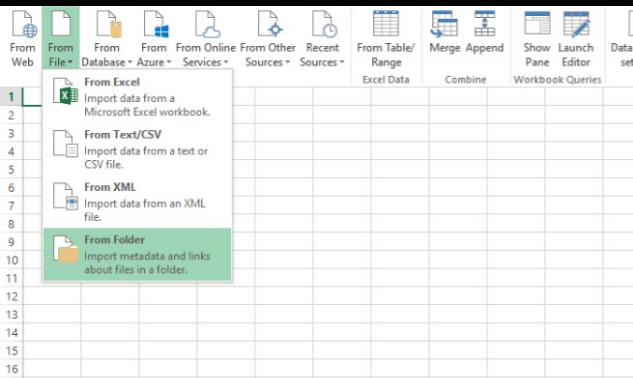
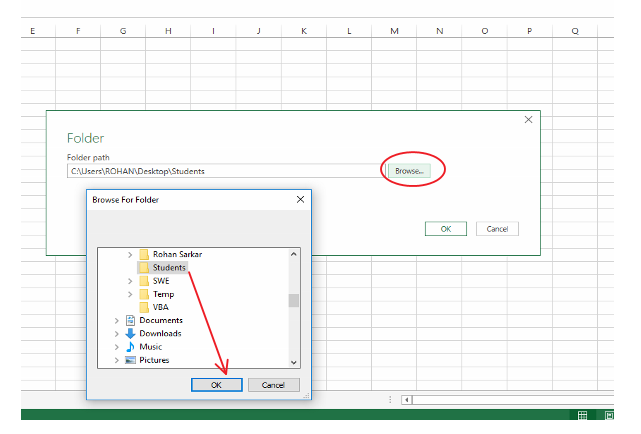
And then browse to the folder where we have stored the files.
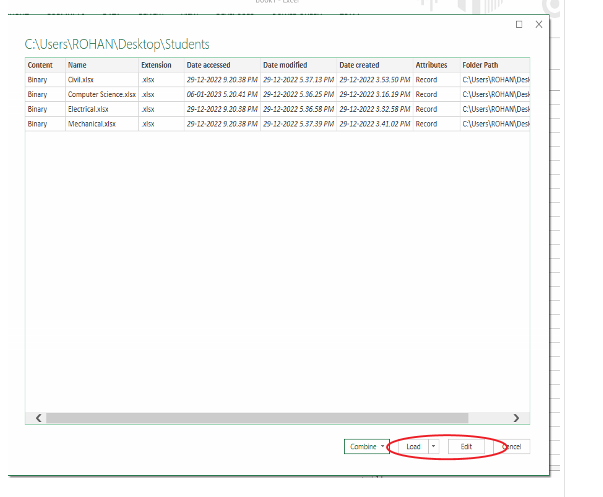
Step 2: A table appears containing all the information & metadata about our files if we want to keep all the columns we can click load else we can click edit to edit our contents according to our needs.
When we click on edit a query editor opens up which lets we edit the contents, we can remove all the redundant and unwanted columns and rows easily.
Make sure the data types of every column are consistent.
Step 3: We can remove the unwanted columns and rows and edit our data with the help of power query and filter only our desired files based on extension types.
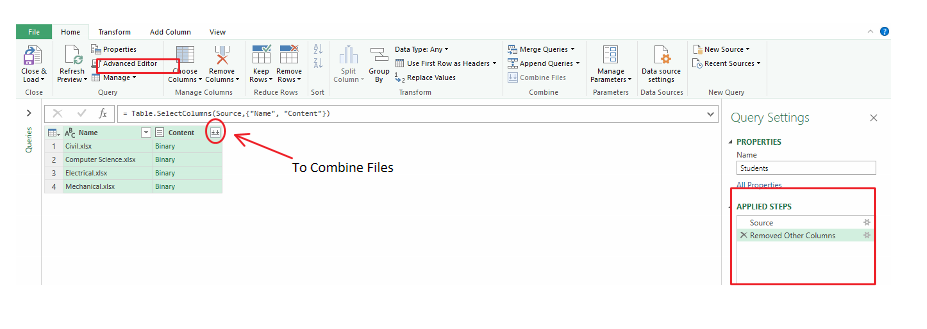
If we want to see the VBA codes we can open the advanced editors and perform queries from there too.
Step 4: On the contents column, there is a button that helps combine all the files data, this combines all the files one by one row-wise.
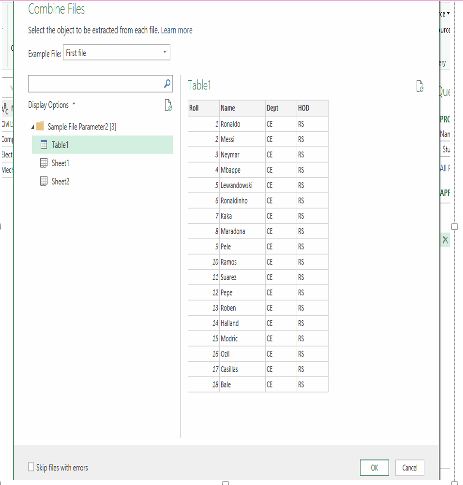
Step 5: At last we can close and load our final table into the workbook.