

Google Sheets is a free tool for organizing data, managing projects, and collaborating in real time. Whether we're using a desktop or mobile device, this guide simplifies the process of creating, customizing, and sharing a Google Spreadsheet.
Steps to Create a Google Spreadsheet on Desktop
Here are the easy steps on how you can create new spreadsheet:
Step 1: Open Google Sheets
Launch your web browser and go to Google Sheets. Sign in with your Google account if you aren’t already logged in.
Tip: If you don’t have a Google account, click on Create account to sign up for free.

Step 2: Start a New Spreadsheet
Method 1: From Google Sheets
On the Google Sheets homepage, click the Blank option (marked by a large plus sign) to start a new spreadsheet.
Method 2: From Google Drive
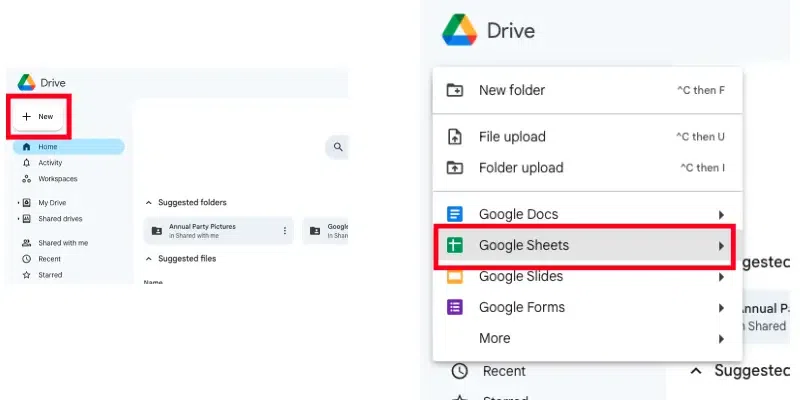
Open Google Drive at drive.google.com. Click the New button on the top-left of the page. Select Google Sheets from the dropdown menu, and choose either:
- Blank Spreadsheet: Starts a new spreadsheet with no data.
- From a Template: Lets you choose from Google’s pre-designed templates for budgets, schedules, and more.
Step 3: Name Your Spreadsheet
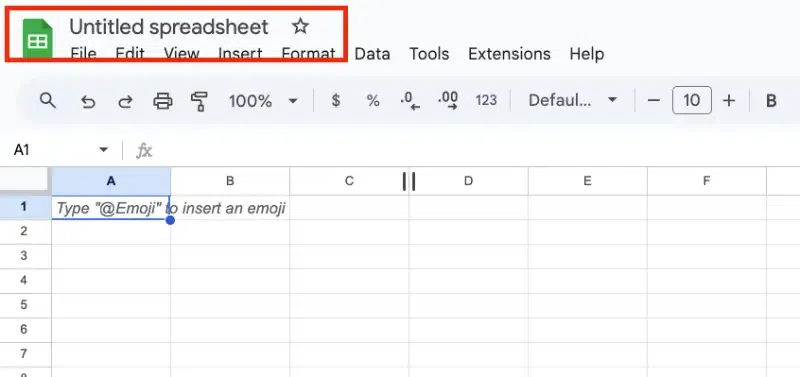
- Once the new spreadsheet opens, locate the text Untitled spreadsheet in the top-left corner.
- Click on it and type a name for your spreadsheet that reflects its purpose (e.g., "Monthly Budget" or "Project Tracker").
- Press Enter to save the name.
Note: Google Sheets automatically saves your work in real-time, so you don’t need to worry about losing your data.
Step 4: Customize Your Spreadsheet
- Add Data: Click on any cell and start typing to input data. Use the Tab key to move to the next cell in a row, or press Enter to move down a column.
- Adjust Columns and Rows: Hover over the borders between column or row headings to resize them by dragging.
- Format Data: Use the toolbar at the top to change font styles, align text, or apply number formats like currency or percentages.
Step 5: Share Your Spreadsheet
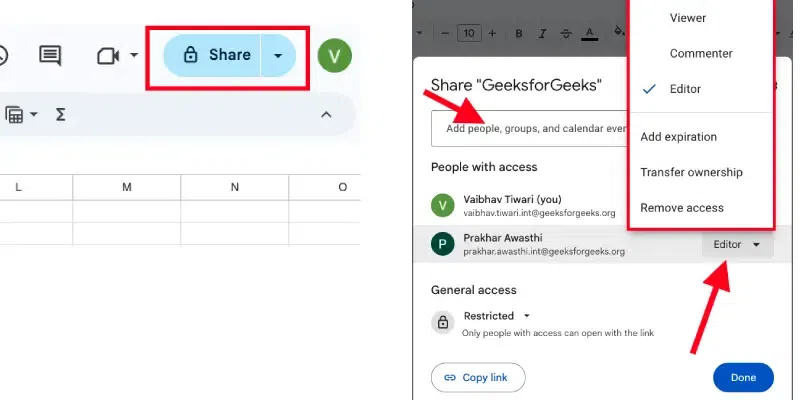
- Click the Share button in the top-right corner of the page.
- Enter the email addresses of the people you want to share the spreadsheet with.
- Set their permissions to Viewer, Commenter, or Editor based on their role.
- Click Send to share the spreadsheet.
Steps to Create a Google Spreadsheet on Mobile
Creating a Google Spreadsheet on your mobile device is simple and convenient, whether you’re using Android or iOS. With the Google Sheets app, you can create, edit, and share spreadsheets directly from your smartphone or tablet. Follow these steps to get started:
Step 1: Download and Install the Google Sheets App
Before creating a spreadsheet, ensure you have the Google Sheets app installed on your device.
Open the Google Play Store (Android) or App Store (iOS). Search for Google Sheets and download the app. Once installed, open the app.
Step 2: Sign In to Your Google Account
To access Google Sheets, you need a Google account:
- Open the app and sign in with your Google account credentials.
- If you don’t have an account, tap Create Account to set one up.
Step 3: Start a New Spreadsheet
To create a new spreadsheet:
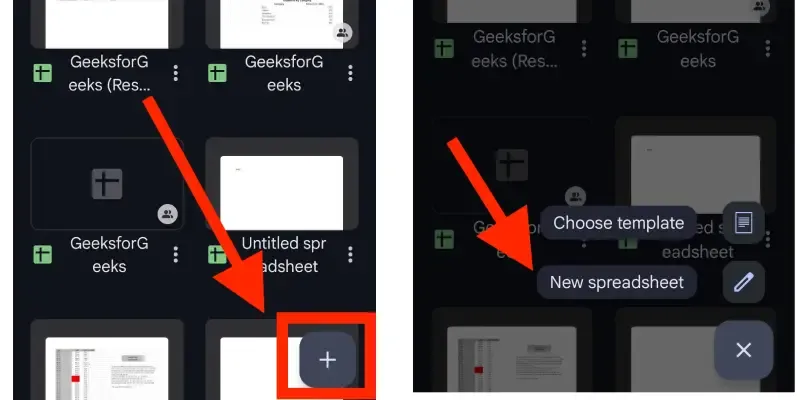
- Tap the + (plus) icon in the bottom-right corner of the app's home screen.
- Select New spreadsheet from the menu.
- Name your spreadsheet by tapping the Untitled spreadsheet field at the top and entering a new title.
Step 4: Enter Data into the Spreadsheet
You can now start entering data:
- Tap a cell to select it, and the keyboard will appear for data input.
- Use the tabs at the bottom to switch between multiple sheets if needed.
Tip: You can adjust the width and height of columns and rows by dragging their edges.
Step 5: Save and Share Your Spreadsheet
Google Sheets saves your work automatically in real-time:
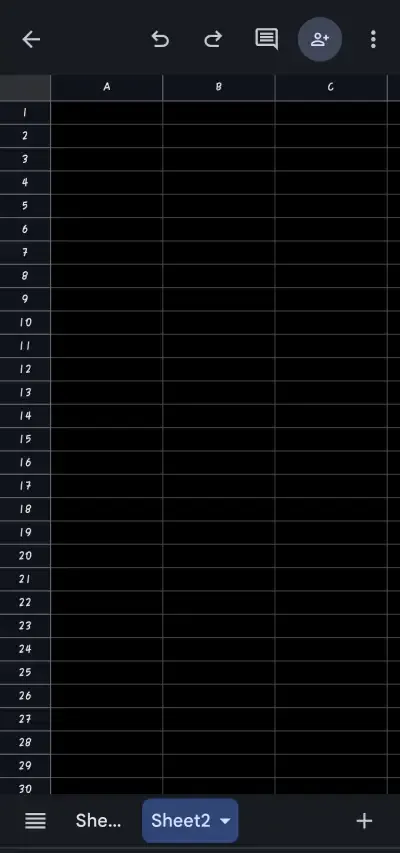
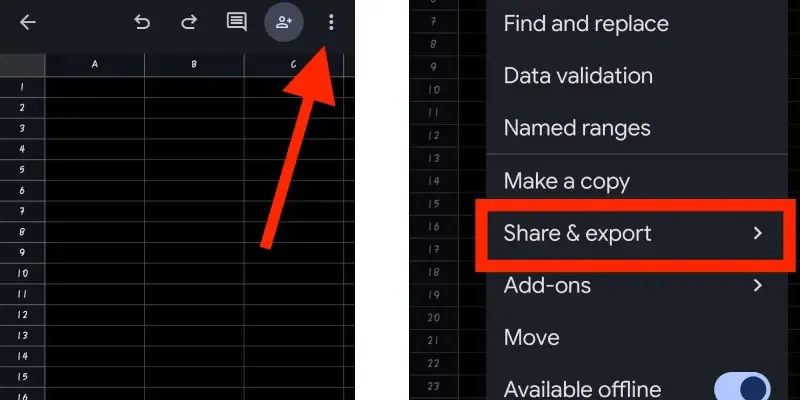
- To share the spreadsheet, tap the Share button (icon with a person and a + sign) in the top-right corner.
- Add email addresses of collaborators or generate a shareable link.
- Set permissions as Viewer, Commenter, or Editor before sharing.
Step 6: Access and Edit Offline (Optional)
If you want to work offline:
- Tap the three-dot menu next to your spreadsheet on the app’s home screen.
- Toggle on Available offline to enable offline editing.
3. Using Google Sheets Templates for Quick Setup
Google Sheets templates make it easy to start projects without building spreadsheets from scratch. Here’s how to use and customize them effectively:
Popular Templates:
1. Budgeting
- Track expenses and income with pre-designed personal or business budget templates.
- Example: Monthly budget template for managing household finances.
2. Project Tracking
- Monitor tasks, deadlines, and team progress using project tracking templates.
- Example: Gantt chart templates for timeline visualization.
3. Schedules
- Plan weekly or monthly schedules with event management templates.
- Example: Employee shift schedule template for workforce planning.
How to Customize Templates?
Step 1: Select a Template:
- Open Google Sheets and click on Template Gallery to choose a template.
Step 2: Edit Data:
- Replace placeholder text with your specific data.
- Example: Change “Category” to “Expense Type” in a budgeting template.
Step 3: Format for Your Needs:
- Adjust fonts, colors, and layouts to match your preferences or branding.
Step 4: Add or Remove Elements:
- Insert additional rows, columns, or formulas as required.
- Example: Add charts for visual representation in a project tracker.
Templates save time and provide a structured starting point, allowing users to quickly adapt them for personal or professional needs.
Troubleshooting Common Issues in Google Sheets
Here are solutions to common problems with account setup, sharing, or saving:
1. Issues with Account Setup
Problem: Unable to access Google Sheets or create new spreadsheets.
Solution:
- Verify you are signed into your Google Account.
- Ensure you have sufficient storage space in Google Drive.
- Check your internet connection or try a different browser.
2. Problems with Sharing
Problem: Others cannot access or edit the file.
Solution:
- Go to File > Share and confirm the correct permissions are set (e.g., Viewer, Editor).
- Add collaborators’ email addresses and resend the share link if necessary.
- Ensure the sharing settings in your Google Workspace allow external sharing (if applicable).
3. Trouble Saving Files
Problem: Changes are not saving or syncing with Google Drive.
Solution:
- Check your internet connection to ensure proper syncing.
- Use File > Make a Copy to save locally if syncing is delayed.
- Clear your browser’s cache or update to the latest version of Google Chrome.
These tips help resolve common issues, ensuring a smooth experience with Google Sheets.
