

JSON is a lightweight format commonly used to exchange data between a client and a server. JavaScript can convert an object into a JSON string and send it to a server using methods such as XMLHttpRequest or the modern fetch() API.
- Create a JavaScript object containing the data to send.
- Convert the object into a JSON string using JSON.stringify().
- Send the JSON data using an HTTP request.
- Set the Content-Type header to application/json so the server can identify the request data.
Approach 1: Using XMLHttpRequest
In this approach, XMLHttpRequest is used to send a JSON object to the server. The form values are collected, converted into a JSON string using JSON.stringify(), and sent using a POST request.
Example:
<!DOCTYPE html>
<html>
  <head>
    <title>
      JavaScript | Sending JSON data to server.
    </title>
  </head>

  <body style="text-align:center;" id="body">
    <h1 style="color:green;">
      GeeksForGeeks
    </h1>

    <p>
        <!-- Making a text input -->
        <input type="text" id="name" placeholder="Your name">
        <input type="email" id="email" placeholder="Email">

        <!-- Button to send data -->
        <button onclick="sendJSON()">Send JSON</button>

      <!-- For printing result from server -->
      <p class="result" style="color:green"></p>

   </p>

  <!-- Include the JavaScript file -->
  <script src="index.js"></script>

  </body>
</html>
<?php

header("Content-Type: text/plain");

$data = json_decode(
    file_get_contents("php://input"),
    true
);

if ($data) {
    echo "Hello " . $data["name"] .
         ", your email is " . $data["email"];
} else {
    echo "Invalid JSON data.";
}

?>
The PHP script reads the JSON data sent in the request body using php://input. The received JSON is then decoded using json_decode().
Output:
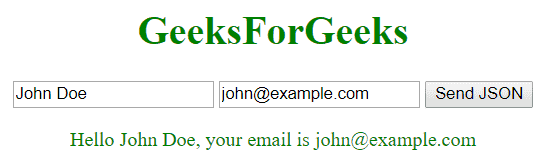
Approach 2: Using the fetch() API
The fetch() API provides a modern and simpler way to send JSON data to a server. The request method, headers, and request body can be configured using an options object.
<!DOCTYPE html>
<html>

<head>
    <title>Send JSON Data Using Fetch</title>

    <style>
        body {
            text-align: center;
        }

        h1 {
            color: green;
        }

        #result {
            color: green;
            font-size: 20px;
        }
    </style>
</head>

<body>

    <h1>GeeksForGeeks</h1>

    <input
        type="text"
        id="name"
        value="John Doe"
        placeholder="Enter your name"
    >

    <input
        type="email"
        id="email"
        value="john@example.com"
        placeholder="Enter your email"
    >

    <button onclick="sendJSON()">
        Send JSON
    </button>

    <p id="result"></p>

    <script>
        async function sendJSON() {

            const name =
                document.getElementById("name").value;

            const email =
                document.getElementById("email").value;

            const result =
                document.getElementById("result");

            const data = {
                name: name,
                email: email
            };

            try {
                const response = await fetch(
                    "submit.php",
                    {
                        method: "POST",

                        headers: {
                            "Content-Type":
                                "application/json"
                        },

                        body: JSON.stringify(data)
                    }
                );

                if (!response.ok) {
                    throw new Error(
                        "Failed to send data"
                    );
                }

                const message =
                    await response.text();

                result.textContent = message;

            } catch (error) {

                result.textContent =
                    "Error: " + error.message;
            }
        }
    </script>

</body>

</html>
<?php

header("Content-Type: text/plain");

$data = json_decode(
    file_get_contents("php://input"),
    true
);

if ($data) {
    echo "Hello " . $data["name"] .
         ", your email is " . $data["email"];
} else {
    echo "Invalid JSON data.";
}

?>
Output:
Note: The fetch() API is generally preferred in modern JavaScript applications because it provides a cleaner and Promise-based approach for making HTTP requests.
