

SeekBar in Android is a modified version of progressBar that has a draggable thumb in which a user can drag the thumb back and forth to set the current progress value. We can use SeekBar in our Android Devices like Brightness control, volume control etc. It is one of the important user interface elements which provides the option to select the integer values within the defined range like 1 to 100.
By dragging the thumb in SeekBar, we can slide back and forth to choose a value between minimum and maximum integer value which we defined using android:min and android:max attributes. respectively.
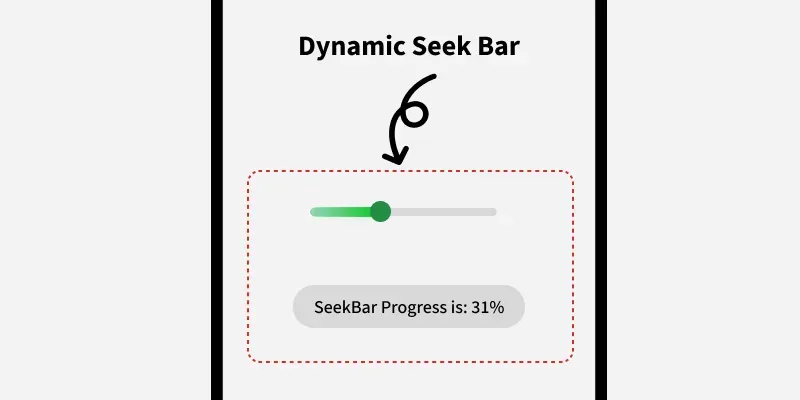
Different Attributes of Android SeekBar Widget
| XML Attributes | Description |
|---|---|
| android:id | Used to uniquely identify the control. |
| android:thumb | Used to set drawable to be used as a thumb that can be moved back and forth. |
| android:thumbTint | Used to set tint to apply to the thumb. |
| android:min | Used to specify the minimum value. |
| android:max | Used to specify the maximum value. |
| android:progress | Used to specify the default progress value between 0 and 100. |
| android:progressDrawable | Used to specify the drawable mode of the progress. |
| android:background | Used to set the background of the specified view. |
| android:padding | Used to set the padding from left, right, top and bottom. |
Example of Application Displaying the Value from SeekBar
Step 1: Create New Project
To Create a New Project in Android Studio please refer to How to Create/Start a New Project in Android Studio.
Step 2: Modify activity_main.xml file
Here, We will add the SeekBar widget in LinearLayout and set its attributes like id, margin etc.
activity_main.xml:
<?xml version="1.0" encoding="utf-8"?>
<LinearLayout
    xmlns:android="http://schemas.android.com/apk/res/android"
    xmlns:app="http://schemas.android.com/apk/res-auto"
    xmlns:tools="http://schemas.android.com/tools"
    android:id="@+id/main"
    android:gravity="center"
    android:orientation="vertical"
    android:layout_width="match_parent"
    android:layout_height="match_parent"
    tools:context=".MainActivity">

    <SeekBar
        android:id="@+id/seekbar"
        android:layout_width="match_parent"
        android:layout_height="wrap_content"
        android:max="100"
        android:min="0"
        android:layout_margin="40dp"/>

</LinearLayout>
Layout Design:

Step 3: Make Changes in the Kotlin Code
Changes will be done where we will view the Seekbar using it's id and then display the Progress using Toast.
1. In the file, we first declare a variable seek and call the SeekBar from the xml file using the id.
val seek: SeekBar = findViewById(R.id.seekbar)2. then, setOnSeekBarChangeListener to perform some action on the SeekBar.
seek.setOnSeekBarChangeListener()3. Display the Toast message when the SeekBar is Updated.
Toast.makeText(this@MainActivity, output , Toast.LENGTH_SHORT).show()MainActivity.kt:
package org.geeksforgeeks.demo

import android.os.Bundle
import android.widget.SeekBar
import android.widget.Toast
import androidx.appcompat.app.AppCompatActivity

class MainActivity : AppCompatActivity() {

    override fun onCreate(savedInstanceState: Bundle?) {
        super.onCreate(savedInstanceState)
        setContentView(R.layout.activity_main)

        val seek: SeekBar = findViewById(R.id.seekbar)

        // Set up a listener for SeekBar changes
        seek.setOnSeekBarChangeListener(
            object : SeekBar.OnSeekBarChangeListener {
                // Handle when the progress changes
                override fun onProgressChanged(seek: SeekBar, progress: Int, fromUser: Boolean) {}

                // Handle when the user starts tracking touch
                override fun onStartTrackingTouch(seek: SeekBar) {}

                // Handle when the user stops tracking touch
                override fun onStopTrackingTouch(seek: SeekBar) {
                    val output = "Progress is: " + seek.progress + "%"
                    Toast.makeText(this@MainActivity, output , Toast.LENGTH_SHORT).show()
                }
            })
    }
}
