

AltDNS is an open-source reconnaissance tool designed to expand the attack surface by generating potential subdomains from an existing list of known subdomains. It helps penetration testers and security researchers uncover hidden assets that may not be found through traditional subdomain enumeration techniques.
- Generates permutations and alterations of existing subdomains.
- Validates generated subdomains using DNS resolution.
- Identifies hidden and misconfigured subdomains.
- Creates customizable wordlists for enumeration.
- Lightweight and Python-based for easy deployment.
- Supports large-scale reconnaissance engagements.
- Produces separate outputs for generated candidates and resolved subdomains.
Note: Make Sure You have Python Installed on your System, as this is python-based tool. For more information, refer to the article Python Installation Steps on Linux
Installation of AltDNS on Kali Linux
Step 1: Open the terminal and navigate to the Desktop.
cd Desktop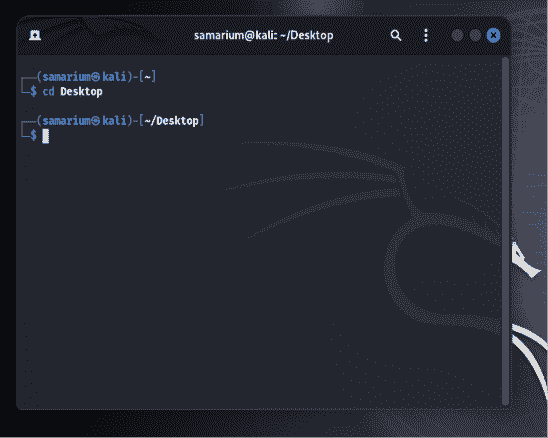
Step 2: Create a directory for AltDNS.
mkdir Altdns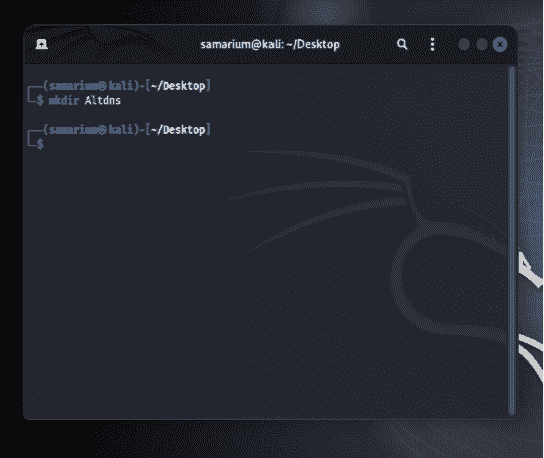
Step 3: Move into the newly created directory.
cd Altdns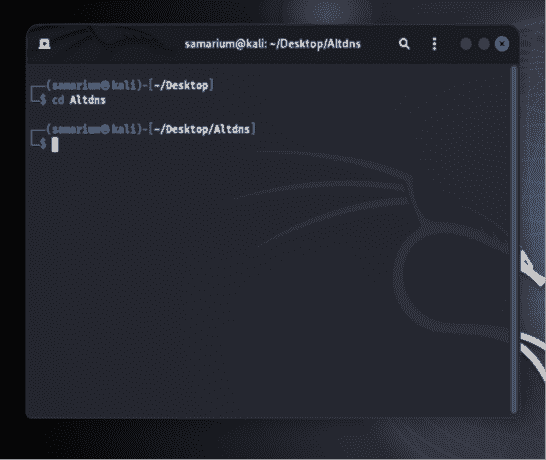
Step 4: Clone the AltDNS repository from GitHub.
git clone https://github.com/infosec-au/altdns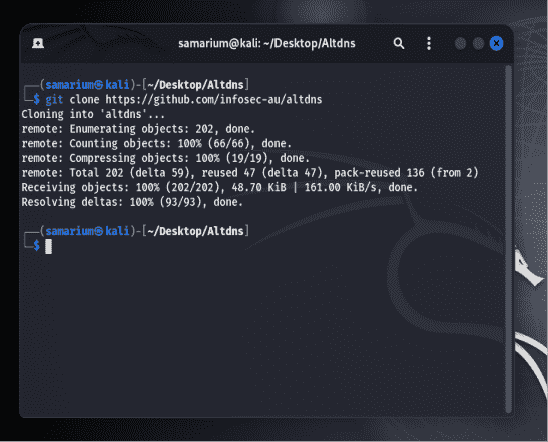
Step 5: Verify that the repository has been downloaded.
ls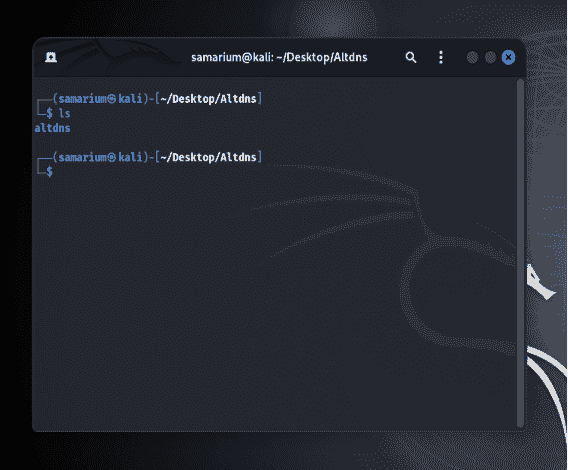
Step 6: Navigate to the AltDNS directory.
cd altdns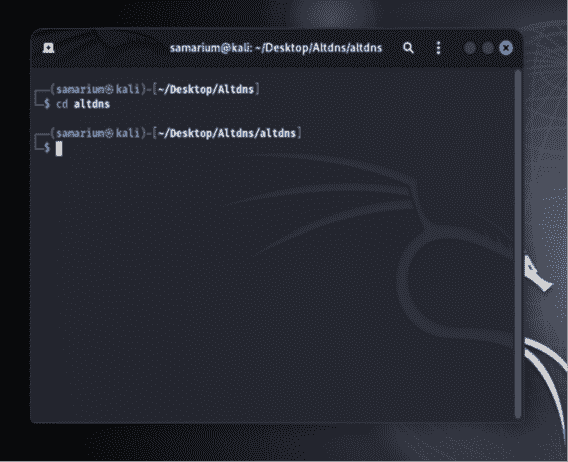
Step 7: List the project files.
ls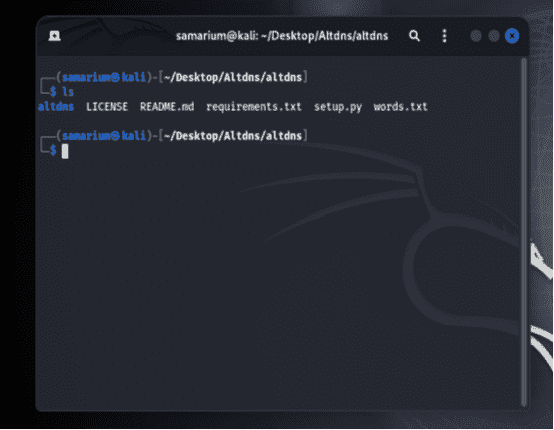
Step 8: Create a Python Virtual Environment
Recent versions of Kali Linux restrict installing Python packages directly into the system environment (PEP 668). Create a virtual environment before installing the required dependencies.
- Install the virtual environment package:
sudo apt update
sudo apt install python3-venv
- Create a virtual environment:
python3 -m venv venv- Activate the virtual environment:
source venv/bin/activate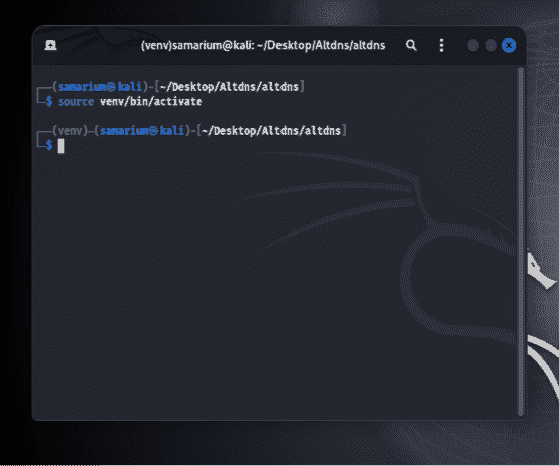
After activation, your terminal prompt will display (venv), indicating that the virtual environment is active.
Step 9: Install the required dependencies.
pip3 install-r requirements.txt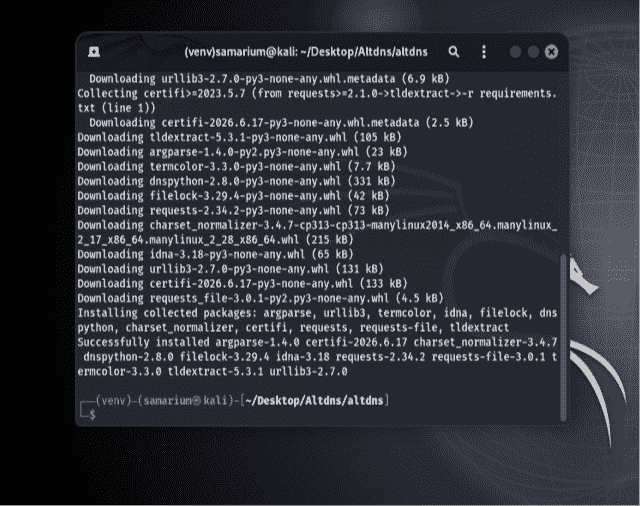
Step 10: Verify the Installation.
python3 altdns--help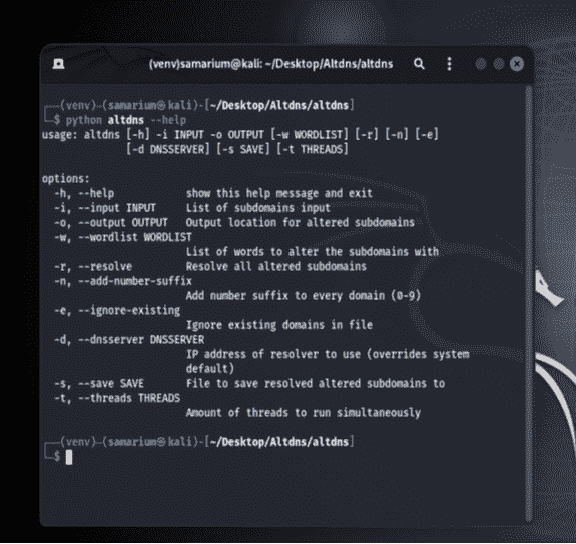
Working with Altdns Tool - Generate and Resolve Subdomains
Step 1: Create the Input File
- Create a new file named
subdomains.txt:
nano subdomains.txt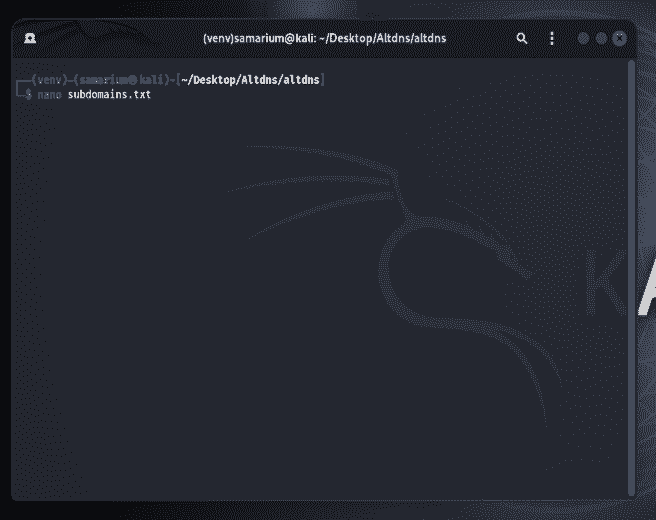
- Add the known subdomains. For example:
www.geeksforgeeks.org
mail.geeksforgeeks.org
blog.geeksforgeeks.org
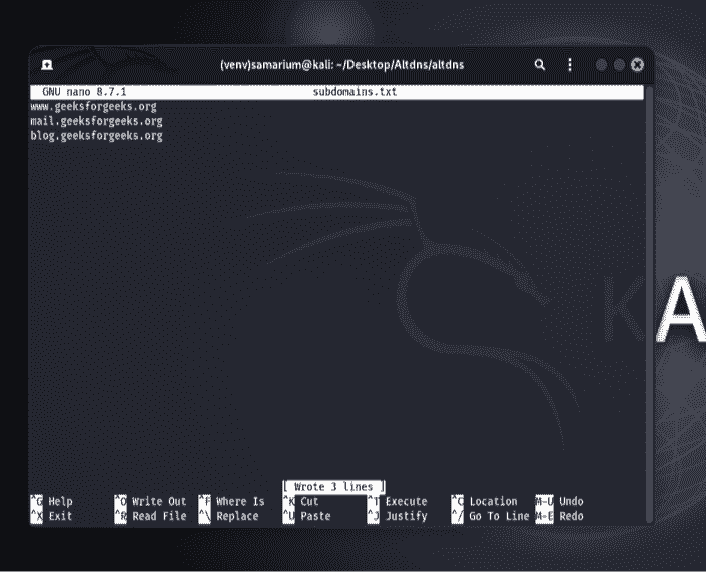
- Save the file by pressing Ctrl + O, Enter, and then Ctrl + X.
Step 2: Verify the Input File
- Ensure that the file has been created successfully.
ls *.txt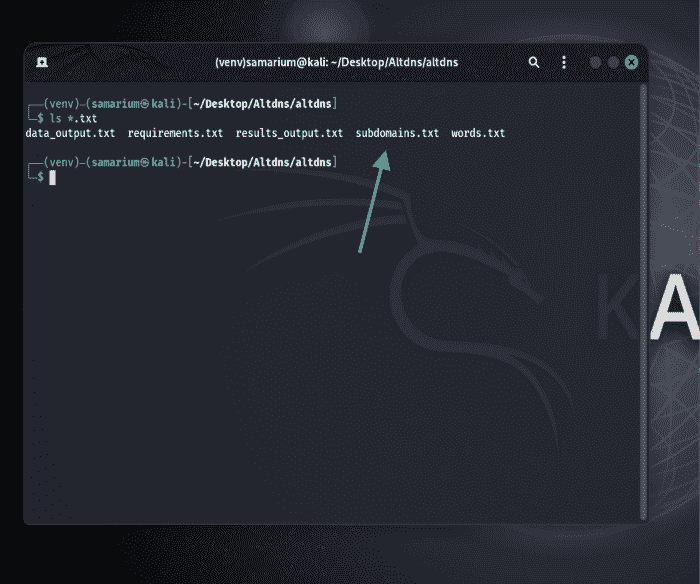
- You should see
subdomains.txtlisted. If it is not present, recreate the file before proceeding.
Step 3: Verify the Wordlist
- Confirm that the permutation wordlist is available.
ls words.txt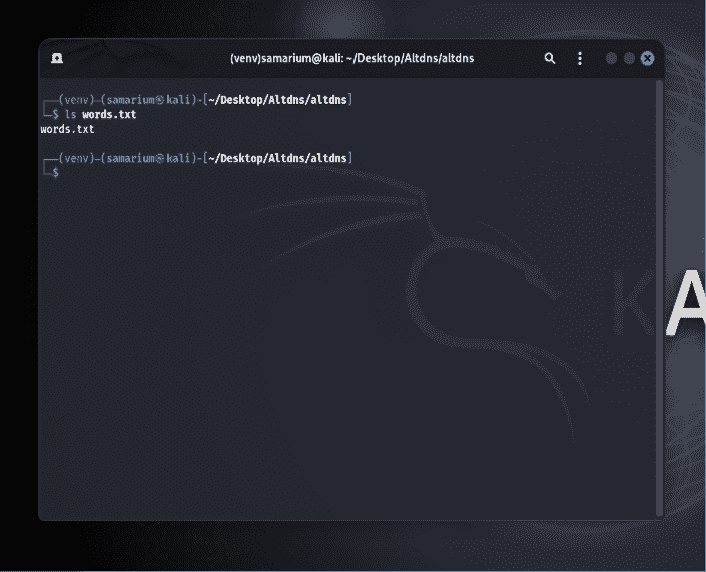
Step 4: Generate and Resolve Subdomains
- Run the following command to generate permutations and resolve valid subdomains.
python3 altdns -i subdomains.txt -o data_output.txt -w words.txt -r -s results_output.txt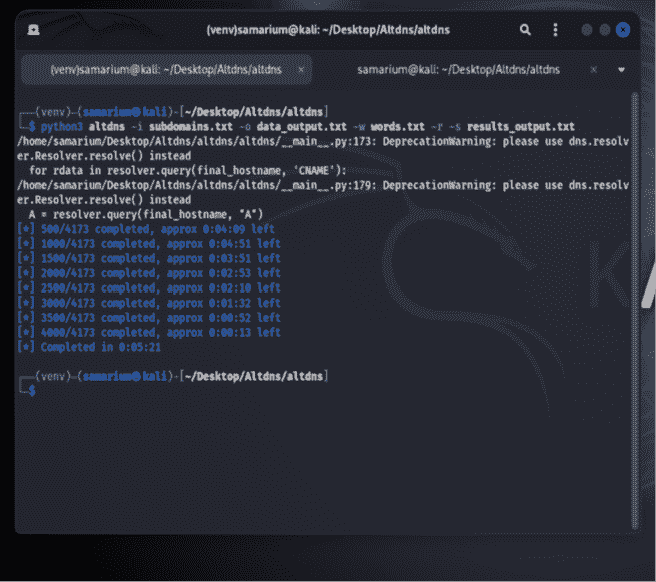
Step 5: View the Generated Results
- Display all generated permutations:
cat data_output.txt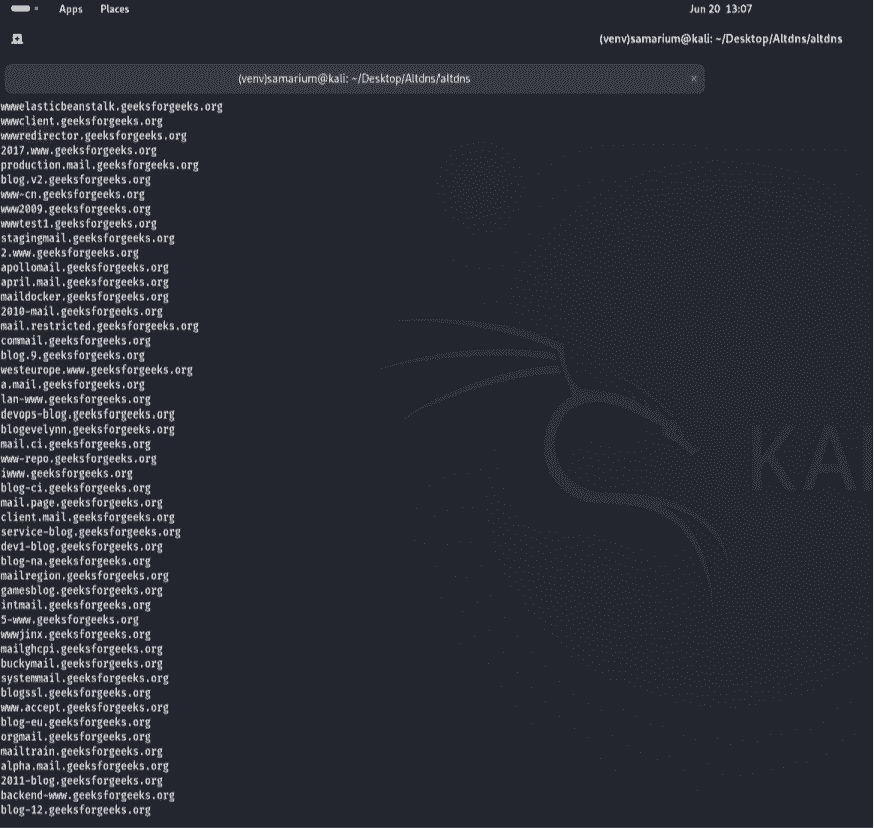
Use Multiple Threads
- Run the following command:
python3 altdns -i subdomains.txt -o data_output.txt -w words.txt -r -s results_output.txt -t 20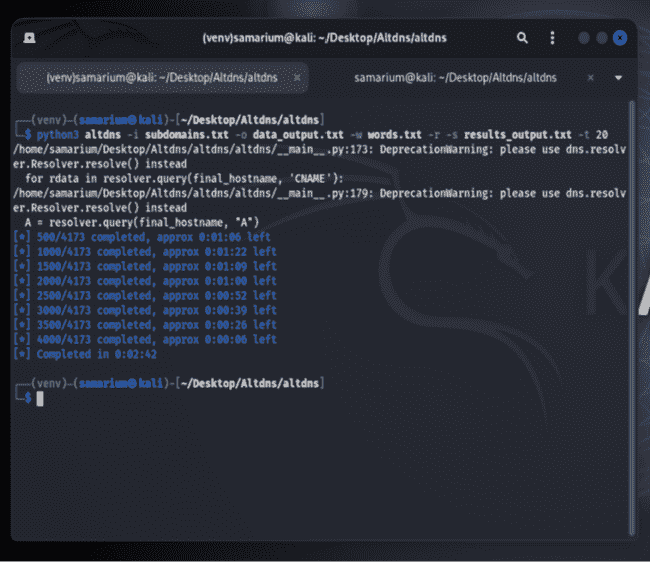
- After the scan completes, verify the output files:
ls *.txt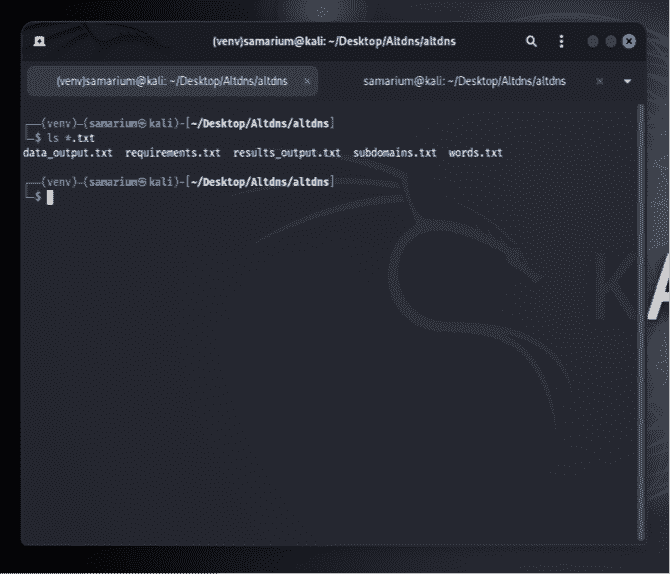
- View all generated subdomains:
cat data_output.txt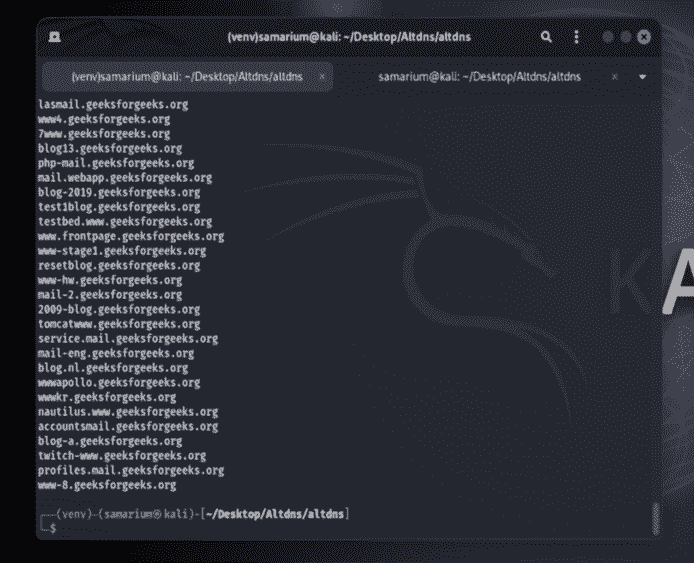
Note: Increasing the thread count improves scanning speed but may consume more system and network resources.
