Foremost is a powerful, command-line data carving tool used to recover deleted files based on their binary headers, footers and internal data structures rather than filesystem metadata. It operates independently of the filesystem, making it a highly effective utility for digital forensics and damaged or overwritten disks. Key Features:
- File Signature Analysis: Uses known binary signatures to accurately carve and extract recoverable files (e.g., zip files, JPEGs, PDFs).
- Filesystem Agnostic: Bypasses inode and filesystem structures, allowing data extraction from corrupted systems or even raw data dumps.
- Versatile Compatibility: Works directly with raw storage media (hard drives, USBs, memory cards) and disk images.
- Extensible Architecture: Supports a wide variety of formats by default and allows users to define custom file signatures via a configuration file (foremost.conf).
Installing the Foremost Too
Use the following command to install this tool in any Debian based Linux Operating System or in any other Operating System using the APT package manager.
sudo apt install foremostUse the following command to install this tool using dnf package manager
sudo dnf install foremostUse the following command to install this tool using Pacman package manager or in Arch Linux.
sudo pacman -S foremostSyntax:
foremost [options]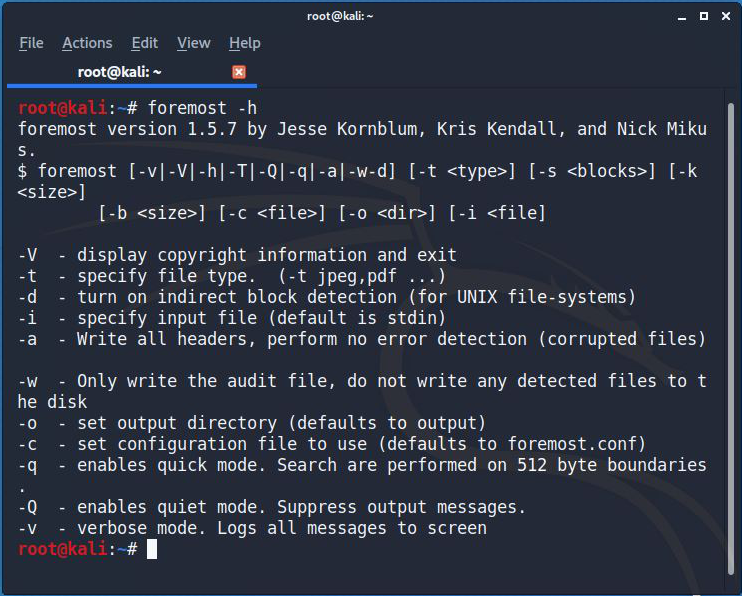
Recovering from USB/Hard Disk
- Connect the External memory storage with the system.
- First, you need to know the path of your external memory device, for that use the command
fdisk -l- Now from here, you can copy the path of the disk.

- After copying the device path, now we have to recover the files from that device.
For example : Use the options available by the “foremost -h” command.
foremost -t jpg,pdf,mp4,exe -v -q -i /dev/sdb2 -o /root/desktop/recover- -t: It is the type of files we want to recover. Here I want to recover jpg, pdf,mp4 and exe files.
- -q: It is a quick scan for the device
- -i: It means the input as in this case external memory.
- -o: It is the output folder, where to save the recovered files.
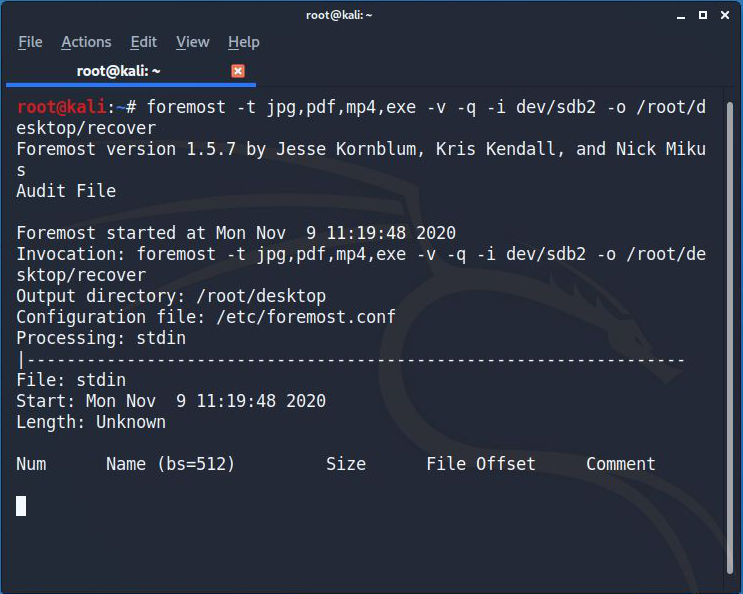
Hereafter running this command, all the files will be saved in the folder name as mentioned. Here you can see the folder recover on desktop and all the files will be stored here.