

Embedding YouTube videos in a Next.js application allows you to display video content directly on your web pages. In Next.js, you can easily embed YouTube videos using the react-youtube package.
Approach
To add a YouTube video in a Next.js application, we are going to use the react-youtube package. This package provides a simple component for embedding YouTube videos. First, install the package, then import the YouTube component and use it inside your page.
Steps to Add YouTube Videos in Next.js
Prerequisite: Before following this tutorial, make sure you have already created a Next.js project. If not, refer to the Next.js Installation and First Application article.
Step 1: Install the required package: Now we will install the react-youtube package using the below command:
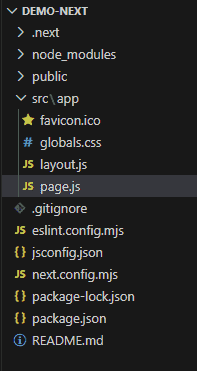
npm install react-youtubeProject Structure: It will look like this.
Step 2: Adding the Youtube Video
Open the src/app/page.js file and add the following code.
// File Path: src/app/page.js
"use client";
import YouTube from "react-youtube";
export default function Home() {
    const opts = {
        height: "390",
        width: "640",
        playerVars: {
            autoplay: 0,
        },
    };
    const onReady = (event) => {
        event.target.pauseVideo();
    };
    return (
        <main
            style={{
                display: "flex",
                flexDirection: "column",
                justifyContent: "center",
                alignItems: "center",
                minHeight: "100vh",
                gap: "20px",
            }}
        >
            <h2>
                Next.js YouTube Video -
                GeeksforGeeks
            </h2>
            <YouTube
                videoId="sTnm5jvjgjM"
                opts={opts}
                onReady={onReady}
            />
        </main>
    );
}
Explanation: In the above example, we first import the YouTube component from the installed package. Then, we define the player options such as height, width, and autoplay settings. Finally, we use the YouTube component with the required videoId to embed the video. The onReady event is used to pause the video when the player is initialized.
Step 3: Run the application
Run the below command in the terminal to run the app.
npm run dev