

Collection management in Postman involves organizing, configuring, sharing, executing, and maintaining groups of related API requests.
- Collections provide a structured way to manage API requests, folders, and collection-level settings.
- Postman provides features for collaboration, testing, monitoring, documentation, mock servers, exporting, and version control.
- Effective collection management improves API organization, testing, and team collaboration.
How To Manage Collections
Postman provides several options for managing API request collections. These options help users organize requests, configure collection settings, collaborate with teams, execute tests, document APIs, and maintain collections throughout the development lifecycle.
Rename collection
Renaming a collection in Postman allows you to change its name to make it easier to identify and organize API requests.
- Open Postman and go to the Collections section.
- Locate the collection you want to rename.
- Open the collection menu and select Rename.
- Enter the new collection name.
- Press Enter or save the change.

Share Collection
Sharing a collection in Postman allows you to provide API requests and related collection information to other users or team members for collaboration and testing.
- Open the collection menu and select Share.
- Select the available sharing method.
- Configure the required access or sharing settings.
- Confirm the sharing action.
- Available sharing options depend on the workspace, permissions, and Postman plan.

Move Collection
Moving a collection in Postman allows you to transfer a collection from one workspace to another workspace where you have the required permissions. This helps organize collections according to different projects, teams, or environments.
- Open Postman and go to the Collections section.
- Locate the collection you want to move.
- Click the three-dot menu (⋮) next to the collection.
- Select Move.
- Select the destination workspace.
- Confirm the move.

Run Collection
Running a collection in Postman allows you to execute multiple API requests in a collection as a single workflow.
- Select the collection and choose Run or Run collection.
- Configure the request execution order, iterations, environment, data file, and delay as required.
- Start the collection run.
- Review the execution results, including request status and test results.
- Collections can also be executed through supported automated workflows, monitors, or Newman.

Generate Tests
Generating tests in Postman allows you to create test scripts for API requests with the help of Postman's AI assistant, Postbot.
- Select the API request for which you want to create tests.
- Use Postbot and describe the testing requirements.
- Review the generated JavaScript test scripts.
- Modify the scripts when necessary.
- Add the tests to the request and execute them to verify the API behavior.

Edit Collection
Editing a collection in Postman allows you to modify its collection-level information and settings.
- Open the collection menu and select Edit.
- Modify the collection description, authorization, variables, scripts, or other available settings.
- Save the changes.
- Collection-level settings can be inherited by requests within the collection where applicable.

Add Request
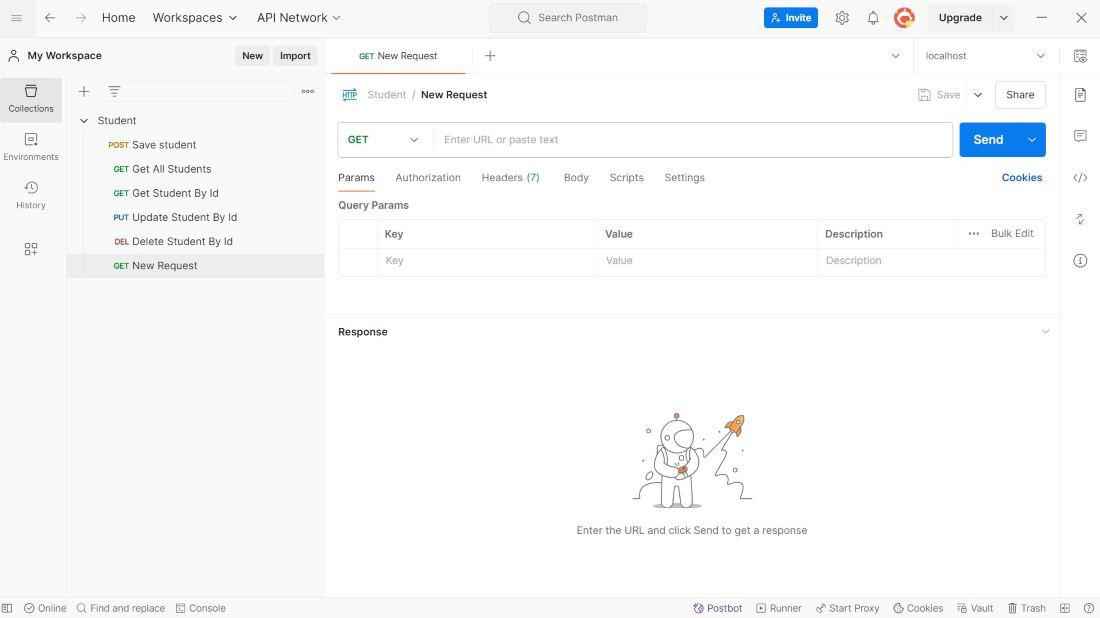
Adding a request to a collection in Postman allows you to create and organize API requests within a collection.
- Select Add request from the collection menu.
- Enter a name for the request.
- Select the required HTTP method and enter the request URL.
- Configure parameters, headers, authorization, body, scripts, and tests as required.
- Save the request to add it to the collection.
Add Folder
Adding a folder to a collection in Postman allows you to organize related API requests into logical groups.
- Open the collection menu and select Add folder.
- Enter a name for the folder.
- Save the folder.
- Add or move related requests into the folder to maintain a logical structure.

Monitor Collection
Monitoring a collection in Postman allows you to run API requests automatically at scheduled intervals and track the health and performance of APIs.
- Open the collection menu and select Move.
- Select the destination workspace.
- Confirm the move.
- The collection is transferred to the selected workspace rather than copied.

Create Mock Server
Creating a mock server in Postman allows you to simulate API responses without requiring a fully implemented backend server.
- Select the collection and choose the option to create a Mock Server.
- Configure the mock server settings as required.
- Select the appropriate examples for the responses.
- Create the mock server.
- Use the generated mock URL to send requests and test API integrations.

View Changelog
Viewing the changelog in Postman allows you to review the recorded changes made to a collection over time.
- Open the collection menu and select View changelog.
- Review the available changes and version information.
- Use the changelog to track updates made to the collection over time.

View Documentation
Viewing documentation in Postman allows you to access the documentation generated from a collection and understand how its API requests are structured and used.
- Open the collection menu and select View documentation or the available documentation option.
- Review the collection description and request information.
- Documentation can include URLs, parameters, headers, authorization details, examples, and other available API information.
- Use the documentation to understand and communicate how the APIs should be used.

Duplicate Collection
Duplicating a collection in Postman allows you to create a separate copy of an existing collection for development, testing, or experimentation.
- Open the collection menu and select Duplicate.
- Enter a name for the copied collection if required.
- Select the appropriate workspace or location when prompted.
- Confirm the duplication.
- Changes made to the duplicate do not modify the original collection.

Delete Collection
Deleting a collection in Postman permanently removes the collection and its associated requests and folders from the workspace.
- Open the collection menu and select Delete.
- Review the deletion confirmation.
- Confirm the deletion.
- Verify that the collection has been removed from the workspace.
- Make sure the collection is no longer required before deleting it.

Export Collection
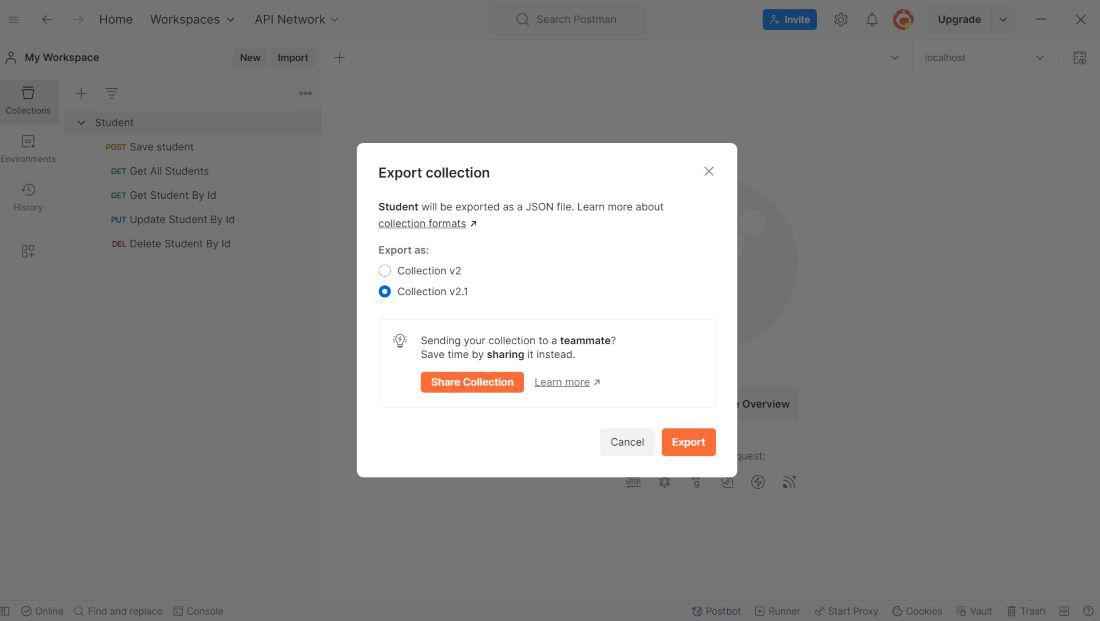
Exporting a collection in Postman allows you to save a collection as a file that can be backed up, shared, or imported into another Postman workspace.
- Open the collection menu and select Export.
- Select the available collection format or version.
- Choose a location and save the exported file.
- Import the file into Postman when you need to restore or transfer the collection.
External Version Control Integration Features
Postman can integrate with supported version-control systems to help teams manage and collaborate on API definitions and collection changes.
- Connect Postman with supported version-control systems such as GitHub where available.
- Synchronize API definitions and related changes between Postman and the connected repository.
- Create branches or forks to work on changes separately without affecting the main version.
- Create and review pull requests for proposed changes where supported.
- Pull changes from the repository into Postman when updates are available.
- Merge approved changes into the shared version-control workflow.
- Version-control features depend on the Postman plan, workspace configuration, permissions, and supported integration.

Best Practices for Managing Collections
- Use clear and consistent names for collections, folders, and requests.
- Organize requests into folders based on resources, features, or workflows.
- Use collection-level settings when common configuration can be inherited by multiple requests.
- Keep authentication information and sensitive variables secure.
- Remove outdated or unused requests and collections regularly.
- Document important APIs, request requirements, and expected responses.
- Use version-control and collaboration features where appropriate.
