

Power BI allows users to create relationships between tables to define how data is connected and how filters propagate through the data model. Editing these relationships helps ensure that tables interact correctly and that reports and calculations return the expected results.
Editing Relationships
Editing relationships in Power BI allows you to modify, update or remove connections between tables to ensure accurate data modeling and reporting.
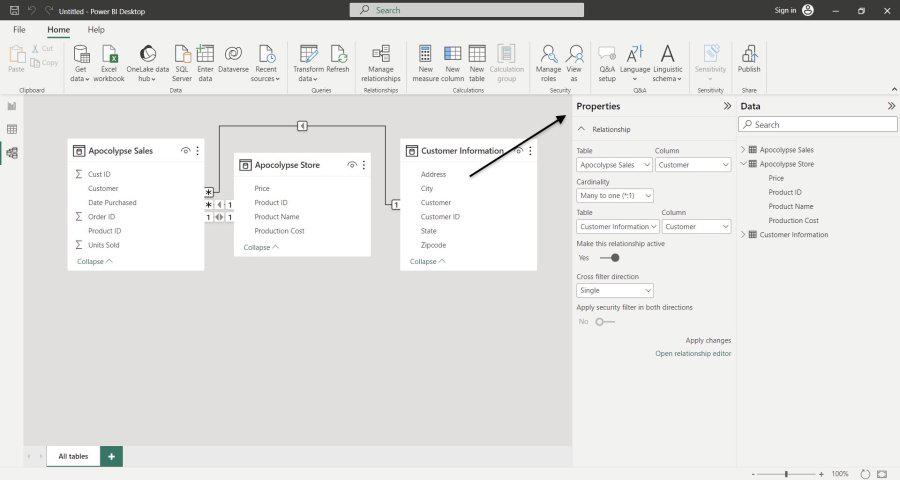
Power BI provides two ways to edit relationships between tables: using the Properties pane or the Relationship Editor dialog box.
1. Using the Properties Pane
- In the Model view, click on any relationship line to view its options in the Properties pane.
- From here, you can modify the relationship settings as needed.
2. Using the Relationship Editor dialog box
- To access the editor follow either of these methods:
- Go to the Modeling tab click Manage Relationships select the relationship you want to edit and click Edit.
- Select any table from the Fields pane on the right then go to Table Tools select Manage Relationships choose the relationship to edit and click Edit.
Configure Options
When creating or editing a relationship, you can configure its cardinality, cross-filter direction and active status.
Cardinality
- Cardinality defines the type of relationship between tables in Power BI describing how data in one table corresponds to data in another.
- In Model view, 1 represents the one side and * represents the many side of a relationship.
1. Many-to-One (*:1): The most common relationship type, where multiple rows in one table relate to a single row in another table.
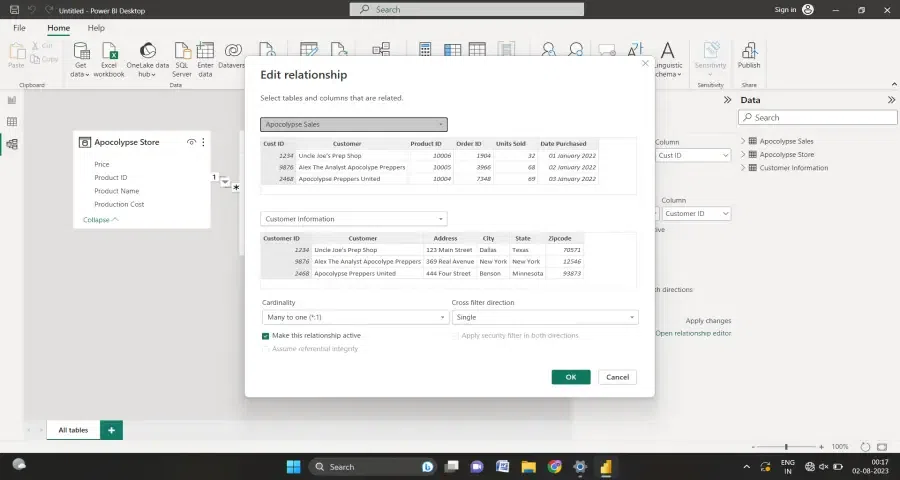
Here in Sales table and Customer Information table, the customer table contains unique customer ID but the sales table can have multiple entries for the same customer. Here the relationship is many-to-one.
2. One-to-One (1:1): Each row has one corresponding row.
3. One-to-Many (1:*): One row in one table relates to many rows in another.
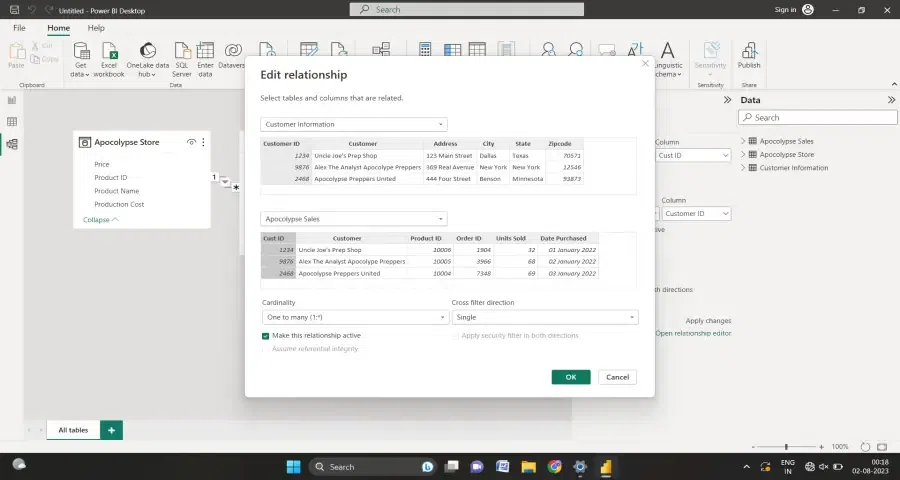
4. Many-to-Many (*:*): Multiple rows on both sides can match.
Cross filter direction
Cross filter direction determines how filters flow between two related tables in Power BI. There are two main types:
1. Single: Filters propagate in one direction. This is the common choice for one-to-many relationships and is generally preferred in a star-schema model.
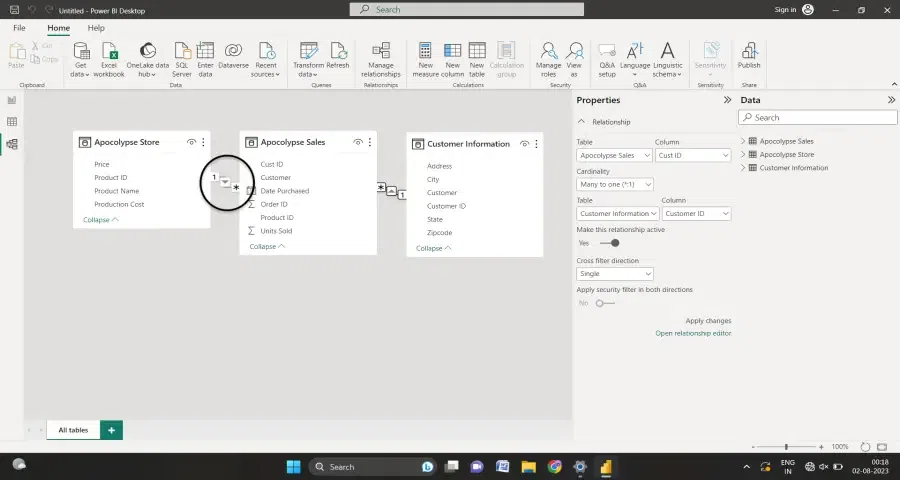
2. Both: Filters propagate in both directions. It should be used only when the model requires bidirectional filtering because it can introduce ambiguity or unexpected filtering behavior.
.webp)
- A single arrow indicates single-direction filtering.
- Arrows in both directions indicate bidirectional filtering.
Automatic Relationship Updates
Power BI provides options to control how relationships are handled when loading or refreshing data. These settings can be accessed from File, then Options and Settings and then Options, followed by selecting Data Load from the left pane.
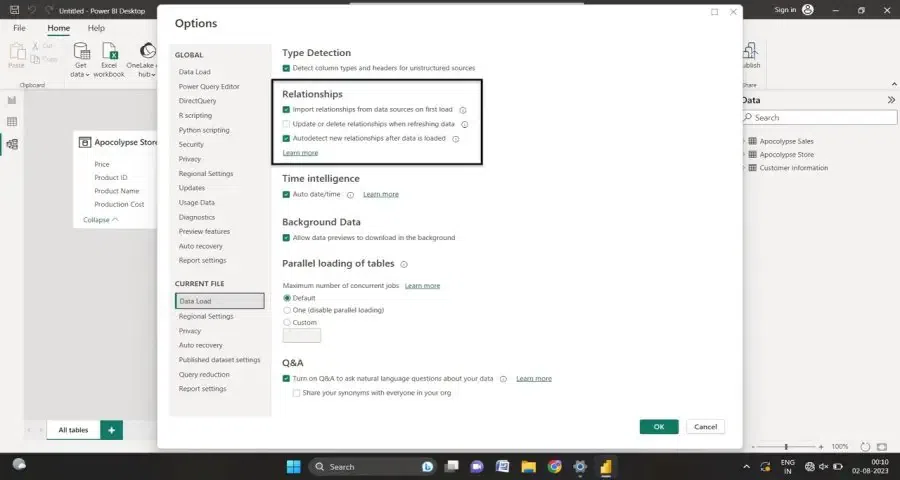
- Import relationships from data sources on first load.
- Update or delete relationships when refreshing data.
- Autodetect new relationships after data is loaded.
Note: Be careful when enabling automatic relationship updates in models that use row-level security, because removing a relationship required by an RLS configuration can affect the model's security behavior.
