

Data types in Power BI define how values in a column are stored, interpreted and used in calculations and visualizations. Choosing the correct data type helps Power BI perform calculations accurately and display data appropriately.
Common Data Types
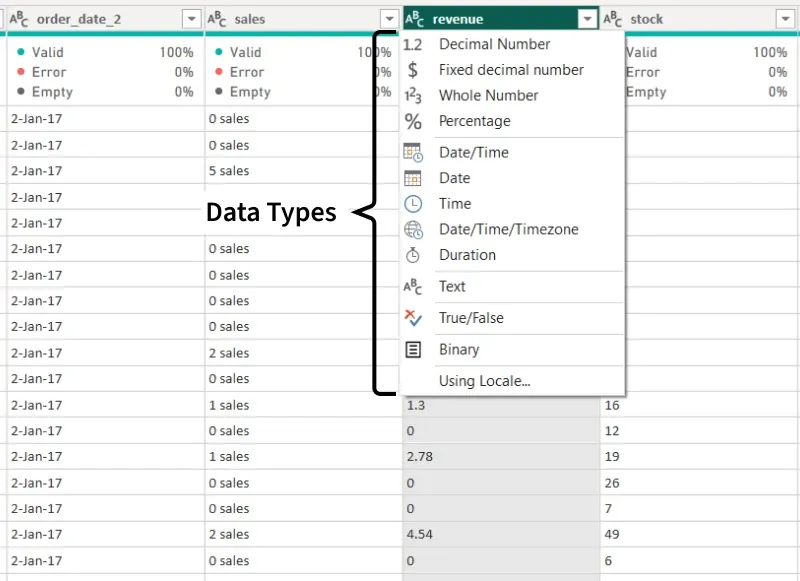
Power BI supports several data types for storing numeric, text, date, time, logical and other values. In Power Query Editor, you can view or change a column's data type using the data type icon in the column header.
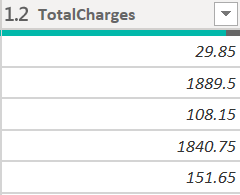
1. Decimal Number
Stores numbers that can contain decimal values. It is commonly used for measurements, prices and other values requiring fractional numbers.
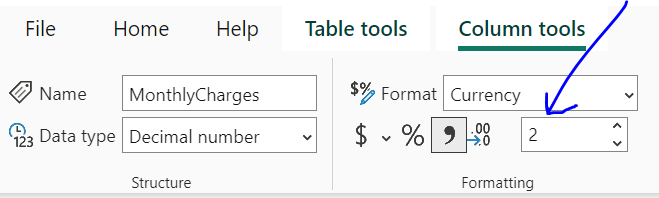
2. Fixed Decimal Number
Stores decimal numbers with fixed precision and is useful when consistent numerical precision is important, such as for financial calculations.
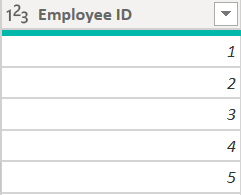
3. Whole Number
Stores integer values without decimals and is used for counting, indexing and identifiers.
4. Date/Time
Stores both a date and time, useful for timestamps and transaction records.
5. Date
Stores only the date, without a time component.
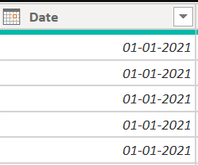
6. Time
Stores the time of day without a date.

7. Date/Time/Timezone
Stores a date and time with timezone information and is useful when working with data across different time zones.
8. Duration
Stores the length of time between two values, such as the duration of a task or process.

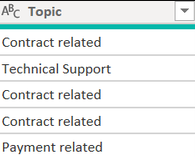
9. Text
Stores characters, words, numbers represented as text and other textual values.
10. True/False (Boolean)
Stores logical values as True or False. It is commonly used for filtering and conditional logic.
11. Binary
Stores binary data, such as the contents of files. It is mainly used in Power Query when working with file-based or binary data sources.
How to Detect Data Types
- When data is loaded, Power BI may automatically detect the data type of each column. In Power Query Editor, the data type is indicated by an icon in the column header.
- Select a column to view its current data type and change it if required.
-660.png)
Changing Data Types
Power BI automatically detects data types when data is loaded, but the detected type may not always be appropriate. You can manually change a column's data type when required.
- In Power BI Desktop, go to the Home tab and select Transform Data.
- In Power Query Editor, select the column whose data type you want to change.
- Select the Data Type option and choose the required type.
- If the existing values are incompatible with the new type, Power Query may return errors that need to be corrected.
- Select Close & Apply to load the transformed data into Power BI.

Converting Data Types using DAX
- DAX provides functions that can convert values when a specific data type is required during calculations. Common functions include VALUE(), FORMAT(), DATEVALUE(), TIMEVALUE() and INT().
- Power Query is generally used to define and transform data types during data preparation, while DAX conversion functions can be useful when a conversion is needed within a calculation.
Function | Purpose |
|---|---|
VALUE() | change text into a number |
FORMAT() | Change a value into text with a specific format like currency or date |
DATEVALUE() | Turns a text date like "01/01/2025" into a real data |
TIMEVALUE() | turns a text time like "12:30 PM" into a real time |
INT() | Function |
