Microsoft PowerPoint lets you easily add text to slides using placeholders or text boxes. You can enter titles, headings, paragraphs, and other content to organize information clearly on your presentation slides.
Steps to Add Text in PowerPoint
Step 1: Add Text Using Placeholders
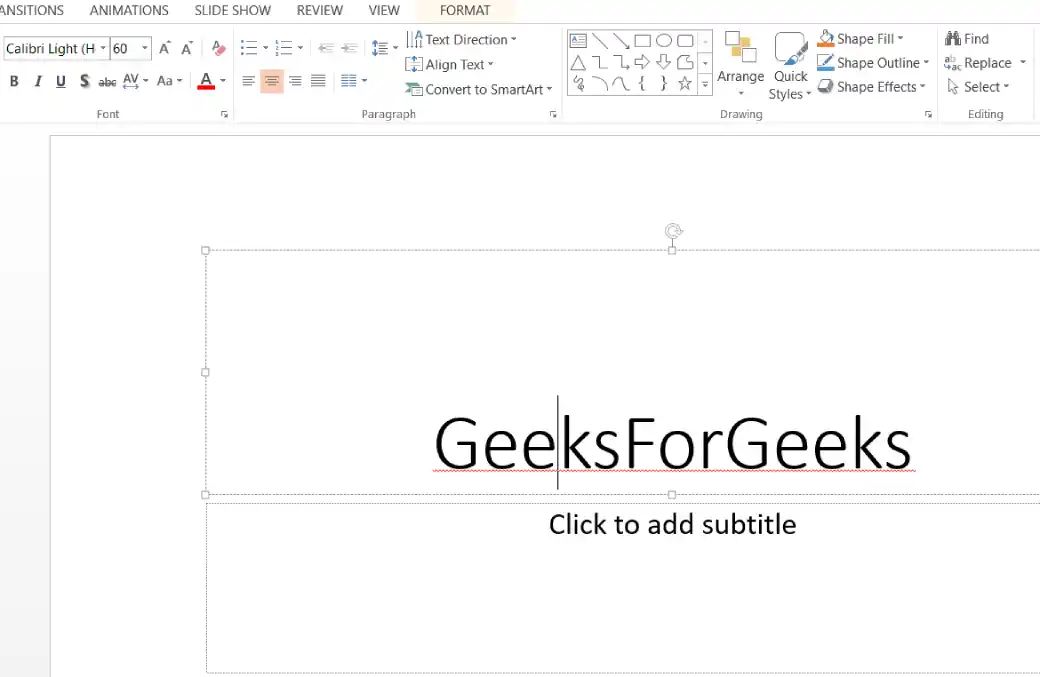
Most slide layouts include ready made text placeholders (boxes with prompts like “Click to add title” or “Click to add text”).
- Select the slide where you want to add text.
- Click inside a placeholder.
- Start typing your content. The placeholder text disappears automatically.
Step 2: Insert a Text Box (for Custom Placement)
When you need text outside the default placeholders:
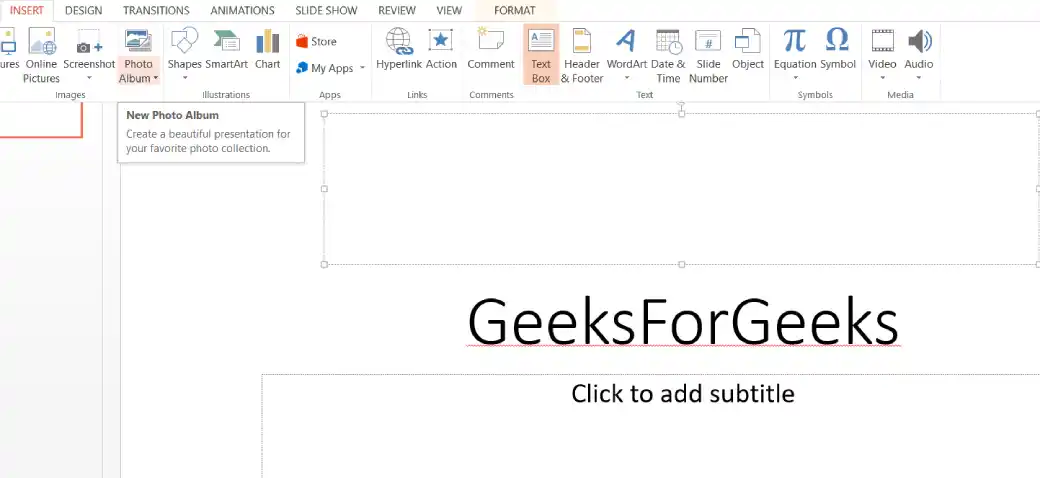
- Go to the Insert tab.
- In the Text group, click Text Box.
- Click and drag on the slide to draw the text box to the desired size.
- Type or paste your text inside the box.
Keyboard Alternative: Press Alt + N, then X (Windows) to insert a text box quickly.
Step 3: Add Text to a Shape
You can also place text inside shapes:
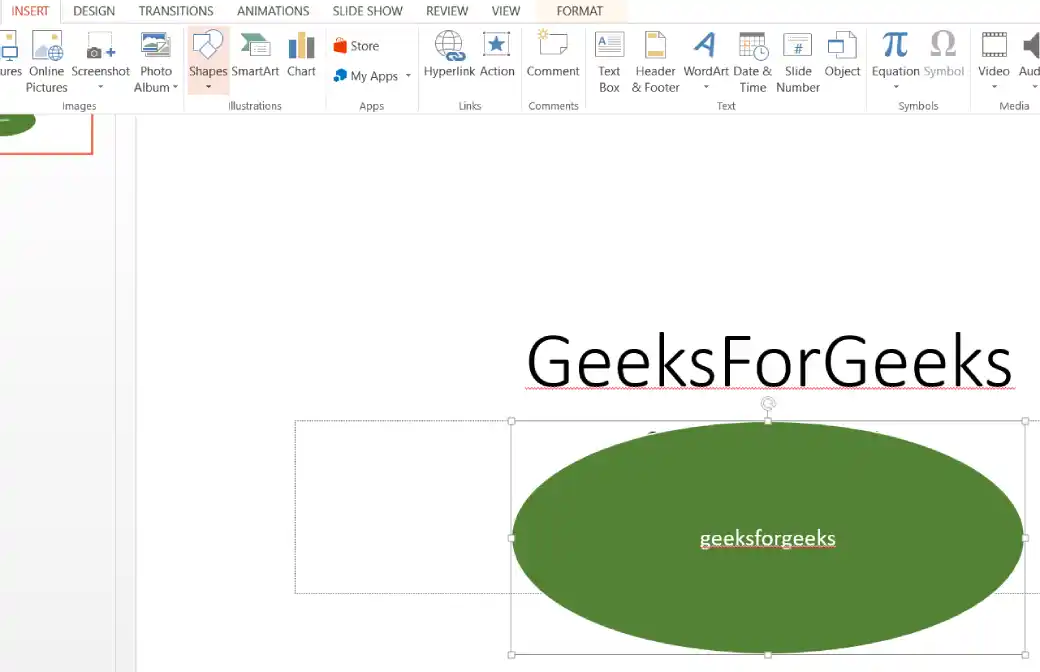
- Go to the Insert tab → Shapes and select a shape.
- Draw the shape on the slide.
- Start typing while the shape is selected. The text becomes part of the shape and moves with it.