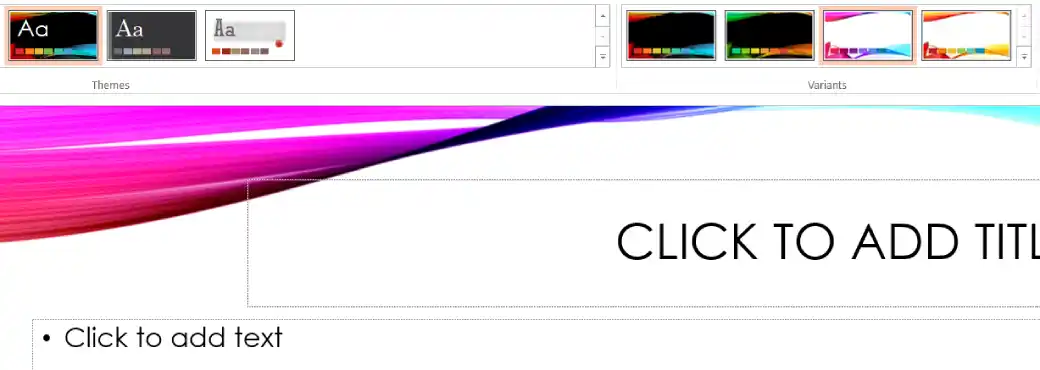
A theme is a ready made design that includes coordinated colors, fonts, and effects. Applying a theme instantly gives your entire presentation a consistent and professional look.
Methods to Apply Theme
Method 1: Apply a Theme to the Entire Presentation
Step 1: Open your presentation.
Step 2: Go to the Design tab.

Step 3: In the Themes group, click the Themes dropdown arrow to open the full gallery.
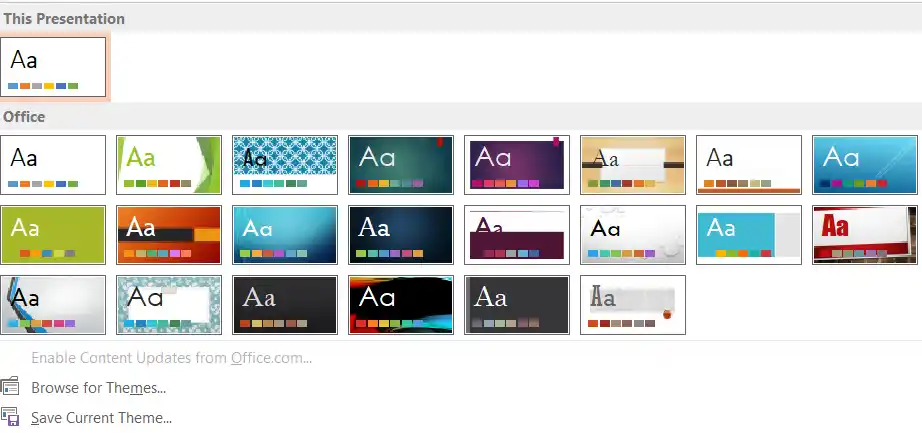
Step 4: Hover over any theme to preview how it will look on your slides.
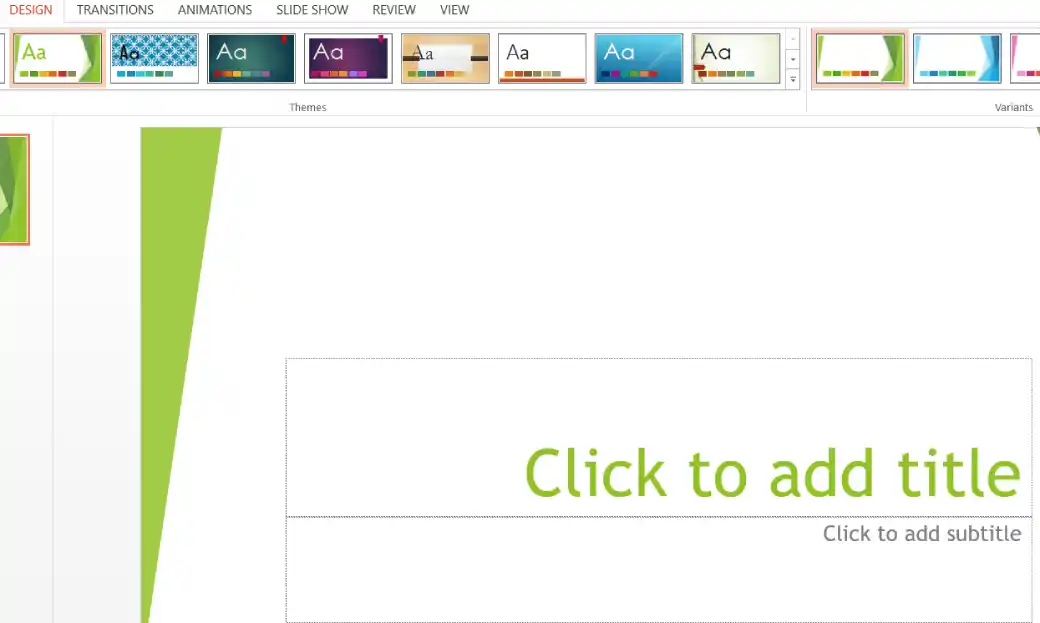
Click the theme you like to apply it to all slides.
Method 2: Apply a Theme Only to Selected Slides
Step 1: In the slide thumbnail pane on the left, select the slide(s) you want to change. (Hold Ctrl to select multiple slides.)
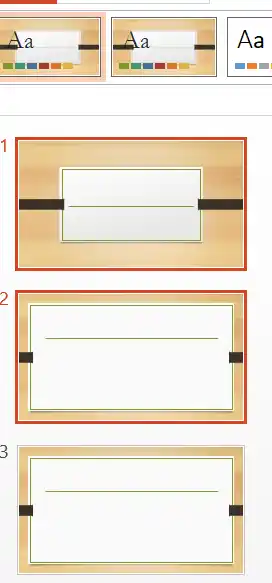
Step 2: Go to the Design tab and select the Themes.
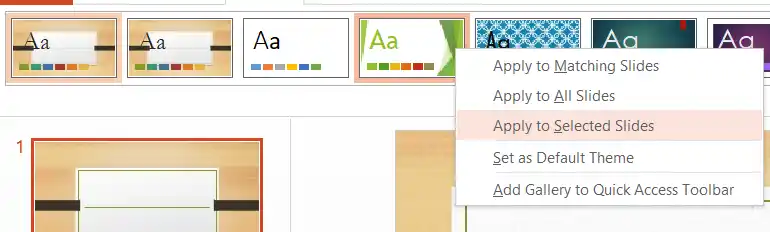
Step 3: Right-click the theme you want.
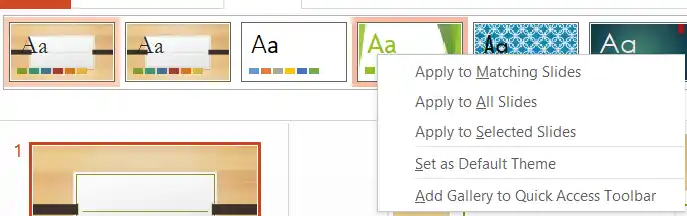
Step 4: Choose Apply to Selected Slides.
Customize Theme Variants (Colors & Styles)
After applying a theme:
Step 1: Still on the Design tab, look at the Variants group.

Step 2: Click different color variants or style options to fine-tune the look while keeping the same theme structure.