Microsoft PowerPoint makes it easy to edit and format text on slides. You can change the font, size, color, alignment, style, and other text properties to make your content clear, readable, and visually appealing.
Steps to Edit and Format Text
Step 1: Select and Edit Existing Text
- Click inside a text placeholder or text box.
- Place the cursor where you want to make changes, or select the text you want to edit.
- Type to replace or add content. Use Backspace/Delete to remove text.
- You can also cut (Ctrl + X), copy (Ctrl + C), and paste (Ctrl + V) text.
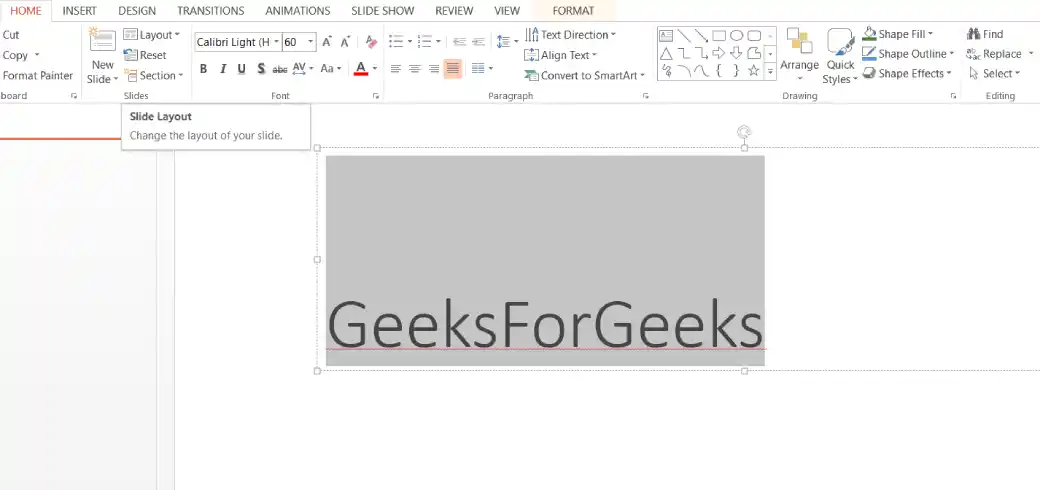
Before:
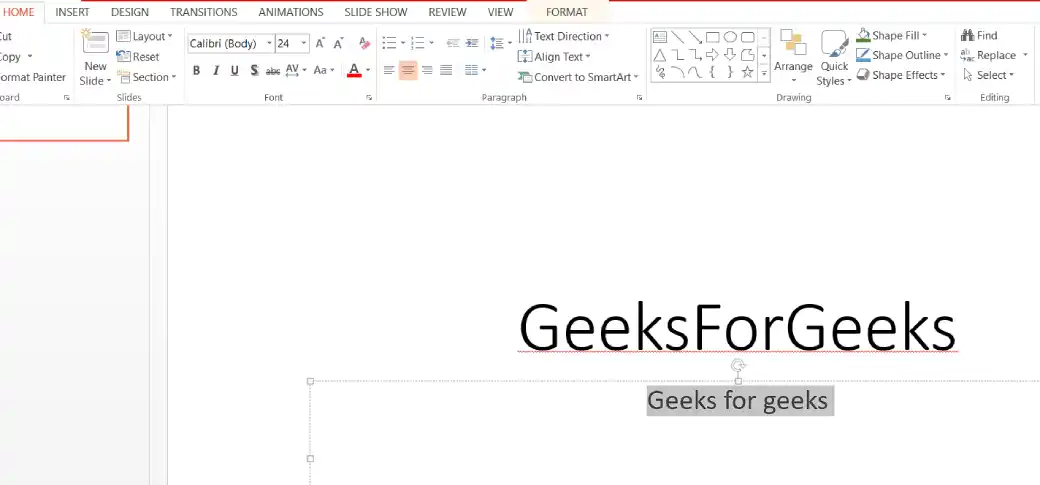
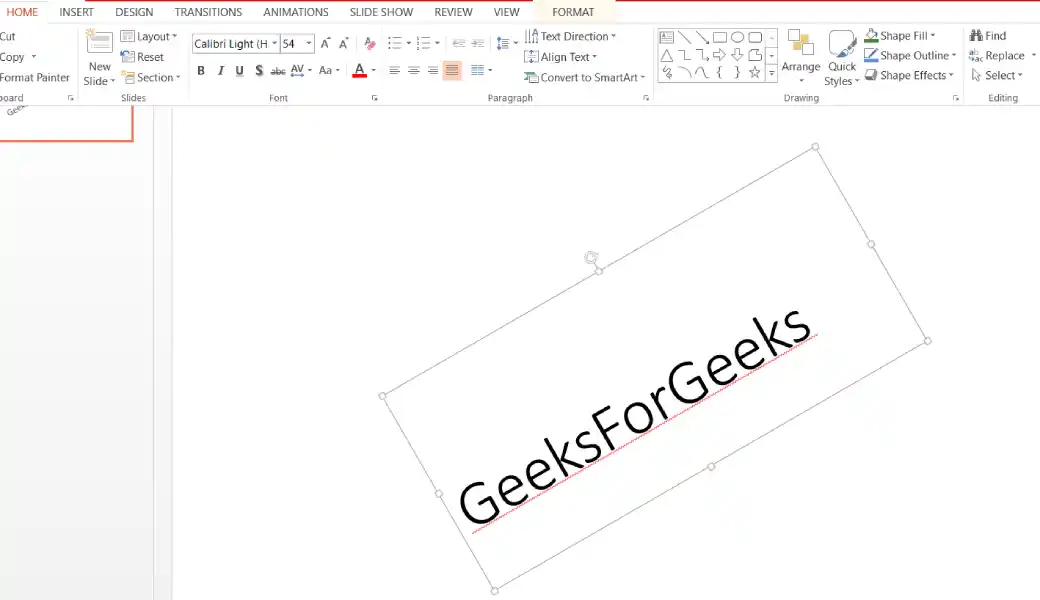
After:
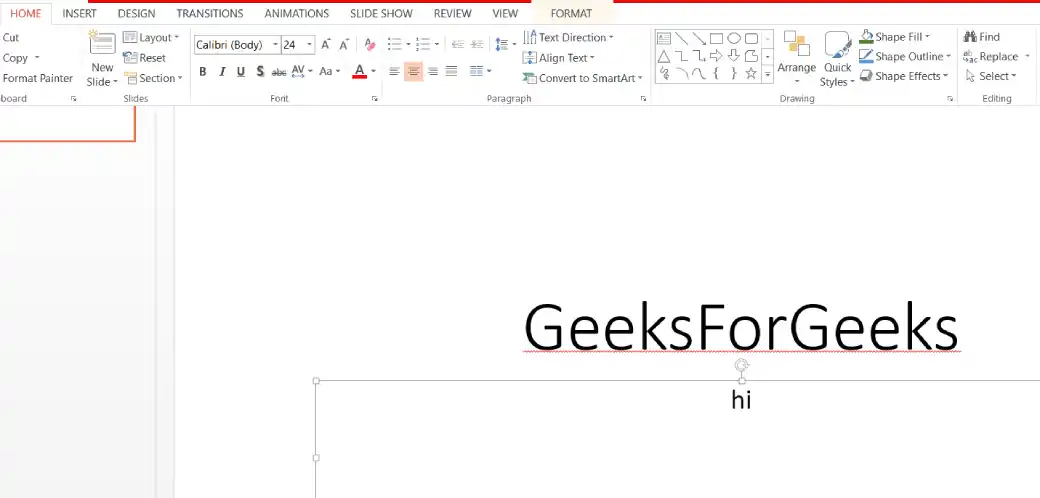
Step 2: Format Text Using the Home Tab
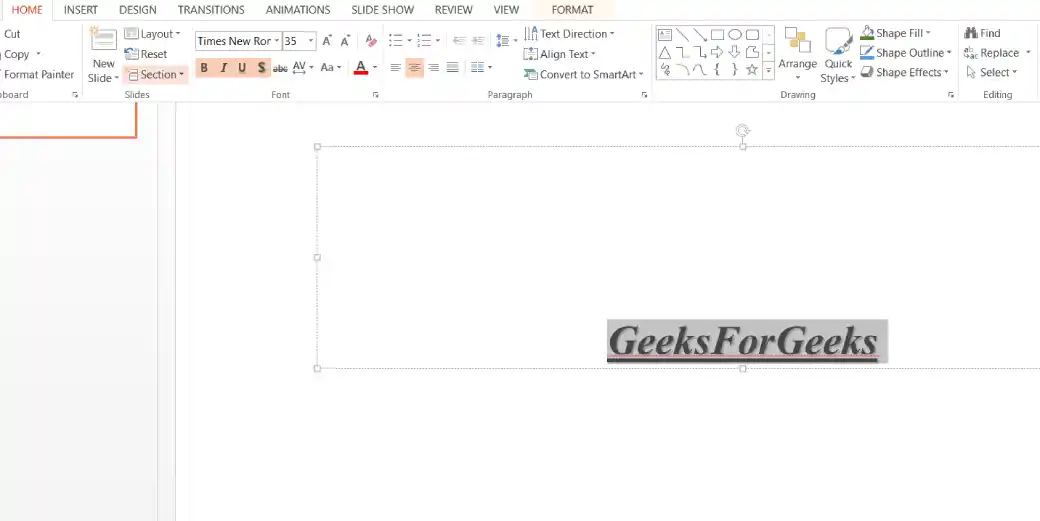
Select the text you want to format, then use the Home tab tools:
Font Group:
- Change Font style (e.g., Calibri, Arial, Times New Roman)
- Adjust Font Size
- Apply Bold, Italic, Underline, Strikethrough
- Change Font Color
- Increase/Decrease Font Size buttons
- Clear Formatting
Paragraph Group:
- Align text (Left, Center, Right, Justify)
- Adjust line spacing
- Change text direction or vertical alignment
Step 3: Move, Resize, or Delete Text Boxes
- Move: Click the border of the text box (cursor becomes a four-headed arrow) and drag it.
- Resize: Drag any of the circular handles on the corners or sides.
- Delete: Select the text box border and press Delete, or select the text and press Backspace/Delete.
Step 7: Apply Advanced Text Effects (Optional)
- Select the text.
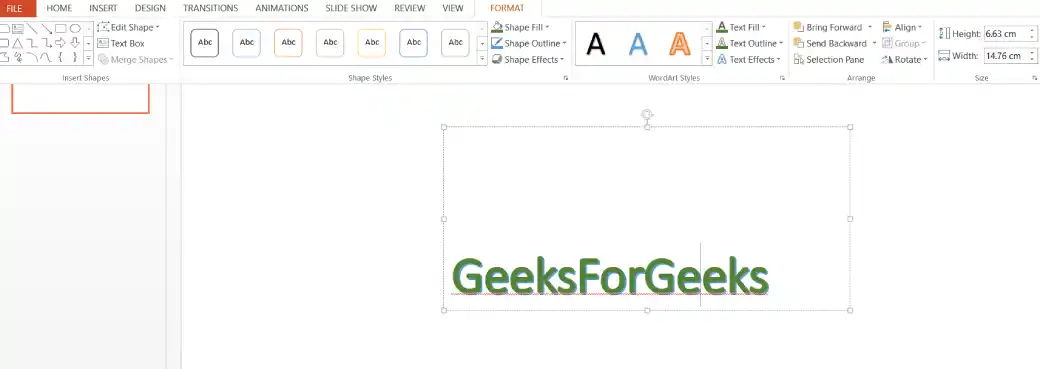
- Go to the Shape Format or Format tab (appears when text/shape is selected).
- Use WordArt Styles, Text Fill, Text Outline, or Text Effects (Shadow, Reflection, Glow, Bevel, 3-D Rotation).