

Whether you're trying to connect a new phone, set up a smart TV, or help a friend get online, remembering complex Wi-Fi passwords can be a headache. Luckily, you don't need to reset your router or dig through old notebooks. Windows has a hidden tool the Command Prompt that lets you retrieve saved Wi-Fi passwords instantly. In this guide, we'll show you two easy methods: using CMD and Windows settings.
Methods to Find Wi-Fi Password Using Windows
You can find your saved Wi-Fi password in Windows using two simple methods:
Method 1: Find Wi-Fi Password Via the Command Prompt (CMD)
CMD trick using the ‘netsh’ command can help you find the password.
Step 1: Open CMD
- Open Command Prompt and select Run as administrator to launch it with the required permissions.
Step 2: Type WLAN Command
- Type the following command and press Enter to show a list of network names that we connect to.
netsh wlan show profileThis command list of all wireless network profiles saved on the computer, including their names and settings as shown below. Select the Wi-Fi you want to know its password.
Let's suppose we want to see the password for the Wi-Fi Name "Gravity".
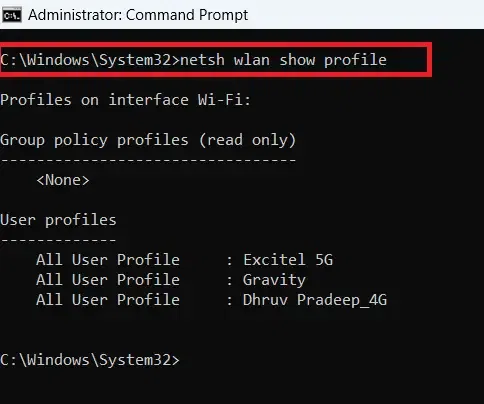
Step 3: Enter Show Profile Command
- Now, type the following command:
netsh wlan show profile name= "Wi-Fi name" key=clear- This command displays detailed information about that Wi-Fi, including the Profile information, Connectivity settings, Security settings and Cost settings for the specified Wi-Fi network profile.

Step 4: Find Key Content Option
- Find an entry named 'Key Content' & our Wi-Fi password will be listed next to it.
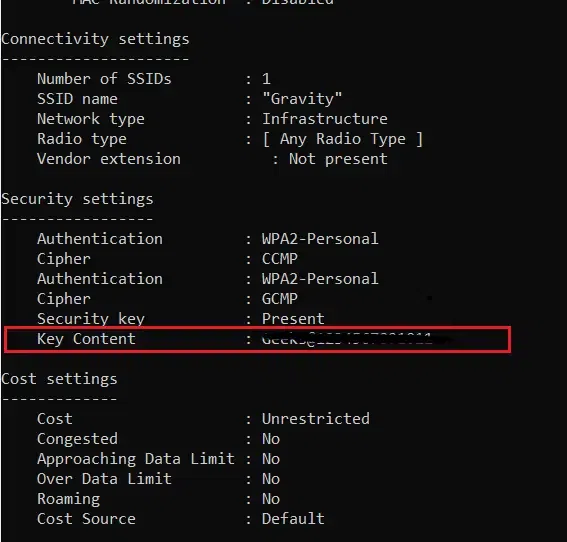
Method 2: Find Wi-Fi Password Via Network & Internet settings
Step 1: Open Network Settings
- First connect to your Wi-Fi network , then right-click the "Network" icon on the taskbar and select "Network and Internet settings".
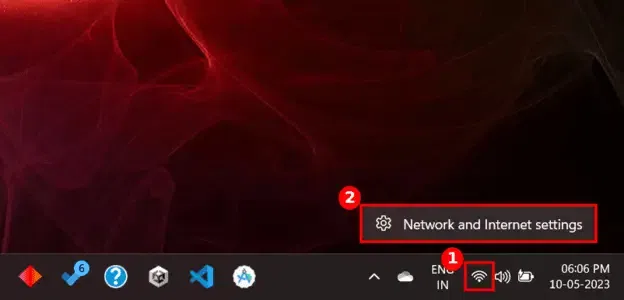
Step 2: Choose Advance Settings
Scroll down and click "Advanced Network Settings".
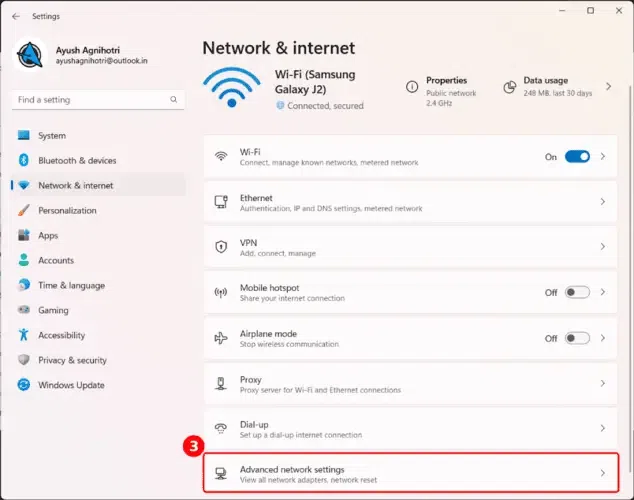
Step 3: Choose Related Settings
Under Related settings, select "More network adapter options".
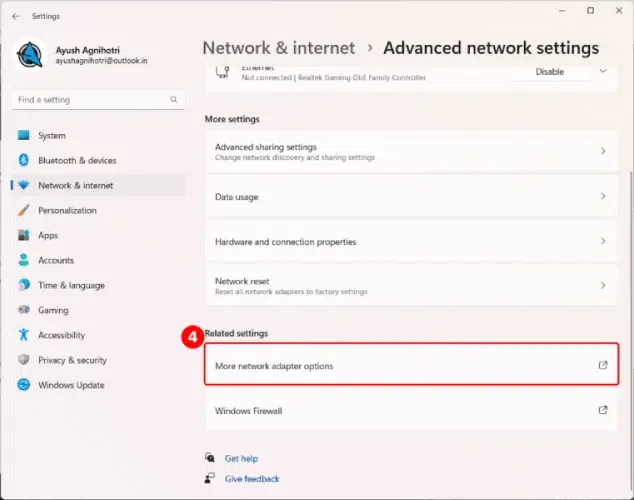
Step 4: Select WiFi Option
- Choose the connected Wi-Fi network, then select "View status of this connection".
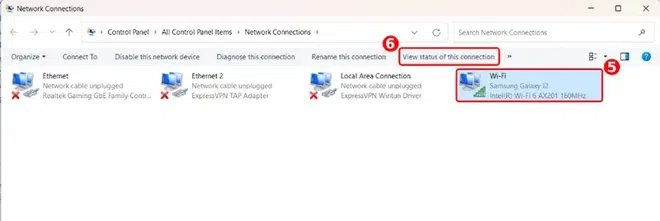
Step 5: Select Wireless Properties
- In the Status window, click "Wireless Properties".
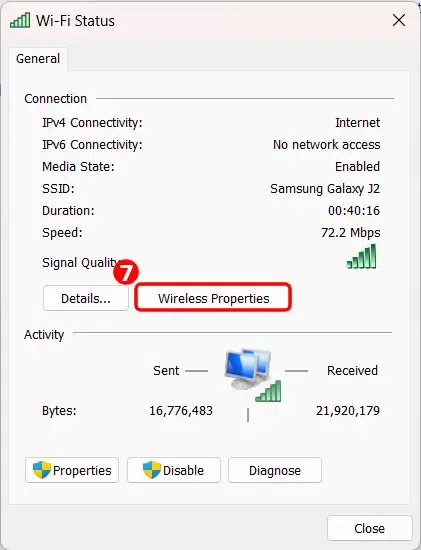
Step 6: Click on Security Tab
- Go to the "Security" tab, check the box "Show characters", Your password will appear in the Network security key field.
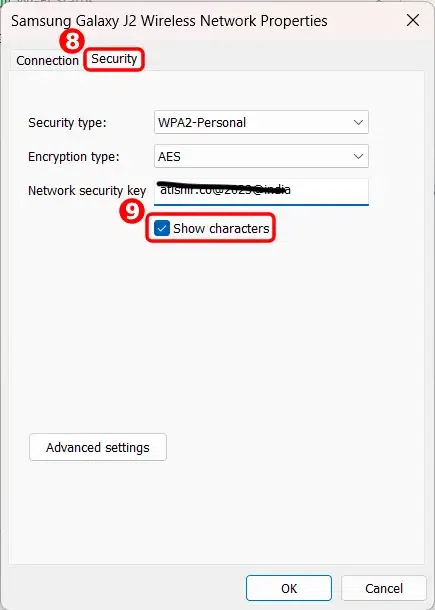
Where Does Windows Store Wi-Fi Passwords
Your Wi-Fi passwords are stored in a secure digital safe known as the Windows Registry. Consider the registry as a huge, well-organized file cabinet where Windows stores essential system information, such as network information.
- Encryption: Passwords are kept in an encrypted format (scrambled code) so they can't be read by hackers or malicious programs.
- Access Restrictions: Only administrator accounts (such as you, the owner) can unlock and access these passwords.
CMD and Network Settings Retrieve the Password
Both the processes access the same encrypted information but in a different manner:
For CMD (Command Prompt):
- The netsh wlan command acts like a master key that decrypts the password which was stored in the registry.
- When you execute key=clear in command, Windows momentarily displays the password in plain text.
For Network Settings (GUI):
- The graphical interface (Network & Internet settings) uses a utility which called Network Configuration Manager to retrieve the same encrypted password.
- Unchecking the Show characters box encrypts your password in real time, much like how your phone displays hidden text when you enter a password.
