

Parallels vs UTM is where most people start, but an Apple Silicon Mac gives you four real choices, and the first thing that separates them isn’t speed. We installed Parallels Desktop, UTM, VMware Fusion and Tart on one rented M4 Mac running macOS 27 and tried to boot the same Ubuntu disk in each. Only two of the four would run a VM without an account: UTM and Tart. Parallels installed from Homebrew and then refused to create a VM until it had a licence, and Fusion could not even be downloaded without a Broadcom login.
So this page does two jobs. It gives you measured boot, CPU, memory and disk numbers for Tart and both of UTM’s engines, all on one host and one disk image. It also shows you what Parallels and Fusion ask for before your first boot. Guest support and licence limits come from each vendor’s documentation, linked where we quote it. Versions, prices and guest limits below were checked in November 2026.
Quick verdict: which Mac VM app to pick
The guest you need decides it before price does, because two of these apps cannot run some guests at all. Start from the job you have in mind, and you will usually land on one answer.
- You run Windows 11 apps every day: Parallels Desktop. It’s the only one of the four that Microsoft’s support page names as an authorized way to run Windows 11 on Arm on a Mac, and you’ll pay a yearly subscription for that.
- You want one free app that boots almost anything: UTM. It ran our Ubuntu disk on both of its engines, and it’s the only one of the four that can emulate an x86 guest.
- You need throwaway macOS or Linux VMs from a script: Tart. It booted Ubuntu to SSH in a median 4.9 seconds and cloned a cached macOS 27 image in 0.05 seconds.
- You already live in VMware and only run Arm Linux or Windows: Fusion, free for any use, with no macOS guests on Apple Silicon.
If you only pick one and do not know your future guests yet, we’d start with UTM. It cost nothing, its wizard built a working QEMU VM with no sign-up, and on the Apple Virtualization engine it matched Tart on boot time and CPU. If Windows later becomes a daily tool, you can buy Parallels then without having wasted any money, although you rebuild the VMs rather than move them.
Benchmark results on one M4 Mac
All three engines that ran booted the same Ubuntu 24.04.5 disk with 4 vCPUs and 4 GB of RAM, and each number below is from that one image. Boot is the median of four or five cold boots, timed from the VM process starting to SSH answering. The CPU, memory and disk rows show both benchmark passes, so you can see how much each one moved.
| Metric (Ubuntu guest, 4 vCPU, 4 GB) | Tart 2.41.1 | UTM 5.0.8, Apple engine | UTM 5.0.8, QEMU engine | Parallels 27.1 / Fusion |
|---|---|---|---|---|
| Boot to SSH, median | 4.92 s | 5.14 s | 9.86 s | Not run (licence / account) |
| sysbench CPU, 1 thread (events/s) | 4,714 / 5,080 | 5,082 / 4,995 | 5,062 / 5,040 | Not run |
| sysbench CPU, 4 threads (events/s) | 17,722 / 17,848 | 16,310 / 17,919 | 18,002 / 18,319 | Not run |
| Memory, 1 MB blocks (MiB/s) | 48,231 / 50,851 | 50,373 / 49,882 | 50,092 / 51,183 | Not run |
| Sequential write, 1 MB direct (MiB/s) | 80.6 / 79.9 | 80.2 / 80.1 | 83.2 / 79.0 | Not run |
| 4K random read, QD32 (IOPS) | 403k / 437k | 134k / 172k | 139k / 138k | Not run |
| 4K random write, QD32 (IOPS) | 287k / 78.5k | 58.9k / 85.9k | 120k / 127k | Not run |
Three things stand out in that table, and only one of them favours a particular app. Read them before you pick on speed.
- CPU and memory are a dead heat: pass to pass the results spread by up to 12% (one low four-thread UTM pass), but averaged per engine they sit within about 6% of each other. All three hand the guest the same Apple hypervisor. No app here makes Linux faster on the same Mac.
- Boot is where QEMU pays: it took roughly twice as long as Tart or UTM’s Apple engine, which only matters if you start VMs by the dozen.
- Sequential writes describe the host: they sat near 80 MiB/s everywhere, which is the rental’s network-attached boot volume talking, not the apps.
Random reads are where the apps really differ. Tart and UTM’s Apple engine use the same Virtualization framework, yet Tart read two and a half to three times more IOPS from an identical copy of the same disk. The difference most likely sits in how each app attaches the disk: Tart exposes caching and sync modes through --root-disk-opts, while UTM’s Apple engine config only offers read-only and NVMe switches and picks the rest itself. A share of those reads came from the host’s page cache rather than the volume, so treat them as an app-to-app ranking, not a drive speed.
The random write row swung from 287k to 78.5k IOPS on Tart between passes, and other jobs were loading the host at the time, so we would not rank anything on it.
One pass inside the guest on UTM’s QEMU engine looked like this, cut to the summary lines. Both sequential read results came from the page cache, so they are left out.

If you came here to see Parallels beat or lose to UTM on these rows, we could not produce that number honestly, and the Parallels section below shows you where it stopped. A fair reading of the table is narrower but still useful. On Apple Silicon, the engine you choose changes boot time and disk behaviour, and almost nothing else.
How we tested
Every run happened on one AWS mac-m4.metal host (Apple M4, 10 cores, 24 GB) running macOS 27.0 build 26A428. The guest disk came from Cirrus Labs’ public Ubuntu image, pulled once with Tart and given an SSH key plus sysbench 1.0.20 and fio 3.36. We then copied it byte for byte into each UTM VM, so all three engines booted identical bits with one method per metric. The QEMU VM came from UTM’s wizard with the disk swapped in afterwards. The Apple-engine VM was a hand-written UTM config pointing at the same disk, because UTM’s file picker would not open over our remote session, so a wizard-built VM may differ in small device defaults.
- Boot: a host script started the clock when the VM process appeared (or when
tart runbegan, which slightly favours the other two) and stopped it when SSH accepted a login. - CPU:
sysbench cpu --cpu-max-prime=20000for 20 seconds on 1 and 4 threads. - Memory:
sysbench memorymoving 20 GiB in 1 MB blocks. - Disk: fio with direct I/O on a 2 GB file: 1 MB sequential write with a final fsync, then 4K random read and write at queue depth 32 for 20 seconds.
The host was a shared rental, and other test jobs ran their own VMs and containers on it during our passes, with load averages between 12 and 31. For that reason we ran every benchmark twice and print both results rather than a single best number, and you should read small gaps as noise. UTM’s GUI ran in a separate macOS login on the same machine, driven over Screen Sharing, and each UTM VM was started from its own window.
Guest OS support compared
All four run on Apple’s hypervisor, so none of them runs an x86 guest at native speed. That shared floor is why the matrix has more “no” cells than you might expect, and why the x86 row matters more than any benchmark.
| Guest on Apple Silicon | Parallels Desktop 27 | UTM 5.0.8 | VMware Fusion | Tart 2.41.1 |
|---|---|---|---|---|
| macOS (Arm) | Yes, Monterey 12 and newer, same version as the host for a new install | Yes, macOS 12 and newer (Apple engine) | No | Yes, macOS 27.2 guest booted in our lab |
| Windows 11 on Arm | Yes, Microsoft-authorized | Yes, through QEMU | Yes, with limited VMware Tools | Not a documented guest |
| Linux (arm64) | Yes | Yes, Ubuntu booted on both engines | Yes | Yes, Ubuntu booted in our lab |
| x86 operating systems | No | Yes, emulated by QEMU | No | No |
| Command line control | prlctl, Pro and Business only | utmctl, needs a logged-in GUI session | vmrun | The whole tool is a CLI |
Most people get the Fusion cell wrong, because Fusion on Intel Macs did run macOS guests. Broadcom’s guest support article for Fusion on Apple Silicon settles it in one line. “The Arm variants of the macOS operating system is not supported in a Fusion VM,” it says, and it adds that x86 operating systems cannot run in Fusion VMs on Apple Silicon at all. If you need a macOS VM, Fusion is out, whatever else you like about it.
1. Parallels Desktop
Parallels wins wherever Windows is the guest you live in. Microsoft’s support page names Parallels Desktop 18, 19 and 20 as authorized solutions for Windows 11 on Arm on M1, M2 and M3 Macs, and it hasn’t been updated for version 27 or the M4 yet. Coherence mode puts Windows apps in Mac windows, so you can forget the VM is there. The install itself was painless. The Homebrew cask pulled version 27.1.0 and ran Parallels’ own setup tool in about 20 seconds:
brew install --cask parallelsThen it stopped. On first launch the app walks you through folder permissions, and on our host the wizard never got past that page. The service was running, so we asked it directly. It reported no licence and no signed-in account, and the CLI refused to create a VM, because prlctl belongs to the Pro and Business editions:

So the honest Parallels result from this lab is an installed, unlicensed app with no VM. The trial page offers 14 days of the Pro edition and asks for an email address to download it, so you will get further on a normal desktop than our headless rental did. Expect the permissions screen below before anything else, and grant it so the wizard can move on.

Edition matters more than most comparison pages admit. Parallels’ buy page caps Standard at 8 GB of vRAM and 4 vCPUs per VM, which is fine for Office and tight for a Windows build box. Pro and Business raise that to 128 GB and 32 vCPUs and add the command line. For macOS guests, Parallels’ macOS VM knowledge base article supports Monterey 12 and newer, with a catch. A new install has to match the macOS version your Mac itself runs. Here’s where it falls short for most developers.
- Cost that recurs: Pro and Business are subscription only, and the one-time Standard licence does not promise support for future macOS and Windows releases.
- Scripting needs Pro: the buy page lists the command line interface only under Pro and Business, so Standard gets no
prlctl. - Thin macOS guest tools: the same KB calls Parallels Tools in macOS guests “very limited”.
Pick Parallels if Windows is part of your working day and you want the vendor Microsoft names. Skip it if you mostly run Linux. Every app here sits on Apple’s hypervisor, so expect Linux CPU speed close to the UTM numbers we measured, and UTM costs nothing.
2. UTM
UTM wins on range, and of the three GUI apps it’s the only one that gave us a running VM with no sign-up. It wraps two engines, Apple’s Virtualization framework and QEMU, and you pick between them in the very first dialog. The free cask installs the same app the Mac App Store sells for $9.99, where the price buys automatic updates and supports the developers:
brew install --cask utmClick Create a New Virtual Machine and the Start dialog asks the question that matters most on Apple Silicon:
- Native Arm guests: Virtualize. Arm64 guests run at hypervisor speed, which covers macOS, Arm Linux and Windows 11 on Arm.
- x86 and other CPUs: Emulate. QEMU translates every instruction in software, which is the only x86 path any of these four apps offers.

- 1Native Arm guests
- 2x86 and other CPUs
For a Linux guest, Virtualize leads to a second engine choice that’s easy to miss. The Use Apple Virtualization box starts unchecked, and UTM’s own hint calls Apple Virtualization “experimental” and recommends QEMU. Our numbers argue the other way for Linux, since the Apple engine booted in 5.14 seconds against QEMU’s 9.86 with the same CPU score. Tick it unless you need a QEMU-only feature.

QEMU still earned its place in the table, because it’s where UTM’s extra features live: emulation, more device types and the broadest guest list. The QEMU VM in our library reports itself as a “QEMU 10.0 ARM Virtual Machine”, and the Apple-engine copy of the same disk sits under it as a plain Linux entry.

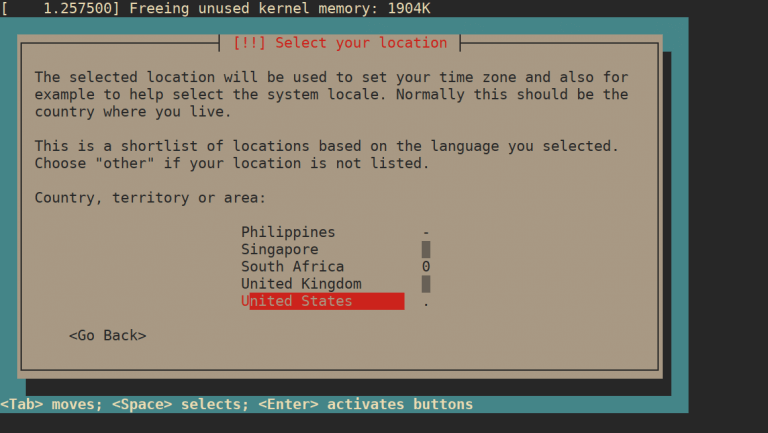
Both engines brought the Tart-built Ubuntu disk up to a login prompt without touching the disk itself, which also tells you UTM’s Apple engine and Tart read the same raw disk format. You get a login prompt like this one a few seconds after pressing play on the Apple engine.

macOS guests run on the Apple engine only, and what works inside them depends on the host’s macOS version. The UTM macOS guest docs list the gaps, and they’re the reason to upgrade the host before you judge UTM.
- Before macOS 14: no dynamic display resolution and no save states.
- Before macOS 15 on both host and guest: no clipboard sharing.
- Before macOS 27: no USB sharing, snapshots or disposable mode for Apple Virtualization VMs.
Where UTM falls short is Windows polish and automation. There is no Coherence-style window blending, and utmctl refused to talk to the app from our SSH session (“utmctl does not work from SSH sessions or before logging in”), so headless scripting is weaker than Tart’s. Pick UTM if you want one free tool that boots almost anything; skip it if your automation runs over SSH on a Mac nobody logs into.
3. VMware Fusion
Fusion wins on price for people who already know VMware: Broadcom made it free for commercial, educational and personal use in November 2024, with no licence key. Getting it onto a Mac is the hard part now. Homebrew has no cask for it and the old public download server returned a 404. That leaves one route: register or log in to the Broadcom Support Portal and fill in a trade compliance form.

We did not create a Broadcom account for a disposable lab host, so Fusion has no row in our benchmark table. Its guest support below comes from Broadcom’s article rather than our machine. On Apple Silicon it runs 64-bit Arm guests and nothing else, which makes it a Linux and Windows 11 on Arm tool, and Windows guests get a thin set of VMware Tools.
- What Windows on Arm gets: a vmxnet3 network driver and a basic 2D display driver.
- What it doesn’t: 3D acceleration, which Broadcom says is “not available at this time”.
- Not planned: Windows 10 and earlier, and any x86 guest.
For Windows users, that list is the verdict. Without 3D and the usual integration drivers, a Fusion Windows VM is a test box, not a desktop. Pick Fusion if your guests are Arm Linux servers and you want your VMware habits and .vmx files to carry over. Skip it for macOS guests (unsupported) and for daily Windows work.
4. Tart
Tart wins when nobody sits in front of the VM. It’s a command line tool on Apple’s Virtualization framework that stores VMs as OCI images, so you pull a macOS or Linux VM from a registry the way you’d pull a container image. The project now lives at openai/tart on GitHub, and its README installs it from the OpenAI tap (our Tart guide covers the full setup):
brew install openai/tools/tartIt was the fastest of the three engines we could run, and the tidiest to measure, because tart run and tart ip make the whole boot scriptable. Clone the Ubuntu image, then start it headless with tart run pvu-ubuntu --no-graphics and ask for its address with tart ip. The first three cold boots reached SSH in 4.83 to 5.60 seconds, and two more on the rerun (5.87 and 4.62) make up the 4.92 second median:
tart clone ghcr.io/cirruslabs/ubuntu:latest pvu-ubuntuCheck the tart get line for the defaults the image ships with (4 CPUs, 4096 MB, a 20 GB raw disk), the spec we kept for every engine.

macOS guests are where Tart pulls away from the GUI apps. The macOS 27 base image was already cached on the host, so the clone was an APFS copy that took 0.05 seconds. The guest then answered tart exec after 29.88 seconds on the first boot and 32.83 on the second. The first pull is the slow part, because the image takes 39 GB on disk, so plan bandwidth and space before you rely on it in CI.

Inside, the guest reported macOS 27.2 build 26B123 while the host ran 27.0, because the image carries its own release. You can still get a desktop when you need one. Running the VM with tart run --vnc turns on the guest’s own Screen Sharing, which is how we reached the macOS 27 guest below.

Read the licence before you build a product on it. Tart’s licensing page describes a Fair Source model that’s royalty-free on personal computers and for organisations up to a 100 CPU core limit, with paid tiers above that starting at $12,000 a year for 500 cores. Count your cores before a build farm grows past that line.
Where Tart falls short is anything desktop. There is no Windows guest, no x86 and no snapshot tab, so you clone a VM before a risky change instead. Pick it for CI runners and disposable agent sandboxes, the setup our Mac mini for AI agents guide sizes hardware for. Skip it if you want to click around in a VM all day.
Pricing and licences side by side
Three of the four cost nothing for a single developer, so this table is really about the limits each licence puts on you. Parallels’ buy page renders prices in your local currency and often shows a discount, so the figures below are the euro prices it served us, a guide rather than a quote for your region.
| Tool | Licence | Cost (checked November 2026) | Limits that bite |
|---|---|---|---|
| Parallels Desktop | Proprietary: Standard, Pro, Business | First-year promo: Standard 54.99 EUR/yr, Pro 65.99 EUR/yr, Business 97.49 EUR/yr (regular 99.99, 119.99 and 149.99 EUR/yr); Standard one-time 189.99 EUR; 14-day Pro trial | Standard: 8 GB and 4 vCPUs per VM, no CLI |
| UTM | Open source | Free download, $9.99 in the Mac App Store | x86 guests run emulated; utmctl needs a GUI login |
| VMware Fusion | Proprietary, free for all uses | Free, Broadcom Support Portal account to download | No macOS or x86 guests on Apple Silicon |
| Tart | Fair Source | Free on personal computers and up to 100 cores per organisation | Paid tiers above 100 cores |
Look twice at the Parallels row. Standard’s per-VM cap is the reason many developers end up on Pro, so compare Pro’s yearly price against UTM’s zero rather than Standard’s. Budget on the regular price, not the first-year promo, because that’s what renews. If you’d mainly spend that money to give a Linux VM more cores, all four apps sit on the same Apple hypervisor, so expect much the same speed from UTM or Tart, which already let you set any core count your Mac has.
Where each one falls short
Some limits sit below all four apps, so switching tools will not fix them. Apple’s macOS licence allows “up to two (2) additional copies or instances” of macOS in virtual machines on each Mac you own or control. The permitted uses are development, testing, macOS Server or personal non-commercial use, whichever app you run. Two macOS guests at 8 GB each plus the host leave little room on a 16 GB Mac. A macOS test lab is happier on 24 GB or more, the same trade-off our guide to picking a Mac by unified memory walks through for local models.
Each app also has gaps of its own, and each one maps to a reader we would send to a different tool.
- Parallels: needs a licence or trial before the first VM, and scripting needs Pro.
- UTM: Windows polish trails Parallels, and its CLI won’t work from SSH.
- Fusion: no macOS guests, thin Windows tools, and a Broadcom account just to download it.
- Tart: no Windows, no x86 and no GUI worth the name.
- All four: no Intel macOS guest and no native-speed x86 guest. For Intel macOS you need a Linux host, as in our macOS on KVM and QEMU guide or the Proxmox VE walkthrough.
If all you want is an Ubuntu shell and none of these appeal, Multipass gives you Ubuntu VMs from one command. If you want Linux as your main OS rather than a guest, our best MacBook for Linux picks cover running it on the metal. For everything else, the guest picks the tool: Windows every day means Parallels, macOS in a pipeline means Tart, and anything odd or x86 means UTM.



Can you also compare with MacVisor?
MacVisor wasn’t in this test run, so there are no measured numbers for it yet. It sits on the same Apple Virtualization framework as Tart and UTM’s Apple engine, comes with a one-time Pro licence and an mvz CLI, and can import UTM, Tart and Parallels VMs, but it needs macOS 27 and runs ARM64 guests only (macOS, Windows 11 on ARM, Linux, FreeBSD). Noted for the next refresh of this comparison.