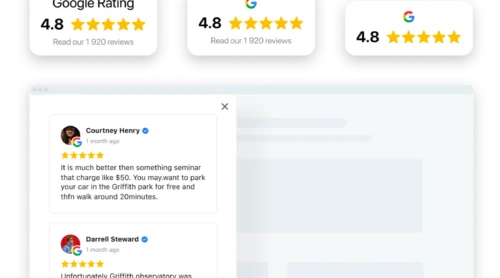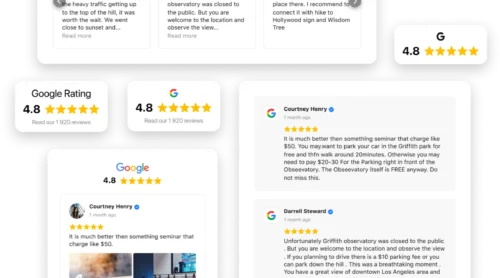
Your reviews already exist – on Google, Tripadvisor, Yelp, maybe a marketplace or two. The catch is that the people browsing your website rarely go looking for them there. Copying quotes over by hand works for a handful, then falls behind the moment someone leaves a new one.
There are a few ways to bring them over: a reviews widget that pulls them from your platforms, an app from your builder’s app market, your builder’s own testimonial block, or custom code. The right one depends mostly on where your reviews already live and how much upkeep you’re willing to do by hand.
For reviews on more than one platform, the easiest route is a reviews widget: connect your platforms once, paste one snippet, and new reviews show up on their own. Below, we walk through it step by step with Justreviews on a real example – a New York bakery’s Google, Tripadvisor and Yelp reviews – covering setup, display settings, and alternative methods to add reviews to a website.
- A reviews widget is the easiest way to bring multiple platforms together and let new reviews sync automatically instead of copying quotes by hand.
- Choose your review sources based on your customers. Google is a good starting point, but the best combination depends on where people look for recommendations in your industry.
- Put website customer reviews where buying decisions happen. Use a carousel on your homepage, a compact rating near product details, or a floating badge for website-wide reassurance.
- You can curate what visitors see: filter, sort, pin, or hide individual reviews, but keep it transparent by including varied genuine feedback.
How to add reviews to your website in 4 steps
You can build and preview the whole widget before you touch anything in your website builder. If you already know where custom code goes on your site, here’s the short version:
- Open the widget editor and pick a template you like.
- Connect your review sources by business name and address or page link.
- Click Publish and copy the three-line embed snippet.
- Paste the code into an HTML or custom-code block on your website.
Create your reviews widget in the live editor ↓
Before you start: method and platforms
Two decisions come before any setup: how the reviews get onto your page, and which platforms they come from.
Four ways to get reviews on your website
There are four main routes you can take to get customer reviews on your website, each requiring a different level of effort and upkeep:
| Route | What you do | Updates | Suits |
|---|---|---|---|
| Multi-source widget | Connect your platforms in a visual editor and paste one embed code. | Connected sources refresh automatically; manual entries stay as typed. | Reviews on two or more platforms, on any builder that accepts embed code. |
| App or plugin from your builder’s app market | Install a review app that collects, imports or syncs reviews from other apps, marketplaces or Google. | New reviews arrive as customers leave them; synced sources depend on the app. | For reviews collected in the store admin, often billed through the builder. |
| Builder’s testimonial block | Type each quote, name and rating by hand | None; you edit quotes by hand. | Three to five permanent client quotes. |
| Code route (Google Places API) | A developer fetches reviews from the Places API, at most 5 per place. | Up to your developer’s code. | Teams with a developer who need only five Google reviews. |
Which platforms to show
Show the platforms your customers actually check before they buy – usually Google plus one or two specific to your industry. With a reviews widget, each platform you connect gets its own tab, plus an All Reviews tab with overall rating.
| Business | Platforms to combine | Why this mix |
|---|---|---|
| Restaurants, cafés, and delivery | Google + Tripadvisor + Yelp, as well as OpenTable, TheFork or Zomato for bookings. DoorDash, Uber Eats, or Grubhub for takeout | Locals check Google and Yelp, visitors check Tripadvisor, and diners review where they booked or ordered. |
| Hotels and vacation rentals | Google + Booking.com + Airbnb, plus Expedia, Hotels.com or Vrbo | Guests review where they booked, so each booking channel holds part of the picture. |
| Tours, attractions and travel | Google + Tripadvisor, plus Trip.com, Expedia or MakeMyTrip | Travelers plan on travel platforms and find you on Google Maps once they’re nearby. |
| Local and home services | Google + Facebook + Yelp, plus Angi, HomeAdvisor, Houzz, Thumbtack or BBB | Locals search on Google and compare pros on directories before calling. |
| Professionals and specialist businesses | Google + your industry’s directory. E.g., Healthgrades and RateMDs for clinics, Avvo and Martindale for law firms, DealerRater or Edmunds for car dealers, Zillow for real-estate agents | Clients vet these businesses on the directory built for their industry. |
| Online stores and sellers | Google + Trusted Shops or Sitejabber, plus Amazon, eBay, Walmart, AliExpress or Etsy | Store reviews show you’re a safe place to buy; marketplace reviews vouch for the products. |
| Software and apps | G2 + Capterra + Product Hunt, plus the App Store and Google Play for mobile apps | Buyers compare tools on software review sites, and app ratings show how it does on each phone. |
A few more fit specific pages: Goodreads for an author’s site, Glassdoor for a careers page, WeddingWire for wedding vendors, and ClassPass for fitness studios. Regional platforms slot into any mix – Yell in the UK, Yellow Pages, HomeStars in Canada, HolidayCheck in German-speaking markets and ProductReview in Australia.
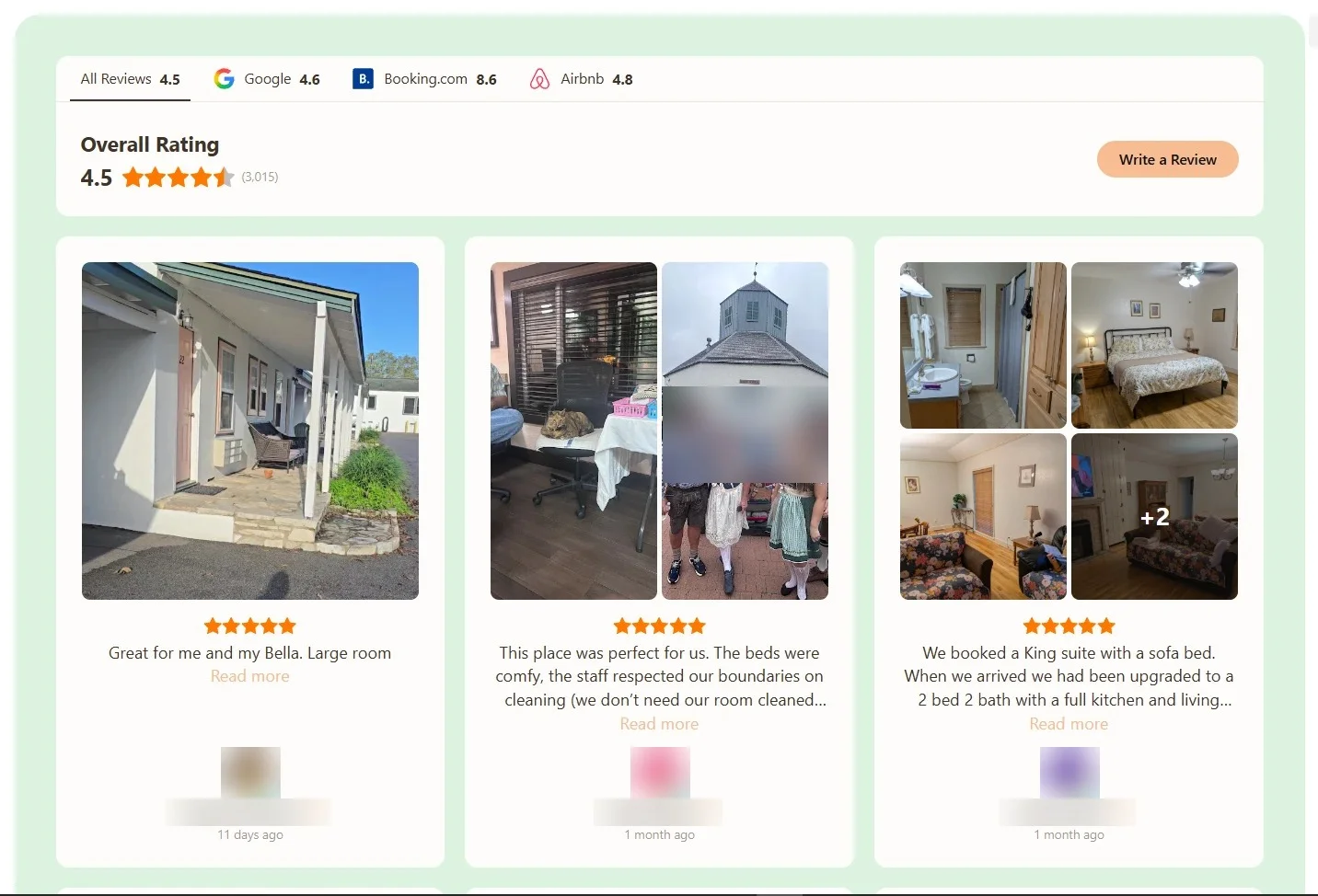
Here’s how a Google + Booking.com + Airbnb mix looks for reviews on a grid layout:
And this one combines Google and Etsy for a cat-furniture business:
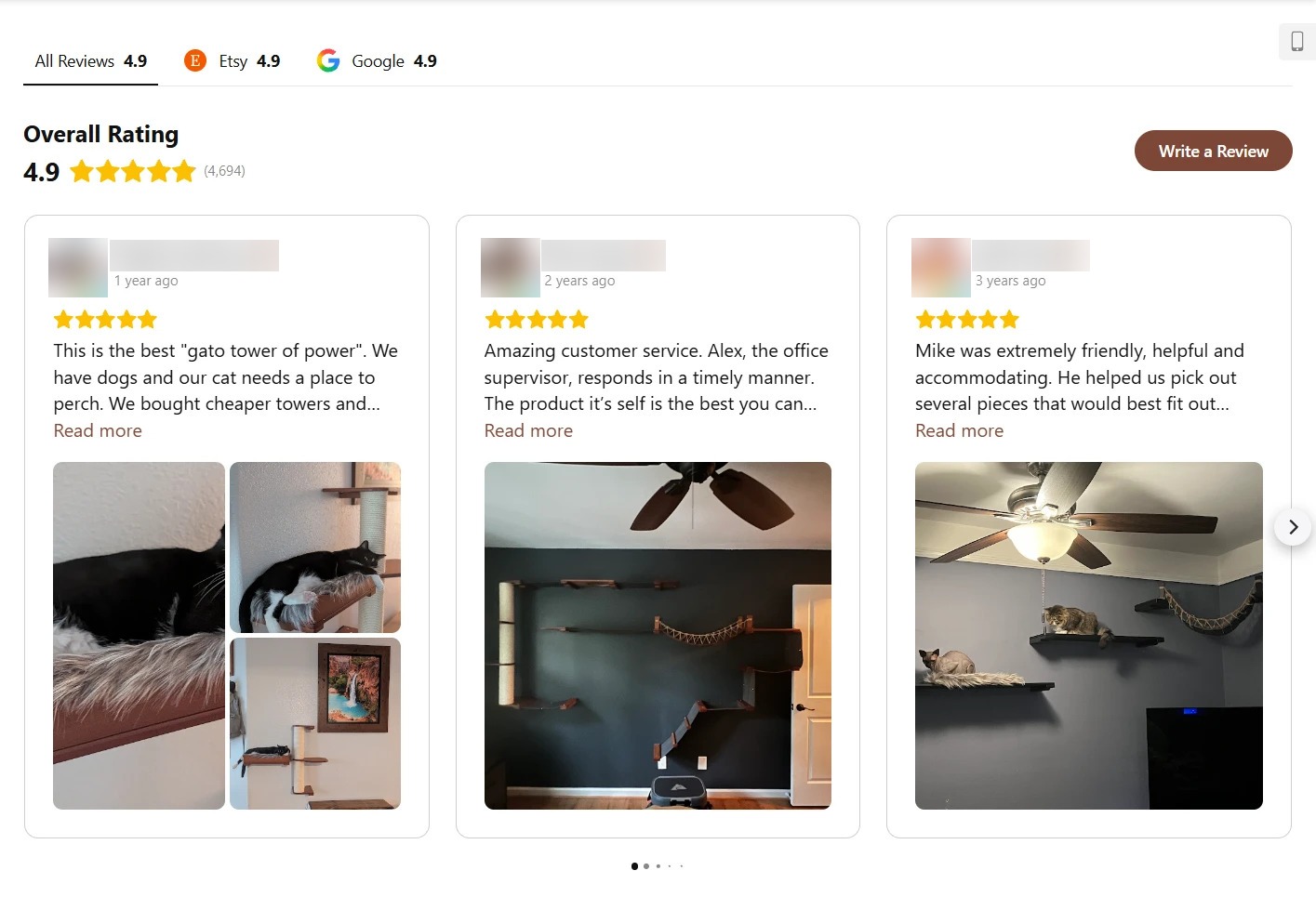
If a platform doesn’t connect automatically, you can still add its reviews by hand. They show a verified checkmark and no platform icon, and they don’t update on their own, so add only genuine reviews with real dates.
Step 1: Pick a layout and where reviews go
Start with the target page, not widget configuration. Reviews work best where a visitor is deciding whether to buy, book or get in touch, and the spot decides the layout.
Where to put your reviews
Match the layout to what the visitor is weighing on that page:
| Page | What the visitor is deciding | Layout that fits |
|---|---|---|
| Home page | Whether your business is worth exploring. | A carousel or slider below the hero. |
| Every page (website-wide) | Quick reassurance while browsing. | A floating badge that opens the feed in a popup. |
| Product or service pages | Whether the offering delivers in real use. | A compact carousel or list near the specs or booking button. |
| Pricing or cart page | Whether the price is justified. | An inline rating badge or two-card row that doesn’t push the checkout button down. |
| Lead or landing page | Whether to submit the form or book a call. | A slider or card badge beside the form. |
Which layout is best
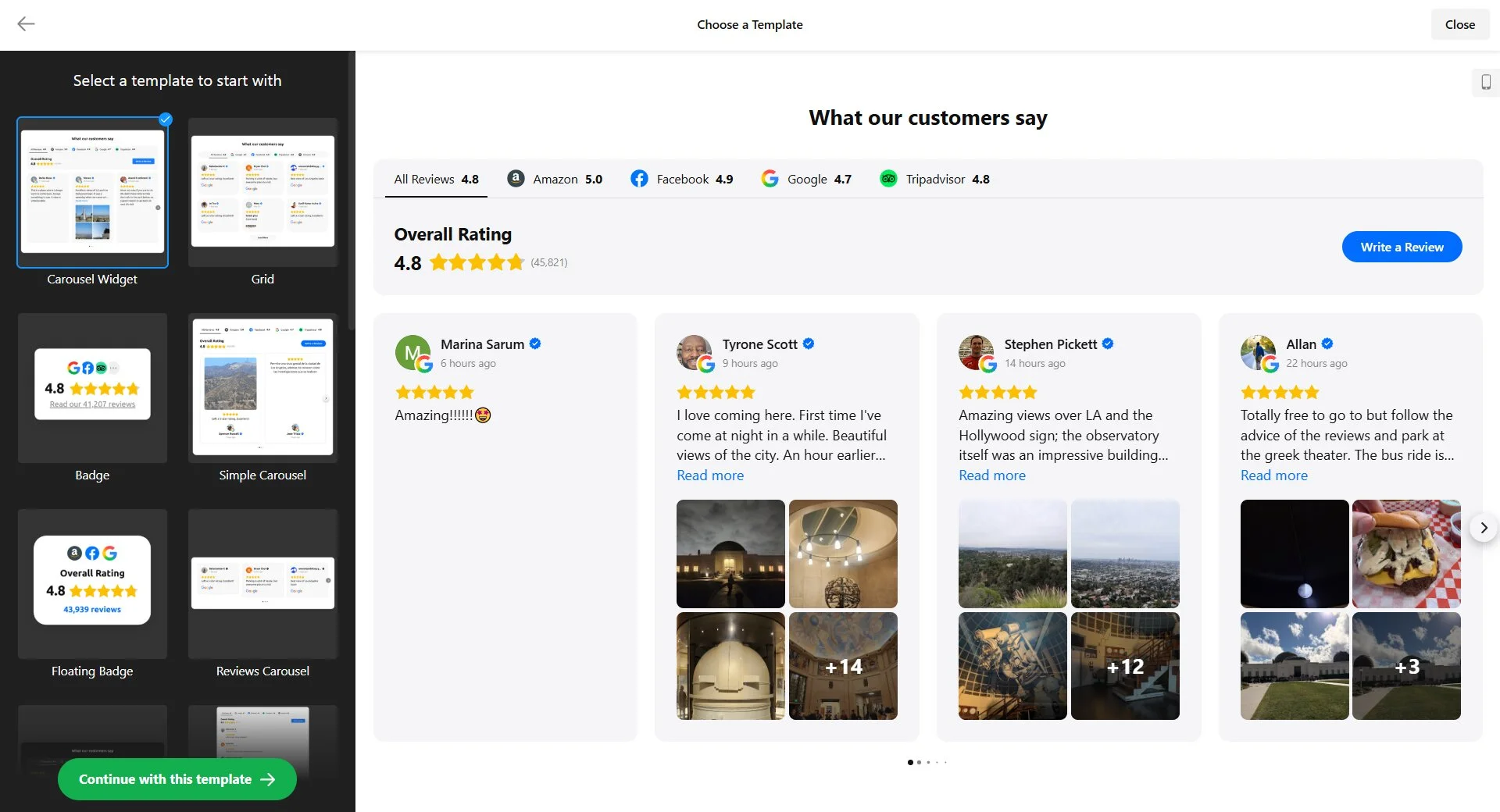
In the editor, that choice is essentially about deciding between starter templates. The catalog has 15 layouts – six section formats for reading on the page and nine compact formats that open reviews in a popup.
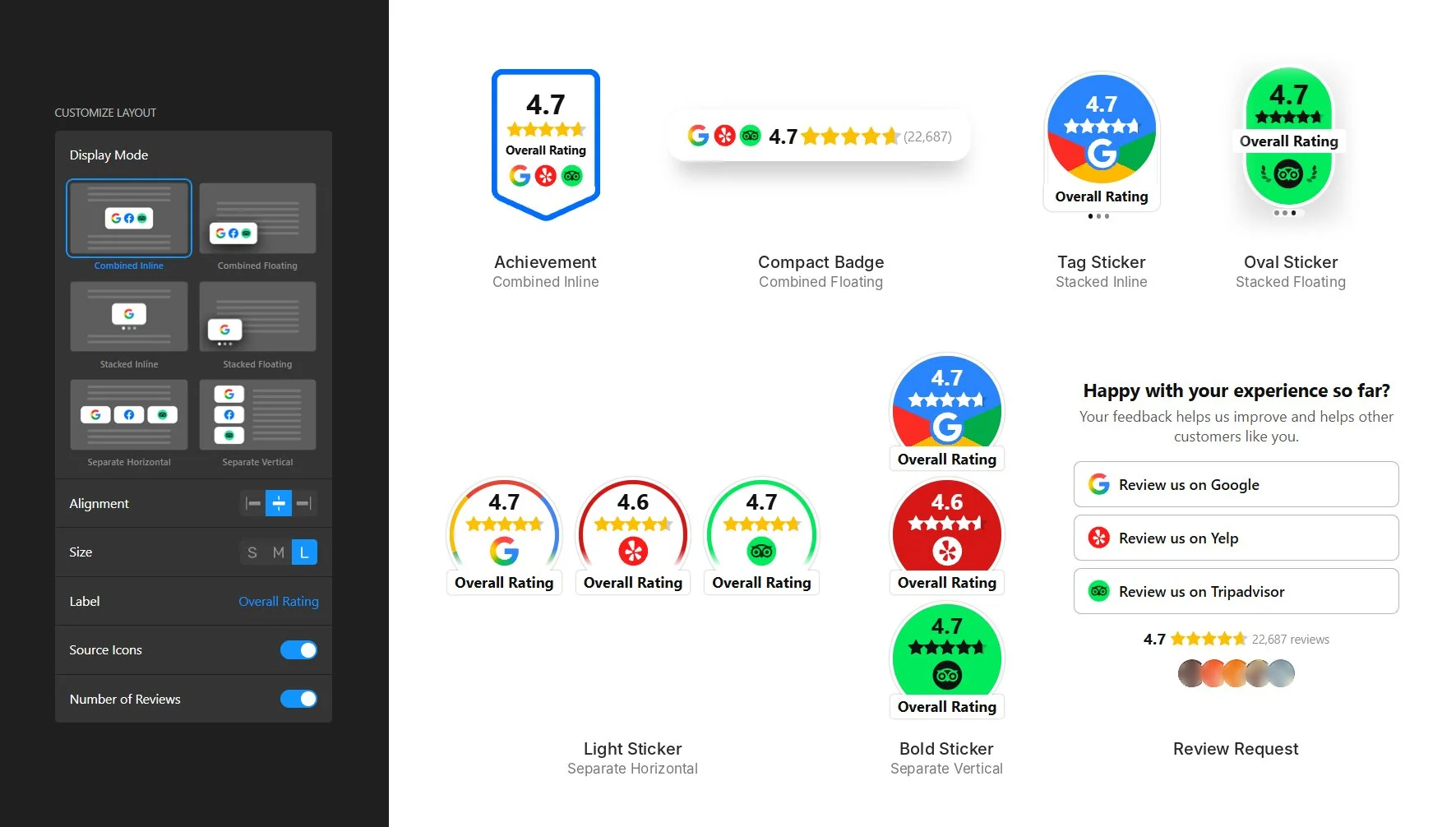
When you only have room for star scores and source icons, a Google reviews badge-style layout does the job: set Badge Display Mode to Combined or Stacked (each Inline or Floating) or Separate (Horizontal or Vertical).
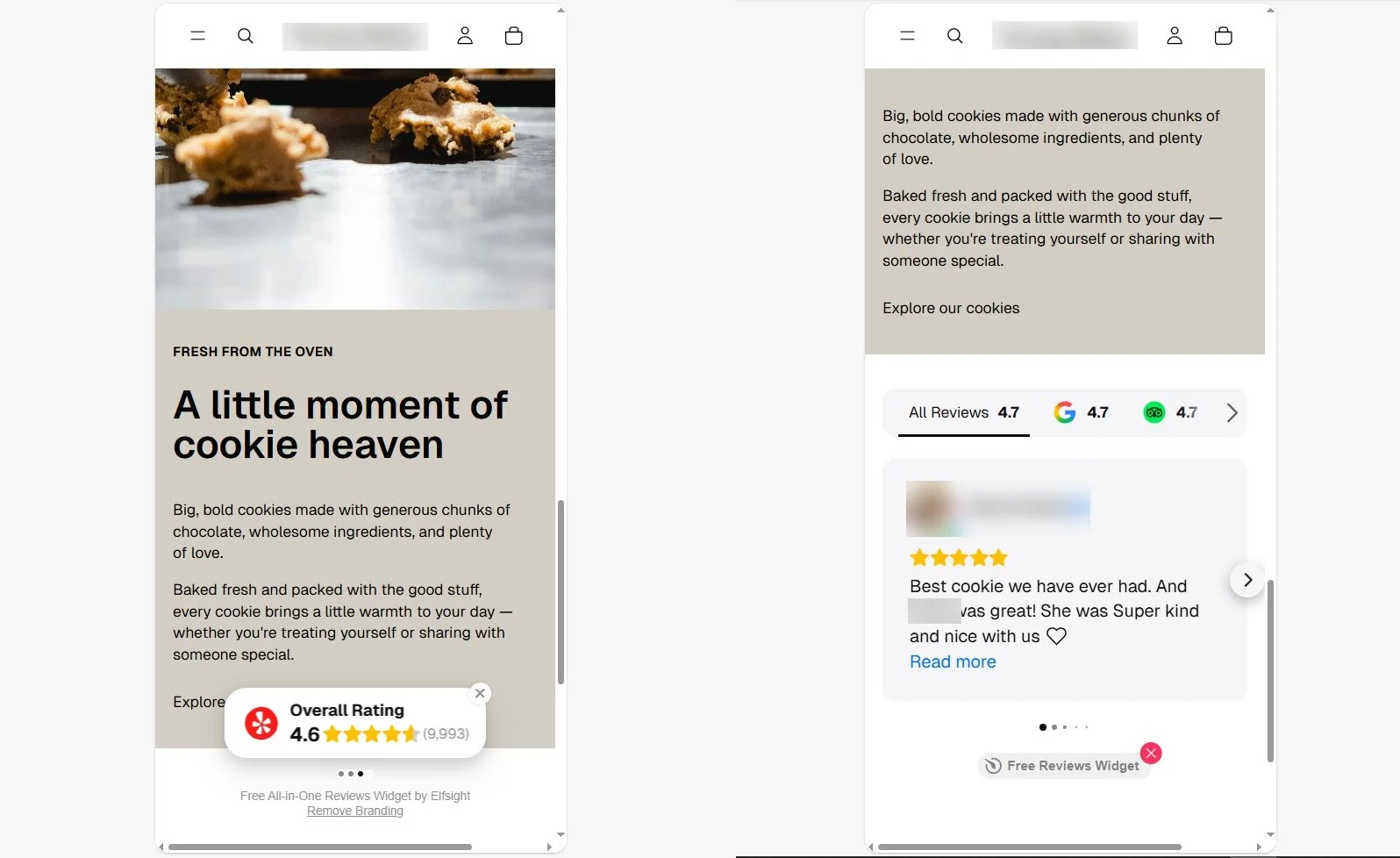
For the bakery, we paired a floating badge with all three source icons and the 4.7 overall rating with a carousel below the hero. On desktop, the carousel showed two cards per view. On a phone, the badge cycled through sources one at a time, and the carousel displayed one review card.
Reviews page or reviews section?
A dedicated review page (or rating page) is its own URL, made specifically for posting customer reviews on your website. Use Grid, Masonry or List, keep the header’s Overall Rating and platform tabs on, and show owner replies.
A reviews section is a compact block, usually a carousel or inline badge, on a home, service or pricing page, so buyers see proof without leaving it.
Step 2: Connect your review platforms
Open the Sources panel and add Google first, if it fits your use case. Search by your business name, then pick your listing by its street address – not the first match. Searching “Levain Bakery NYC” returned five Manhattan locations, each with its own address, rating and review count. Same name, same logo. The address is what tells them apart.
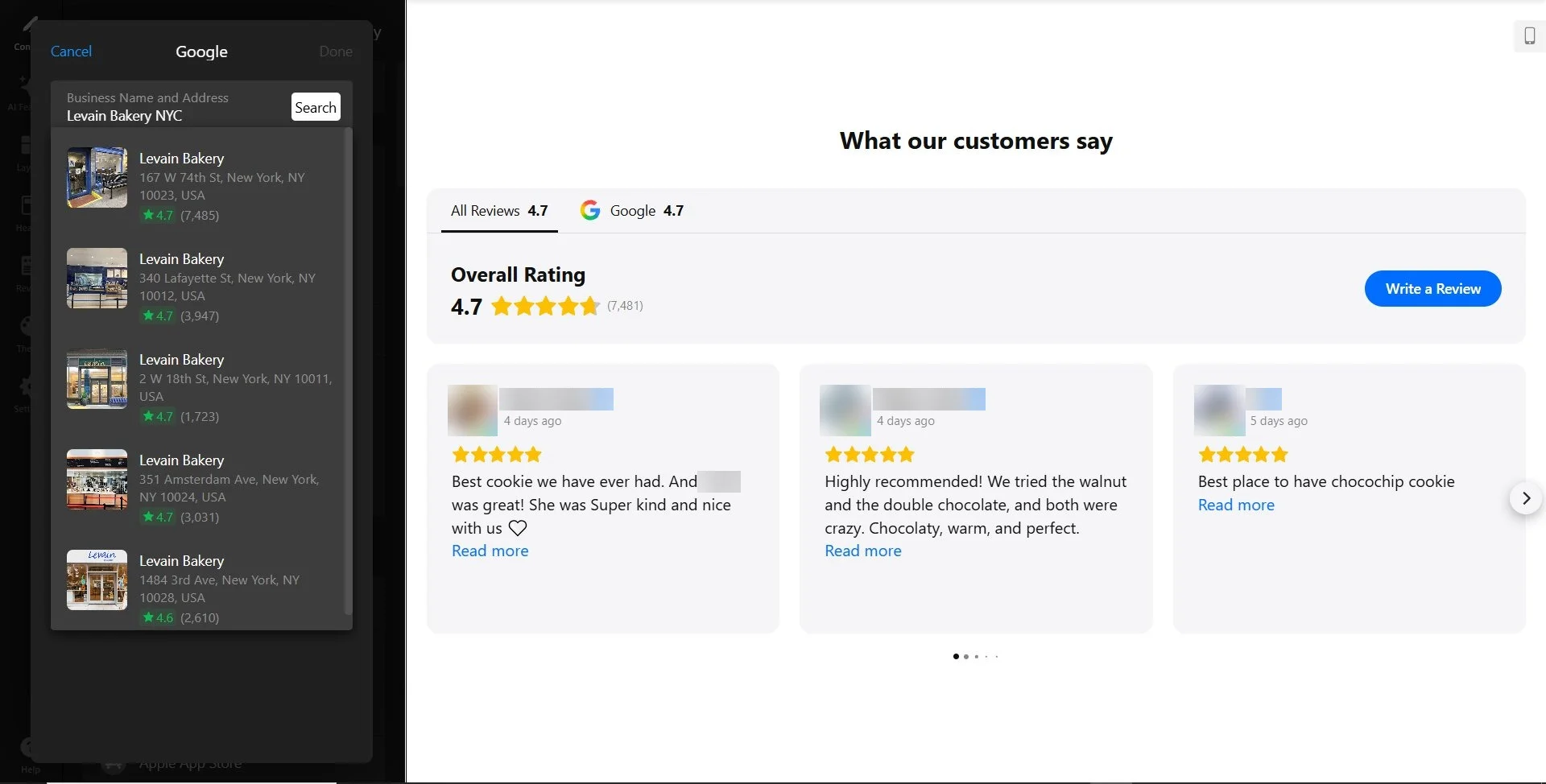
Google also accepts a maps.app.goo.gl share link or a Google Place ID. No Google login needed.
Then add reviews from other platforms by pasting a link and clicking Connect. For marketplaces and app stores, such as Amazon, eBay, Walmart, AliExpress, Google Play or the App Store, that’s a product page (or, on eBay, your seller feedback profile). Airbnb and Booking.com take a property link. Everything else, from Tripadvisor and Yelp to G2 or Zillow, takes your business page or listing link.
With the bakery’s three sources in, the widget showed tabs for All Reviews, Google (4.7), Tripadvisor (4.7) and Yelp (4.6), along with an overall rating of 4.7.
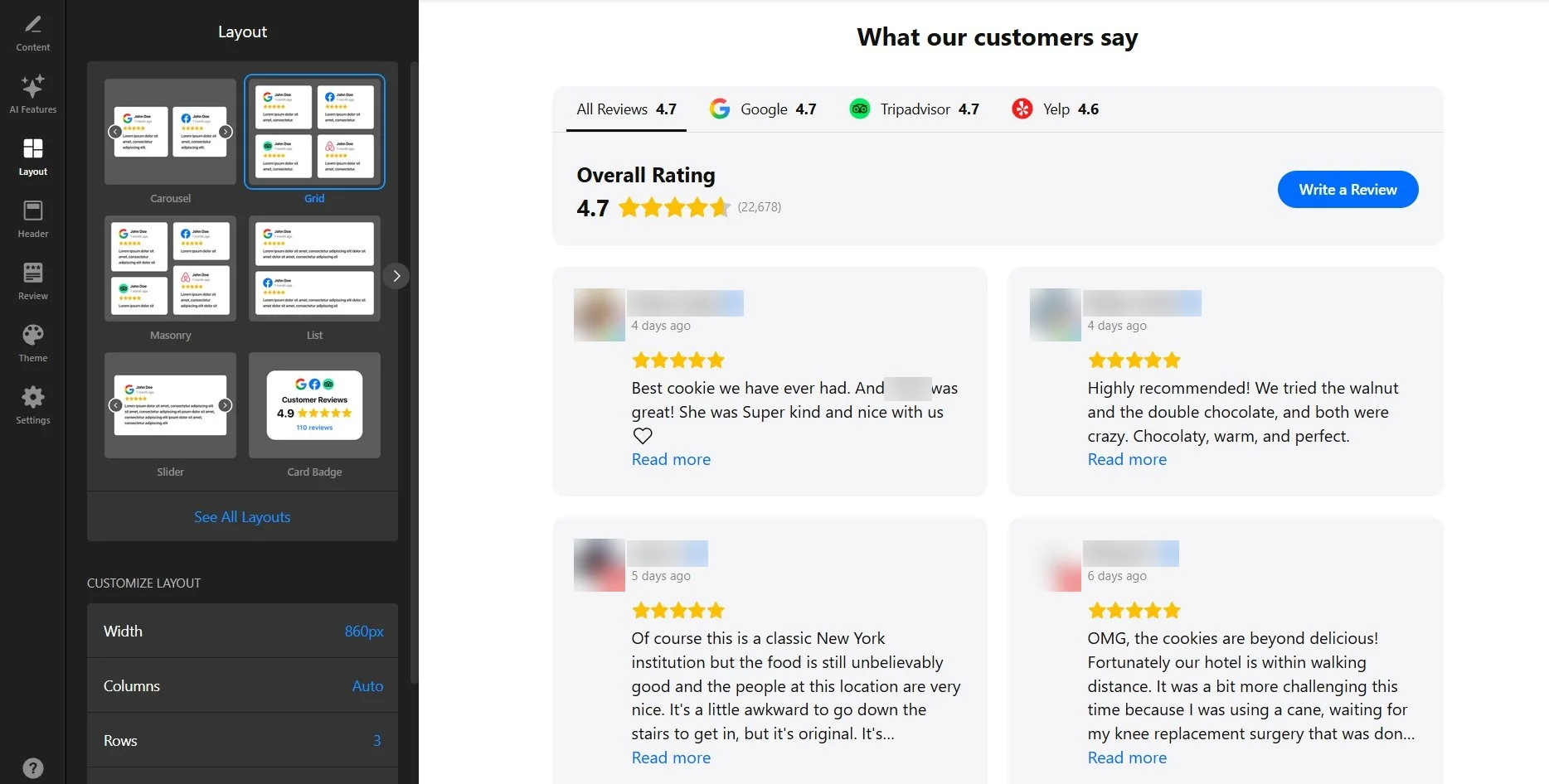
Step 3: Match the widget to your website’s style
For our Levain Bakery test, we matched the widget to the bakery’s brand: a blue title, the “NYC’s Favorite Cookies” caption, blue stars and softly tinted review cards. It took the editor’s settings, not code.
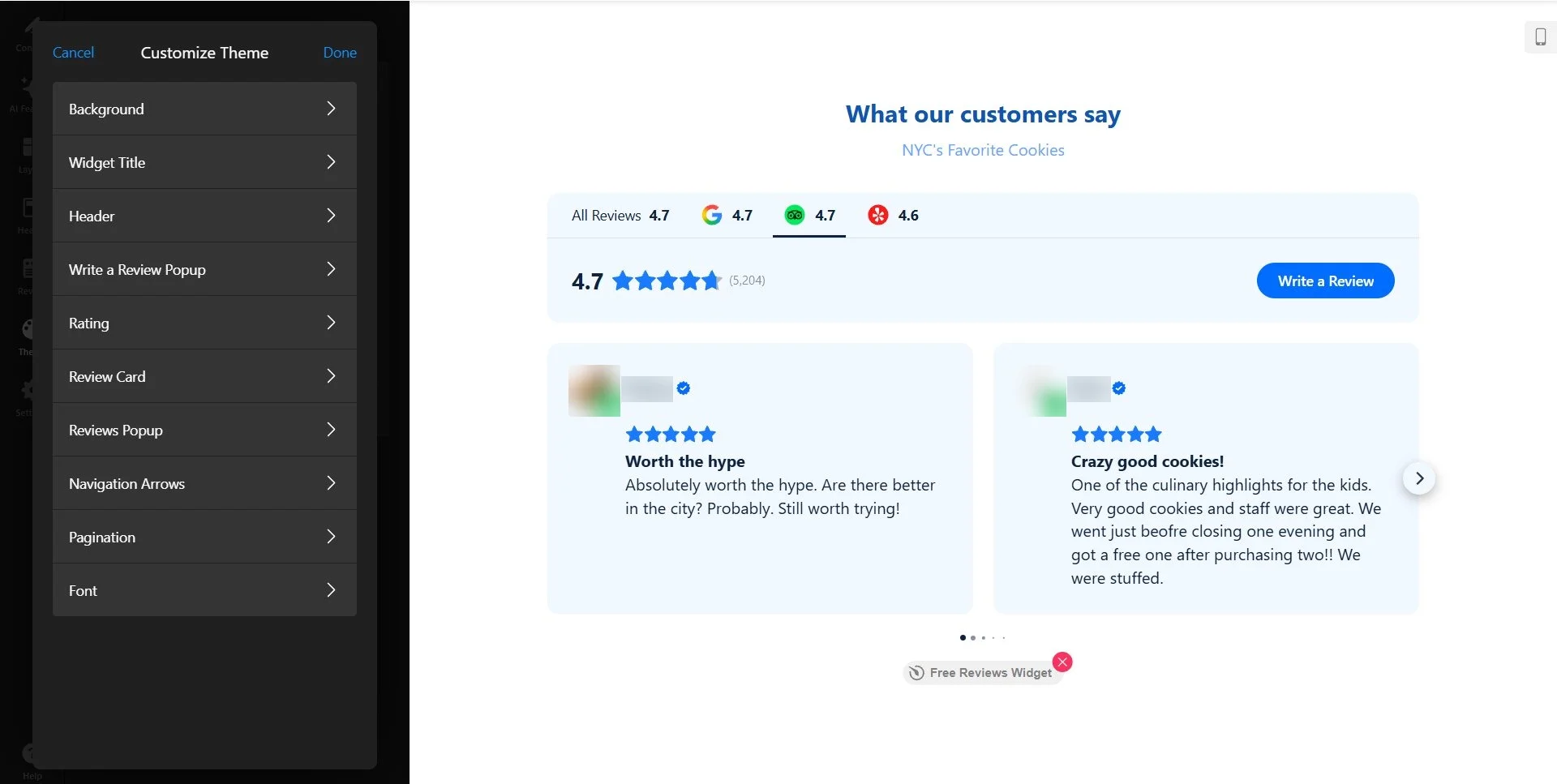
- Theme presets. Six presets, including dark options, set the overall look, and the accent picker carries your primary brand color.
- Element-level styling. Customize Theme goes further: background, widget title, header, Write a Review popup, rating, review card, reviews popup, navigation arrows, pagination and font.
- Review card display. Toggle the reviewer picture and name, the verified badge, the source, the date, the rating, images and the business owner’s reply; hiding dates and platform names gives a more minimal card.
- The header. Choose whether it shows the overall rating, the number of reviews, the Write a Review button and a tab per source.
- An AI summary card. With AI-Generated Summary on, the editor says Elfsight AI analyzes the reviews and writes a summary of key facts and what customers like most.
Step 4: Choose which reviews show
The Filters and Sorting panels decide which reviews visitors see and in what order:
- How many: All, or a preset from 2 up to 20.
- The order: most recent, highest rated, photos first or random.
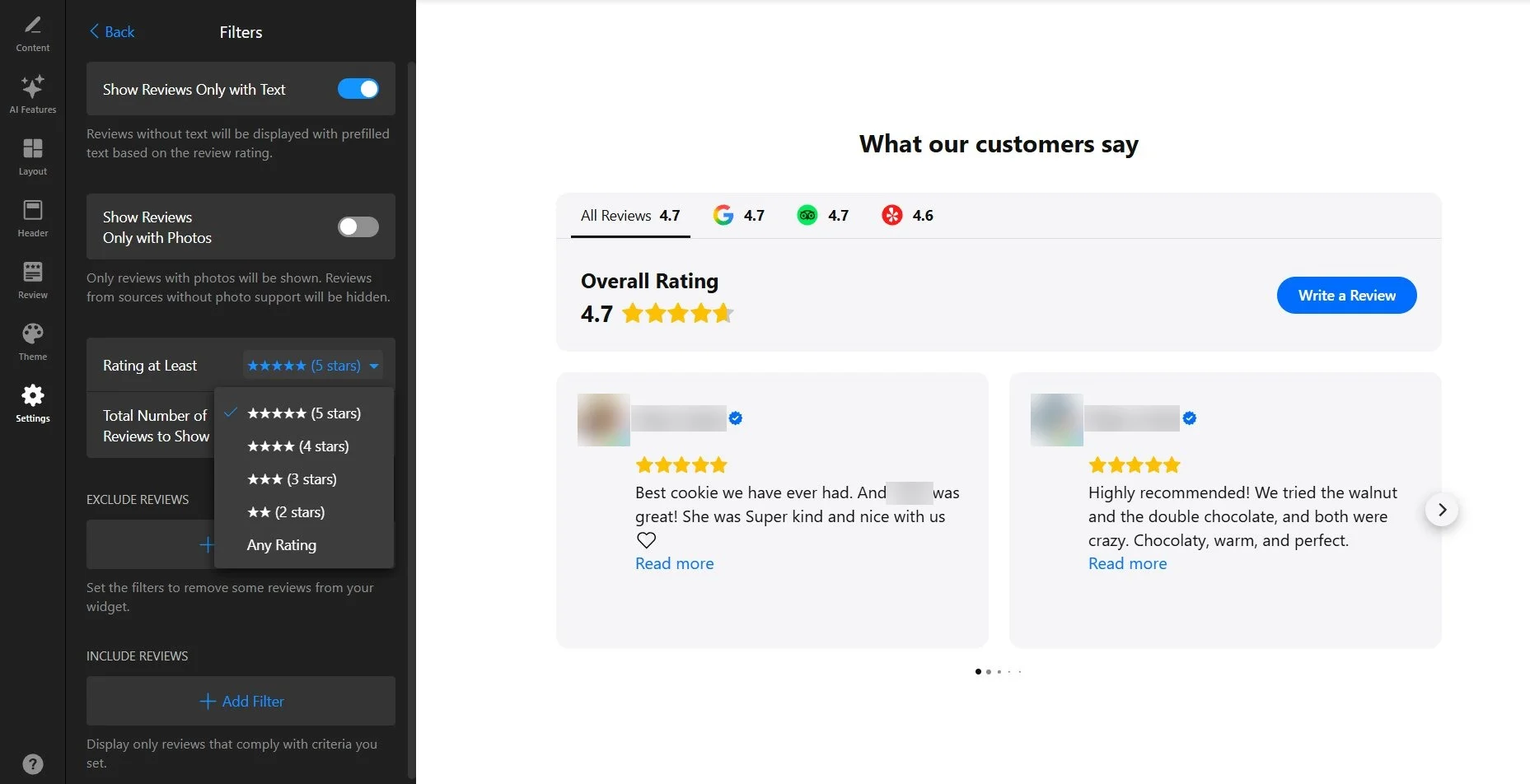
- Which ones: a minimum rating of 2 to 5 stars, or Exclude and Include by keyword or reviewer name.
- Media: “Show Reviews Only with Photos” hides sources that don’t support review photos, and “Show Reviews Only with Text” fills in text-less star ratings with prefilled text based on their rating.
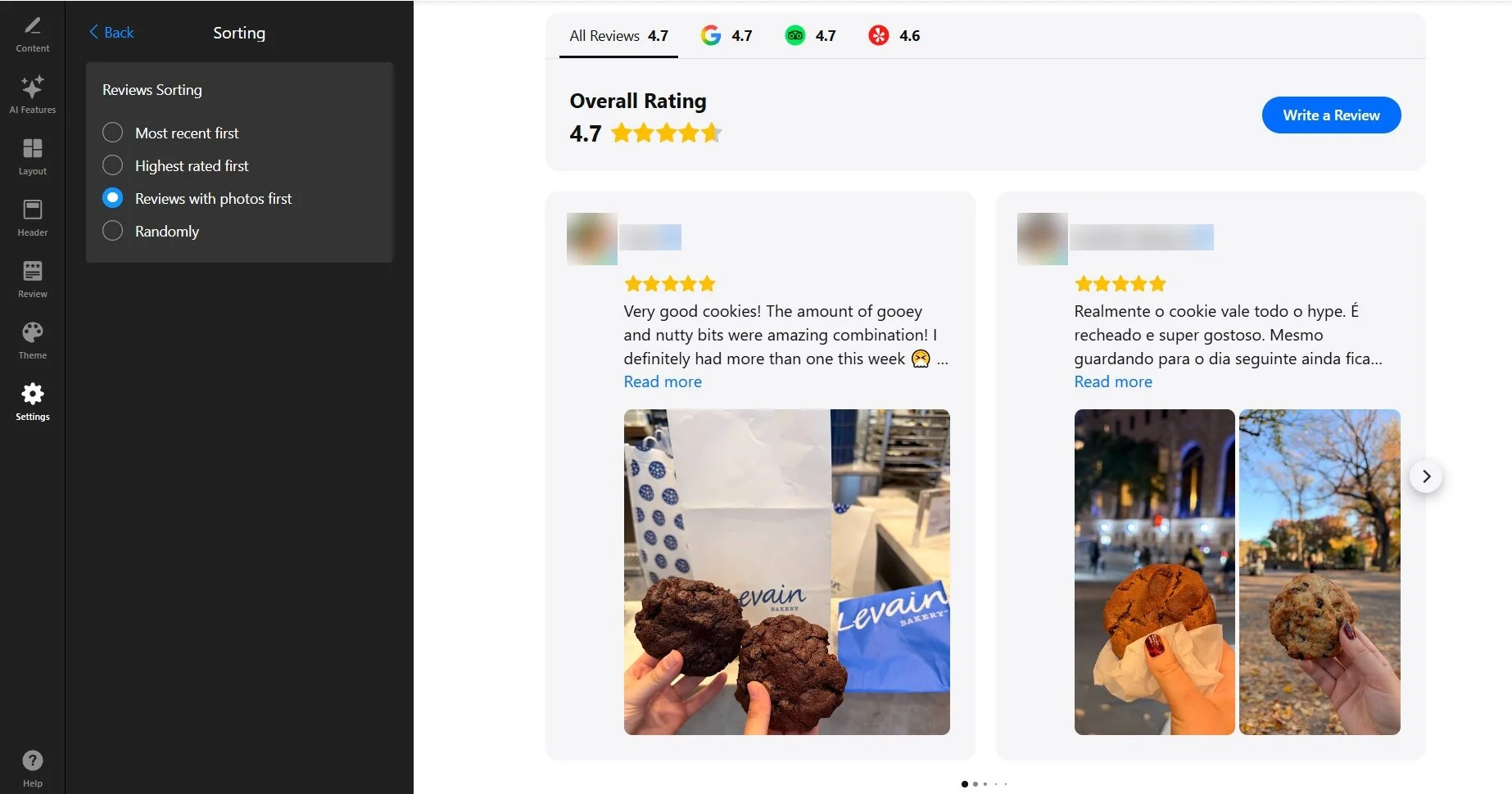
On the bakery widget, setting “Rating at Least” to 5 stars made every 1- to 4-star card disappear. Did the rating jump to 5.0? No. The header kept the real 4.7, and each source kept its own tab score. A filter only decides which cards your website shows – it doesn’t delete anything on the platforms or recalculate your rating from what’s left.
You can also curate by hand. In the editor’s review list, each review has Pin to Top and Hide, and Highlight Text marks a phrase inside a review so it shows highlighted in the widget.
Can you hide bad reviews?
You can, on your own site, with one condition: don’t present the selection as all your reviews. In the US, the Federal Trade Commission’s Consumer Reviews and Testimonials Rule took effect on October 21, 2024. Businesses may not materially misrepresent that a website review area shows most or all submitted reviews when reviews are held back for their lower star ratings or negative sentiment.
FTC staff guidance notes that sorting reviews or picking positive testimonials for marketing isn’t unlawful suppression by itself, though a deceptive presentation can still violate the FTC Act. So if your widget shows only 4- or 5-star cards, call the section “Customer highlights” or “Featured testimonials,” not “All reviews.”
Collect new reviews (optional)
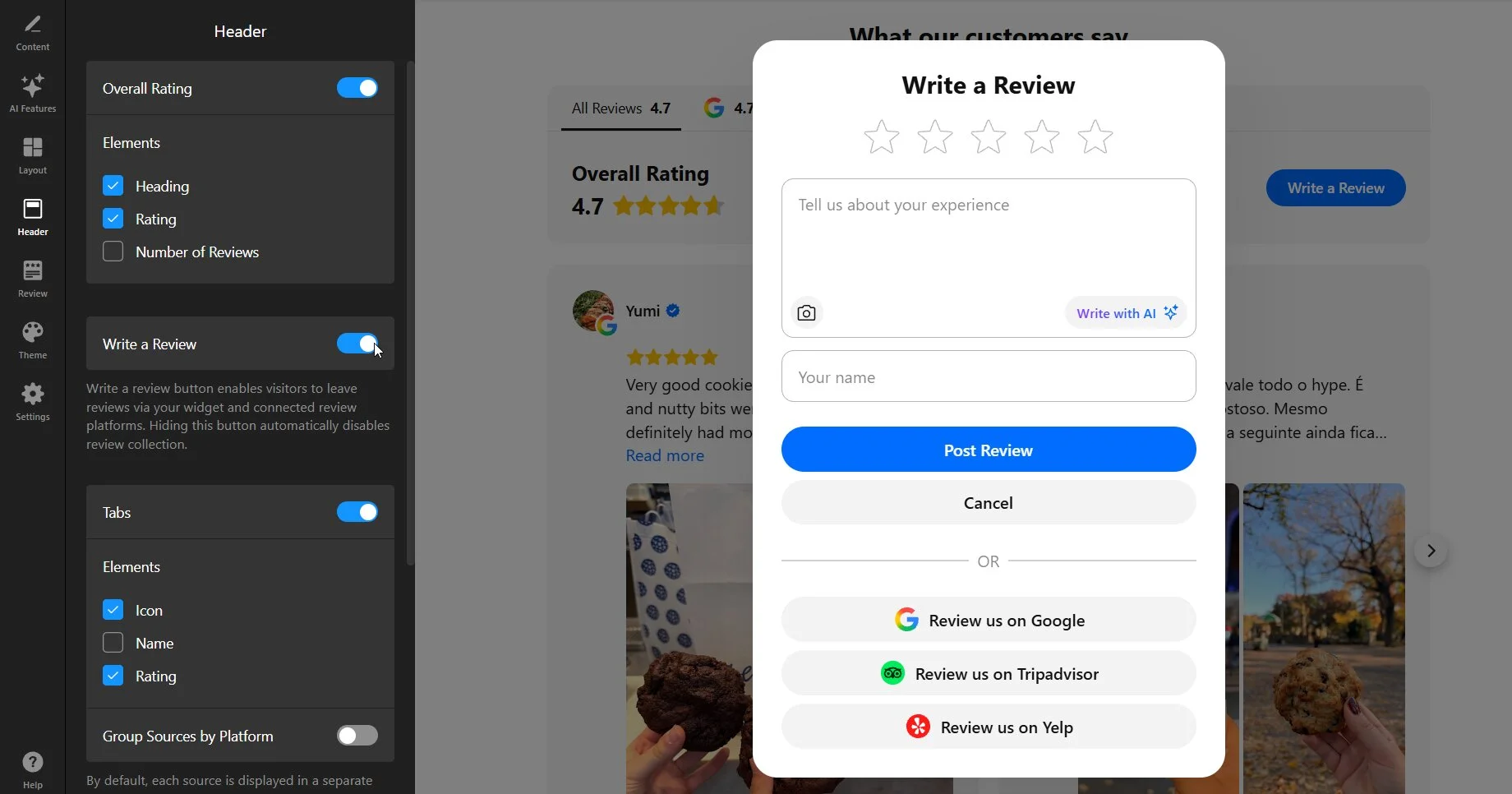
The header’s Write a Review button opens a popup with two options: an in-widget form with a “Write with AI” helper, and “Review us on” buttons for each connected platform. Reviews submitted through the form go live without waiting for approval, and you can moderate them in the editor’s review list under Content. Turning off the Write a Review toggle in the Header settings removes the button.
To build up your profile count, see our guide on how to get more Google reviews.
Step 5: Add the code to your website
When the preview looks right, click Publish in the top-right corner to save changes.
Copy the widget code
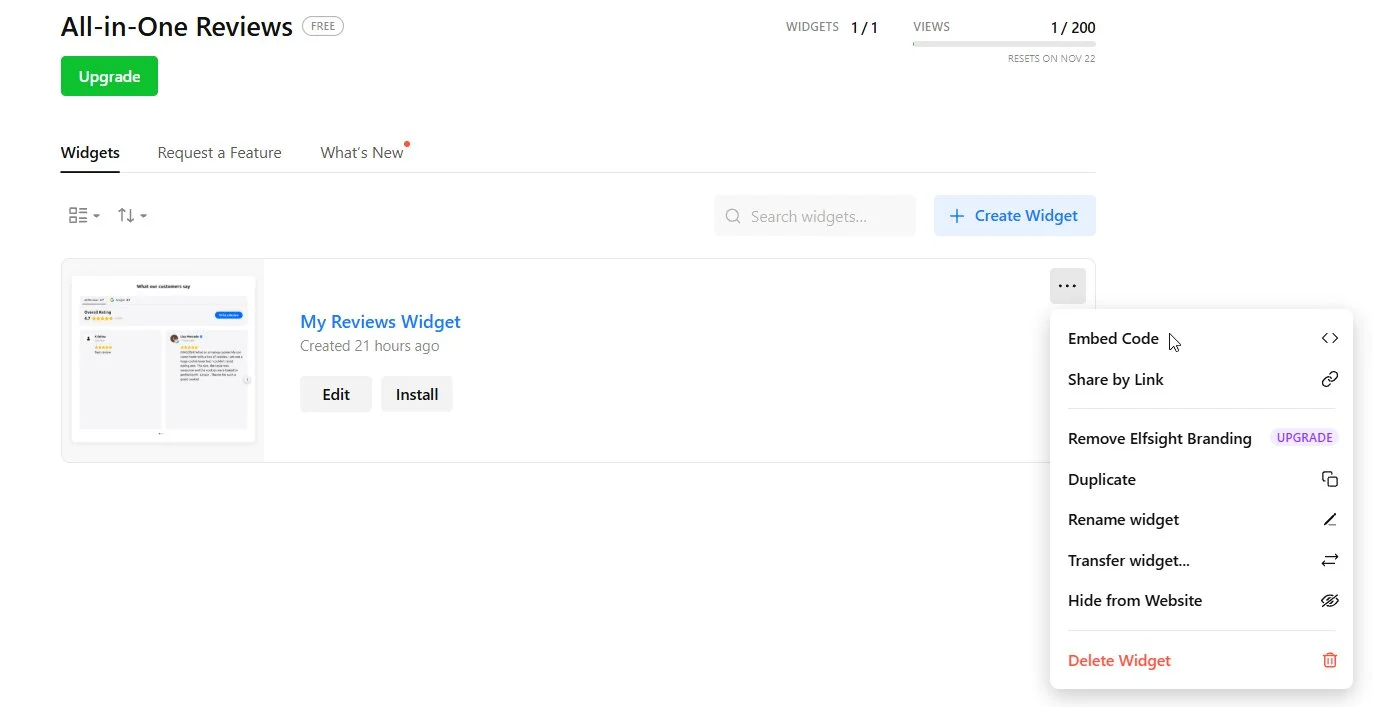
In your dashboard, exit the editor and click the three dots → Embed Code → Copy Code. Design changes you make later reach your website after you click Publish again, no need to paste the code twice.
Paste the code into your website
Where the code goes on your website depends on your builder or CMS. Shopify, Wix, Squarespace, Webflow and WordPress name it differently, but the paste step follows the same few patterns.
A code element on the page
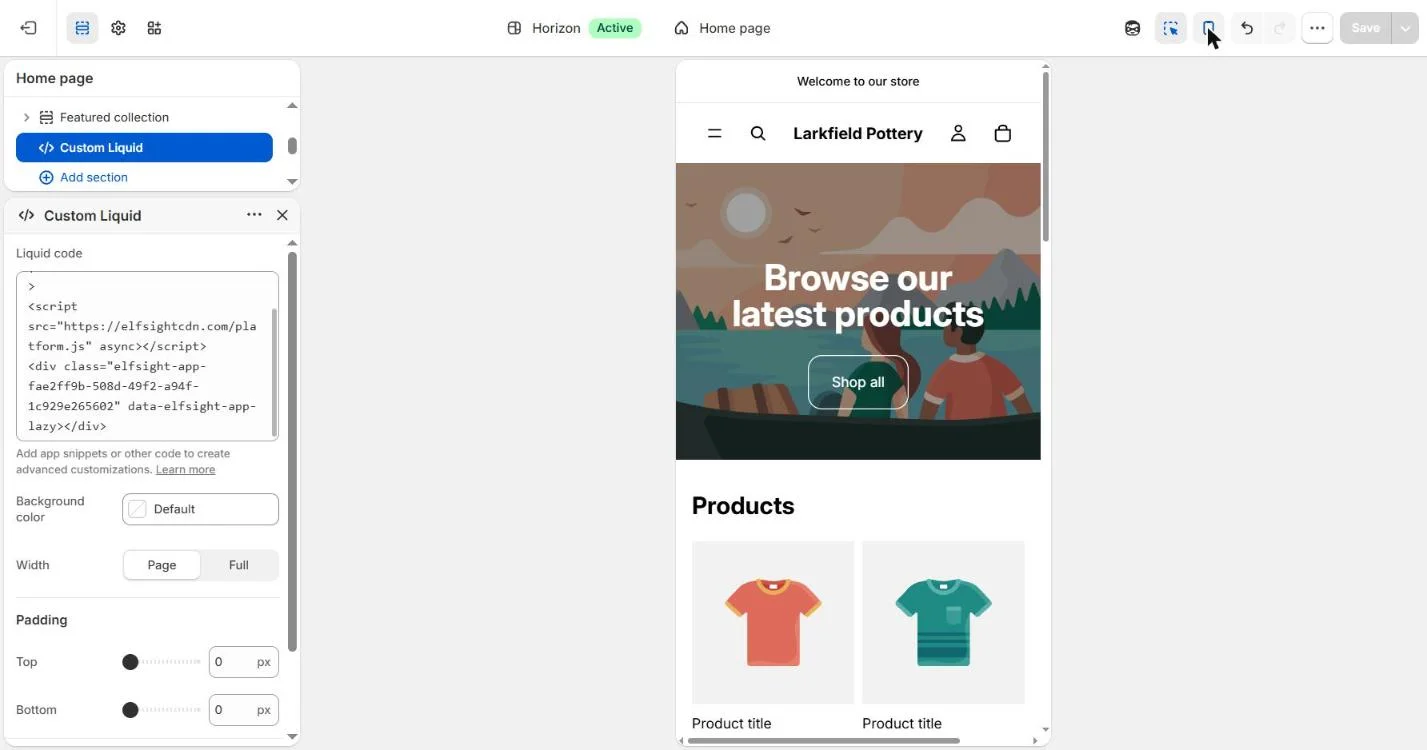
For a reviews section where you place it. It’s the Custom Liquid section on Shopify, Embed code on Wix, the Code block on Squarespace, Code Embed on Webflow and the Custom HTML block on WordPress.
A site-wide code area
For a floating badge on every page: the theme.liquid file on Shopify, Custom Code on Wix, Code Injection on Squarespace.
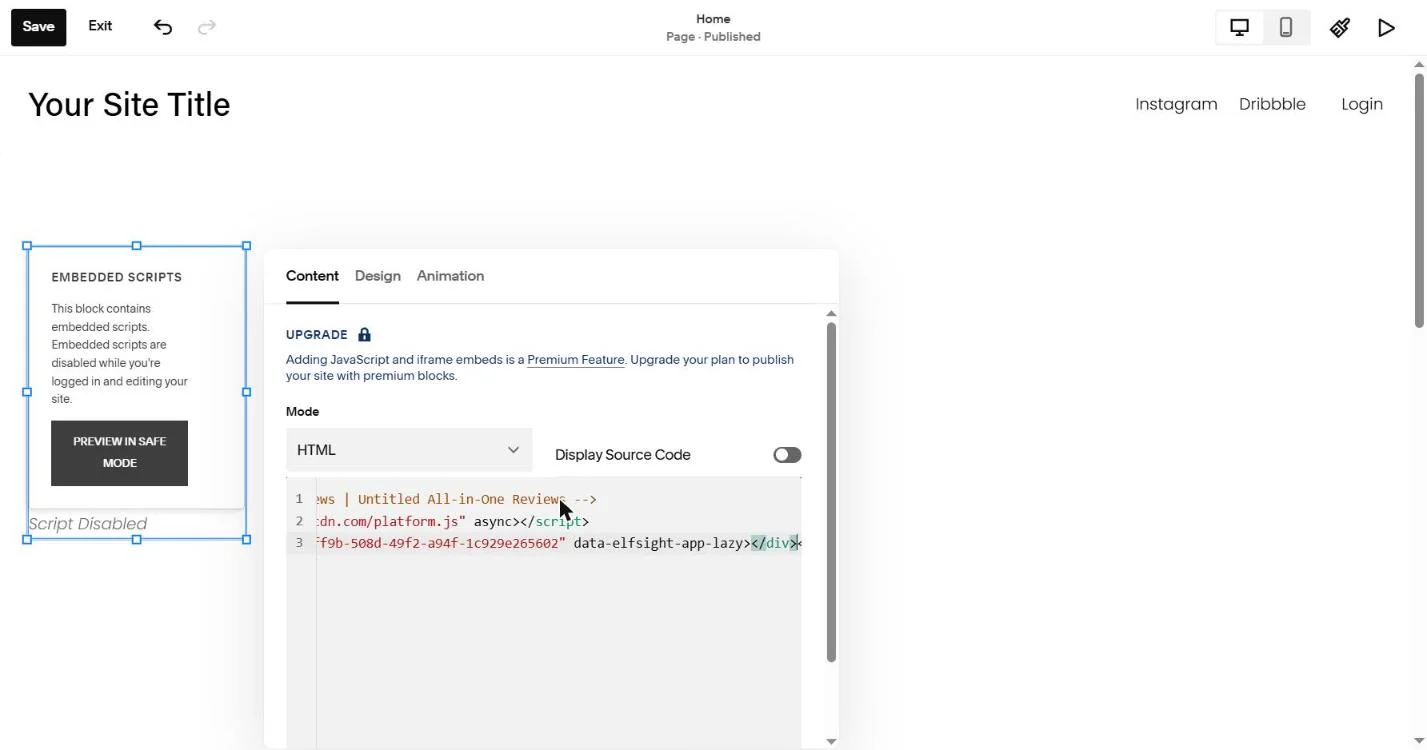
A paid plan, on some builders
Squarespace runs JavaScript, and iframe embeds only on qualifying plans; Webflow’s Code Embed needs one too, and Wix’s site-wide Custom Code requires Premium with a connected custom domain; Wix’s page-level Embed code worked on a free website in our test.
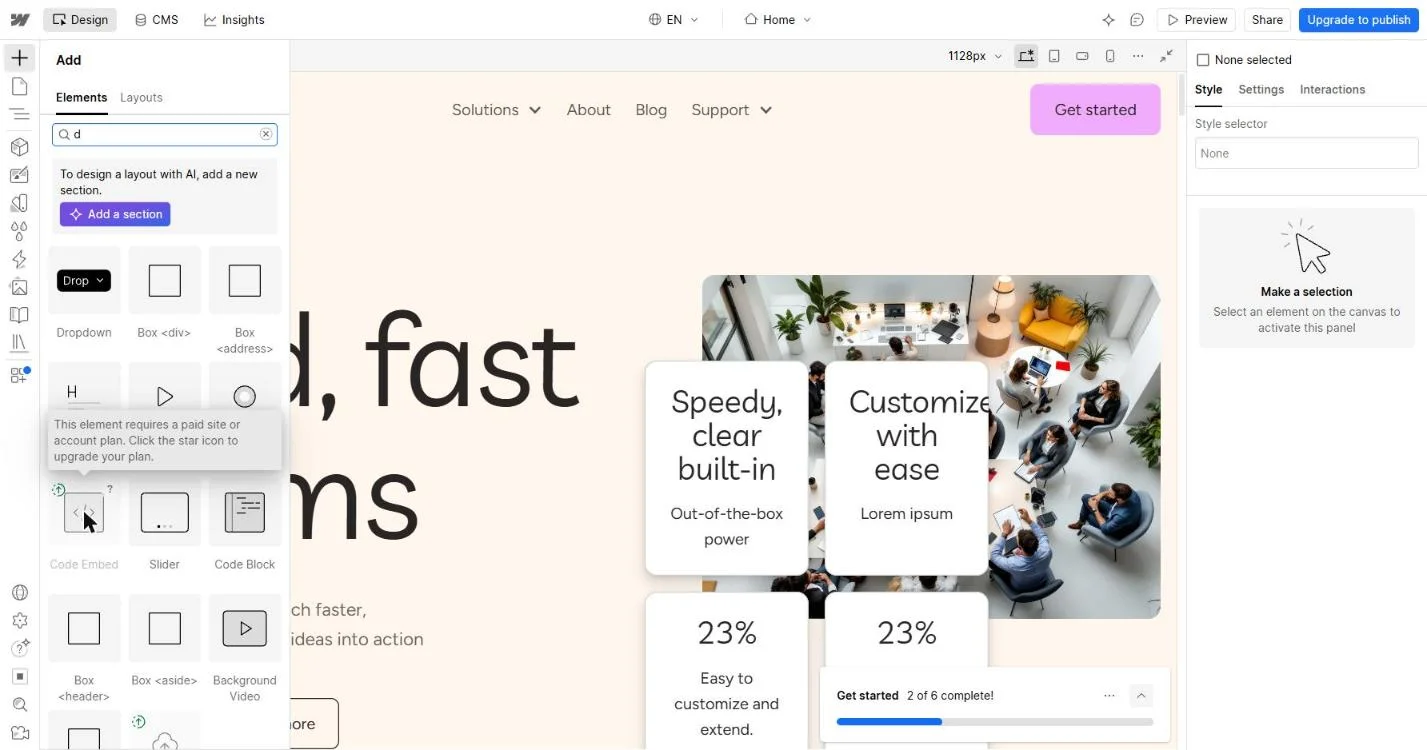
A save step that’s easy to miss
On Wix, closing the panel without clicking Apply discarded our code. On WordPress, the code can be stripped on save if your user role lacks the unfiltered_html permission.
An editor that doesn’t run scripts
Squarespace disables embedded scripts while you’re editing, and Webflow shows a placeholder in the Designer; check the published page or the preview instead.
A frame that needs resizing
On Wix, the widget sits in a fixed-size frame with inner scrollbars; the element and its section have to be made taller by hand to remove them.
Steps for popular platforms
Each of these tutorials walks through the clicks and placement for one platform:
Reviews not showing or not updating?
If the whole widget is missing or cut off, go back to the patterns above. If the widget loads but reviews are missing, check these three things:
- A new review isn’t in the widget yet. Give it the 72-hour cache. Reviews you typed by hand never update unless you edit them.
- A platform or lower-rated reviews disappeared. Open the Filters tab: “Show Reviews Only with Photos” hides any source without photo support, and a minimum star rating hides lower-rated cards.
- Older reviews aren’t appearing. The widget collects the 100 most recent reviews from each connected source on every plan, so older ones won’t import.
Other ways to put reviews on your website
Of course, a widget isn’t the only option. Here’s how the other routes work.
A plugin or app from your builder’s marketplace
Every major website builder has its own marketplace of add-ons, and reviews are one of the busiest categories. Shopify alone had 495 apps in its App Store when we checked it.
The listings look alike, but review add-ons do different jobs, so read the description before installing:
- Collectors gather reviews from your own customers.
- Importers bring in reviews from marketplaces or from another review app.
- Display tools show reviews that live elsewhere, like your Google reviews.
Many add-ons do more than one. We tested Judge.me on Shopify. Installation took a few screens: it asked for access to customer, staff and store data, then walked us through onboarding that ended with switching on its app embed in the theme (“One toggle, then save”) and picking a plan.
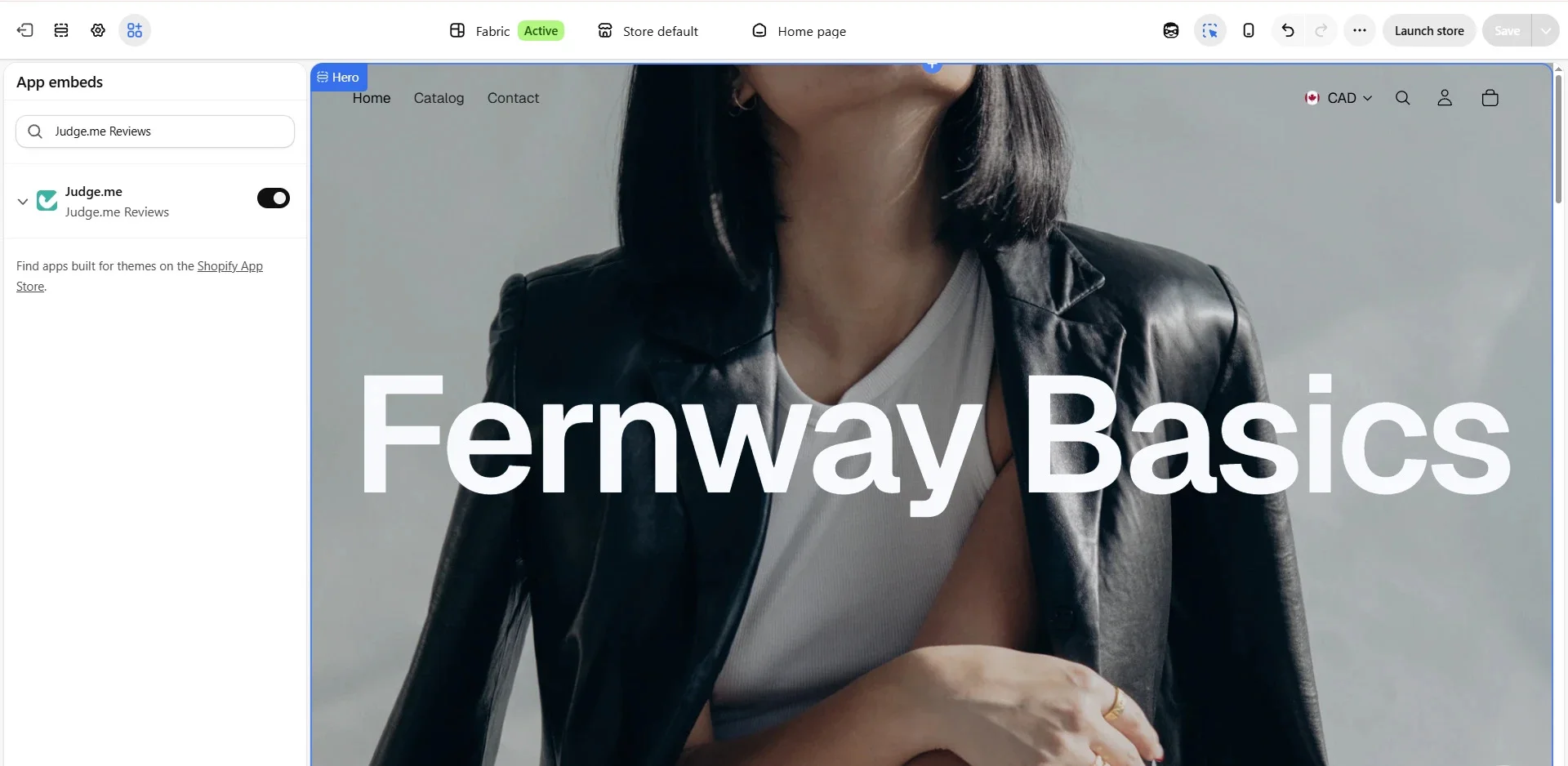
In the theme editor’s preview, the product page showed a “Customer Reviews” section with a 4.1 rating from 15 reviews and a Write a review button – all of them the app’s sample reviews, labeled as such.
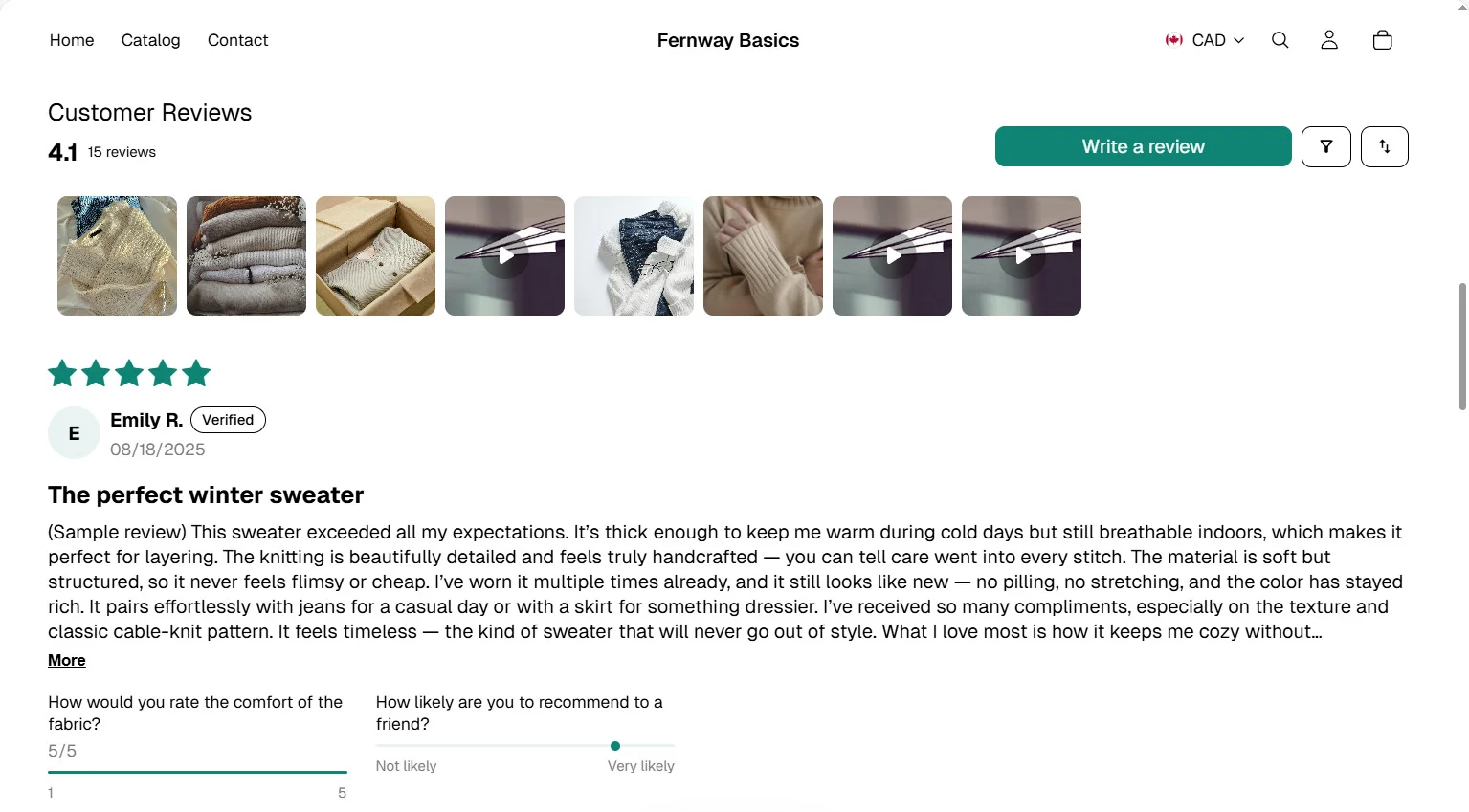
On the live store, the section stayed empty. The samples only fill the preview until reviews come in from customers or an import.
The app’s Import reviews page covers the other two jobs: reviews from other apps such as Loox, Yotpo, Air Reviews or Klaviyo, from a spreadsheet, from Etsy, Amazon or AliExpress, or from another store you own.
Your builder’s testimonial block
Most website builders ship a ready-made testimonial section: it costs nothing extra, matches your template’s fonts and needs no third-party code. For a few hand-picked quotes, that’s often enough. You type every quote, name and rating yourself, though – in Wix and Squarespace, we saw no option to connect Google or any other platform.
| Builder | Where to find it |
|---|---|
| Wix | Add Section → Reviews & Credibility in our editor; Wix’s help center lists testimonial presets under Add Elements → Strip. |
| Squarespace | Add Section → Testimonials (under Showcase in our trial), then Edit Content to type, reorder or delete quotes. |
| WordPress | Block themes include testimonial patterns – Twenty Twenty-Five, the default theme, ships several. Add one from the block inserter’s Patterns tab, or use a Quote block. |
| Webflow | Add panel → Layouts → Starter Library, which has a Testimonial category. |
| Shopify | There isn’t a standard testimonial section included across themes, so check yours. A custom block can be generated with Sidekick in the editor. |
Custom code (Google Places API)
If your team has a developer and needs only a few Google reviews in a fully custom layout, the Places API (New) Place Details endpoint returns up to five reviews per place.
Google’s Places API policies require a custom display to show author attribution, link back to the original review and disclose how reviews are ordered and filtered. Our Google customer reviews API guide covers the setup.
Frequently asked questions
How can I add Google reviews to my website for free?
Do I need to log in to my review platforms to show my reviews?
How do I show reviews on every page of my website?
Can I change what the widget shows on phones?
How can customers leave a review on my website?
Where to start
You don’t need to copy customer quotes by hand or run a separate plugin for every review platform. One widget connects your Google, Tripadvisor, Yelp and industry listings and refreshes them on its own, letting you add customer reviews to your website without any coding.
Start with a template, add your review sources based on your business type, adjust the display to fit your website style, and publish.
Key references
- The Consumer Reviews and Testimonials Rule: Questions and Answers, Federal Trade Commission