

Claude is directly accessible within your Microsoft 365 apps through official integrations, side-panel add-ins, and connectors. This integration enables you to use Claude's capabilities for writing, document summarization, data analysis, coding assistance, and document automation directly inside Word, Excel, Outlook, PowerPoint, Teams, and OneNote.
Installation & Setup
To start using Claude across your Microsoft 365 suite, follow these steps to enable the add-in:
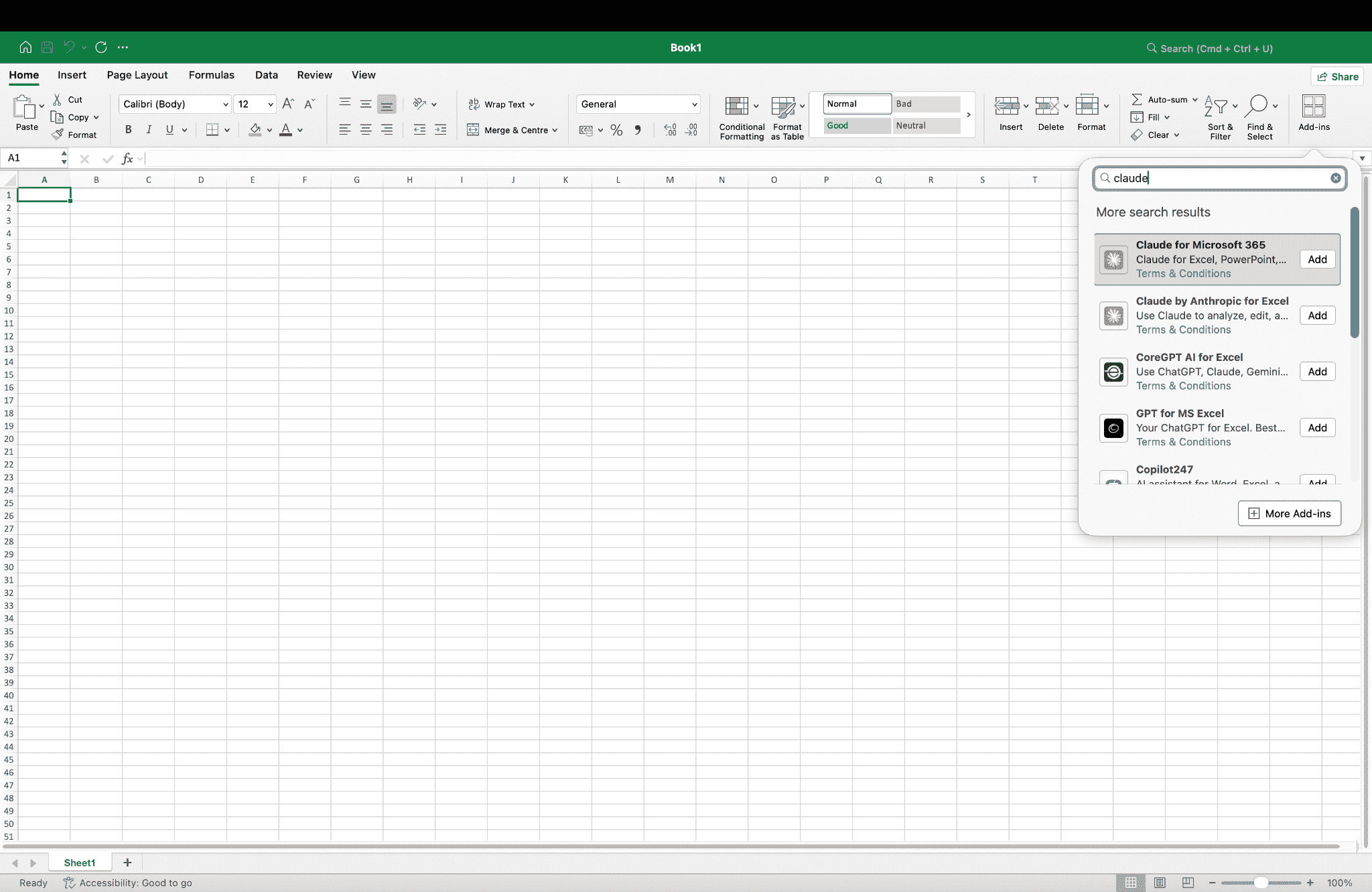
- Navigate to Microsoft AppSource or open any Office app (e.g., Excel or Word), go to the Home or Insert tab on the top ribbon, and click Add-ins.
- Search for "Claude" in the search bar, select Claude for Microsoft 365 (or Claude by Anthropic), and review the required app permissions.
- Click Get it now (or Add) and follow the prompts to add Claude to your application.
- Once installed, pin the Claude icon to your top ribbon or toolbar so it remains easily accessible as a dockable side panel.
- Click the Claude icon to open the panel and sign in using your paid Claude account credentials (e.g., Pro, Max, Team, or Enterprise).
- Upon first launch, Claude will ask for approval to read the open document, workbook, or thread. Approve access for the content you want help with.
Key Features & Capabilities
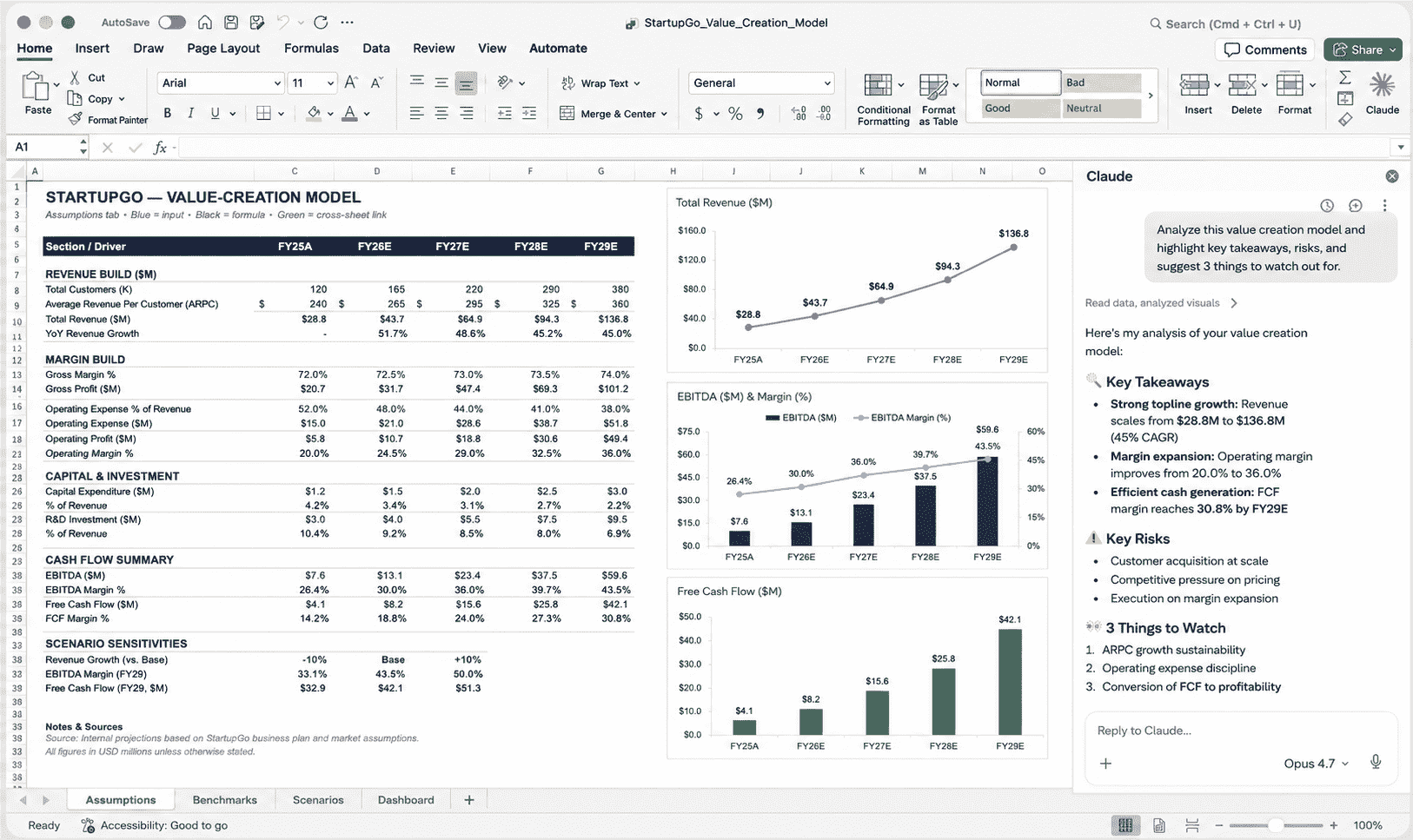
- Side Panel Access: Opens directly inside a dockable side panel while working in any Office app, enabling seamless interaction without context switching.
- Document Analysis: Summarizes and refines content directly from open documents, helping you quickly analyze and improve key information.
- Spreadsheet Intelligence: Analyzes sheet data, generates complex formulas, and builds visual charts with Claude's assistance in Excel.
- Email Drafting: Composes, replies to, and summarizes email threads in Outlook with accurate, context-aware suggestions.
- Meeting Support: Generates agendas, meeting summaries, and action item lists from Teams notes and transcripts.
Use Cases Across Microsoft 365
Document Creation & Editing
Open a document and let Claude handle the heavy lifting on initial drafts and edits:
- Turn these bullet points into a two-paragraph project update in a professional tone.
- Tighten this draft to under 150 words and rewrite the introduction to sound more confident.
- Summarize this contract and flag anything unusual in the payment terms.
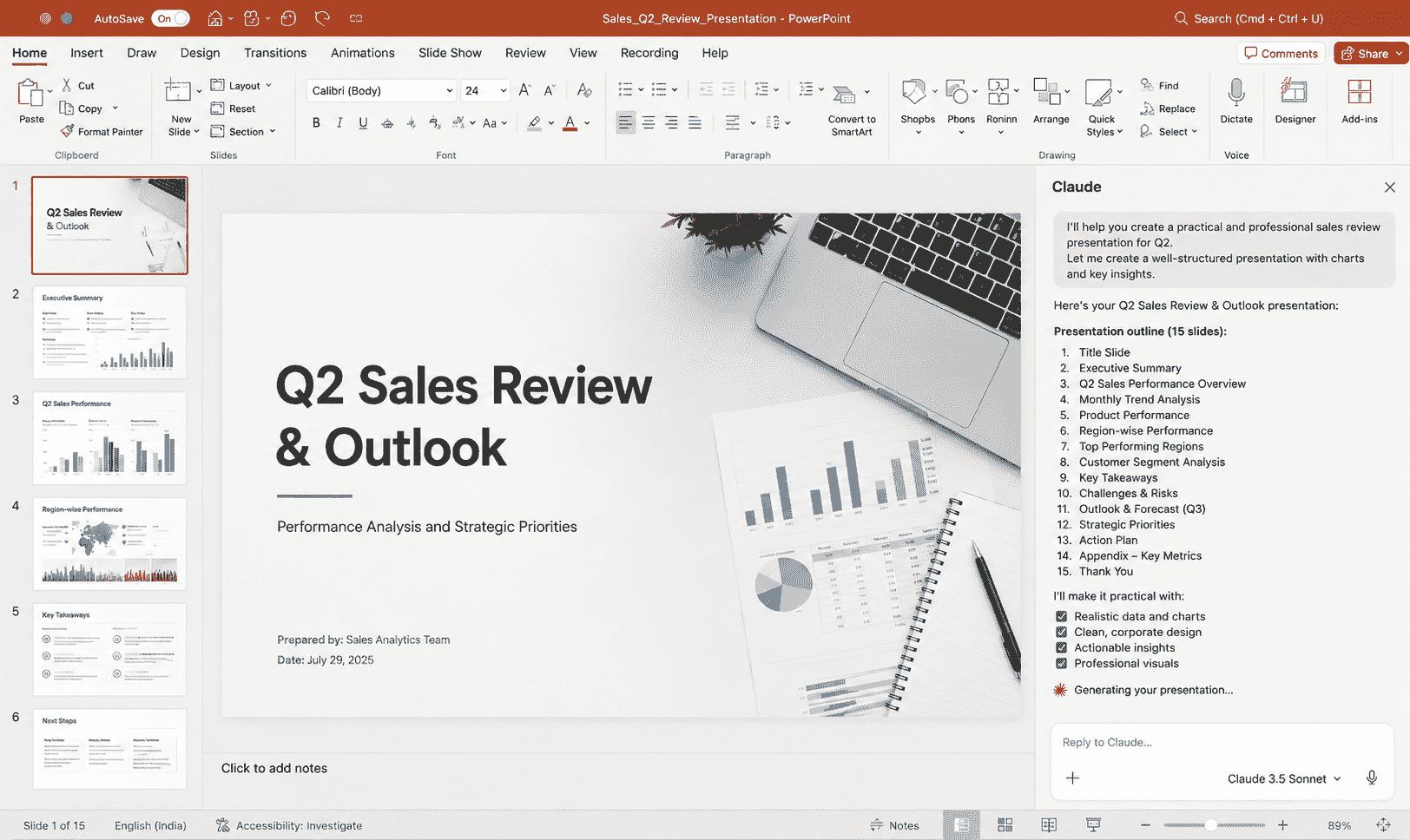
- Create a 15-slide presentation outline for a Q2 Sales Review covering executive summary, monthly trends, risks, and strategic priorities.
- Write concise talking points and speaker notes for Slide 3.
- Make these slide bullet points more punchy and consistent.
Email Triage & Inbox Management
Manage crowded inboxes and draft replies quickly:
- Summarize this thread and list what I've been asked to do.
- Draft a polite response confirming the Thursday deadline and asking for final numbers by Wednesday.
- Help me draft three quick replies to these follow-up emails.
Teams: Meetings & Collaboration
Keep team communications and action items on track:
- Draft an agenda for a 30-minute project check-in covering status, risks, and next steps.
- Summarize the key decisions from these notes and list action items with assigned owners.
Notes & Knowledge Organization
Structure scattered notes into actionable takeaways:
- Organize these meeting notes into clear sections with bold headings.
- Pull out every action item and deadline mentioned in these notes.
Best Practices for Best Results
- Specify your target audience, tone, and desired word count in your prompt for more accurate results.
- Treat Claude's first response as a draft and use quick follow-ups to adjust length, formatting, or voice.
- Always review generated formulas, data calculations, and email drafts before finalizing or sending.
