

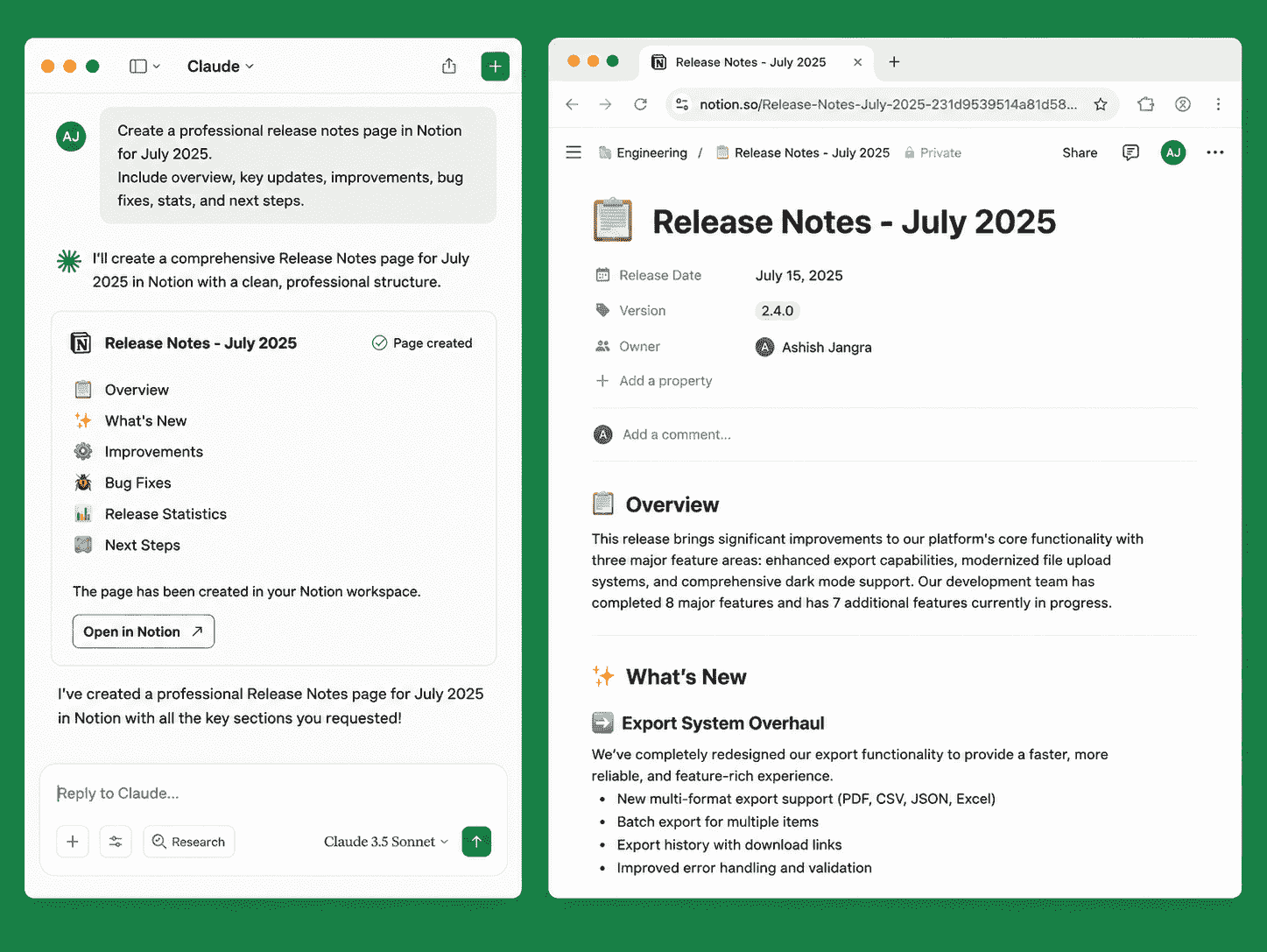
Connecting Claude to Notion bridges advanced AI reasoning directly with your personal or team workspace. Instead of constantly tabbing between windows to copy and paste text, the official connector enables Claude to read, create, structure, and edit pages inside your Notion databases and documents. Common use cases include:
- Summarize long Slack conversations and highlight the main points.
- Identify tasks, owners, and deadlines from team discussions.
- Create replies, announcements, or other Slack messages.
- Get help to understand technical concepts or troubleshooting issues.
- Analyze supported files and extract relevant information.
- Turn meeting discussions into concise notes and action items.
- Transform unorganized standup notes or meeting scraps into clean, formatted pages with action items and tags.
- Ask Claude questions that pull information across multiple database entries or documents at once.
- Have Claude construct complete databases or document templates inside Notion directly from chat prompts.
Step-by-Step Installation & Setup
Setting up the integration takes under two minutes directly from Claude's connector settings:
Step 1: In Claude, click the + icon next to the message box, then go to Connectors. This menu shows any connectors you already have enabled, plus a Browse connectors option to find new ones.
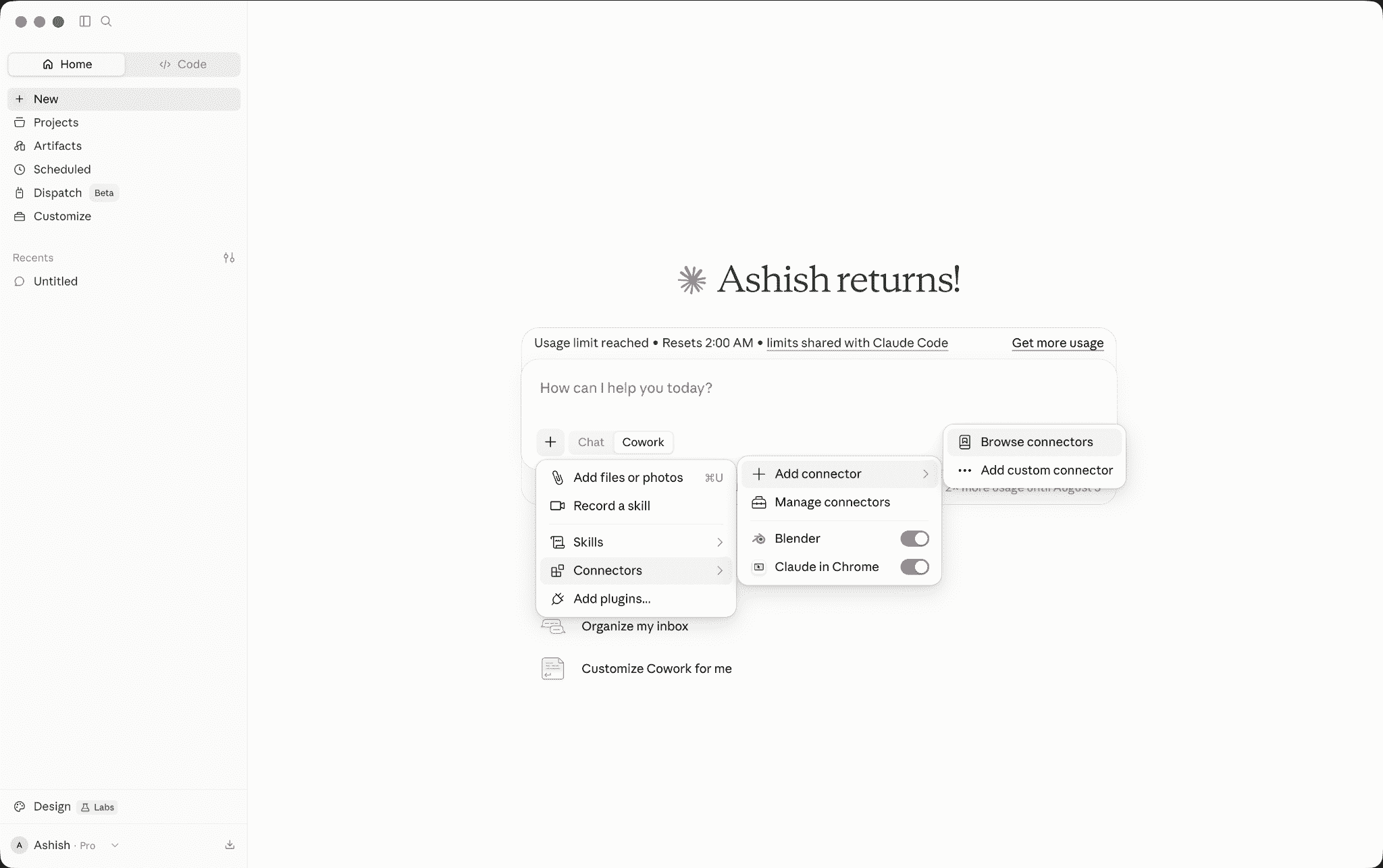
Step 2: Click Browse connectors and search the directory typing "notion" surfaces it under Anthropic & Partners, alongside other connectors you might want to enable.
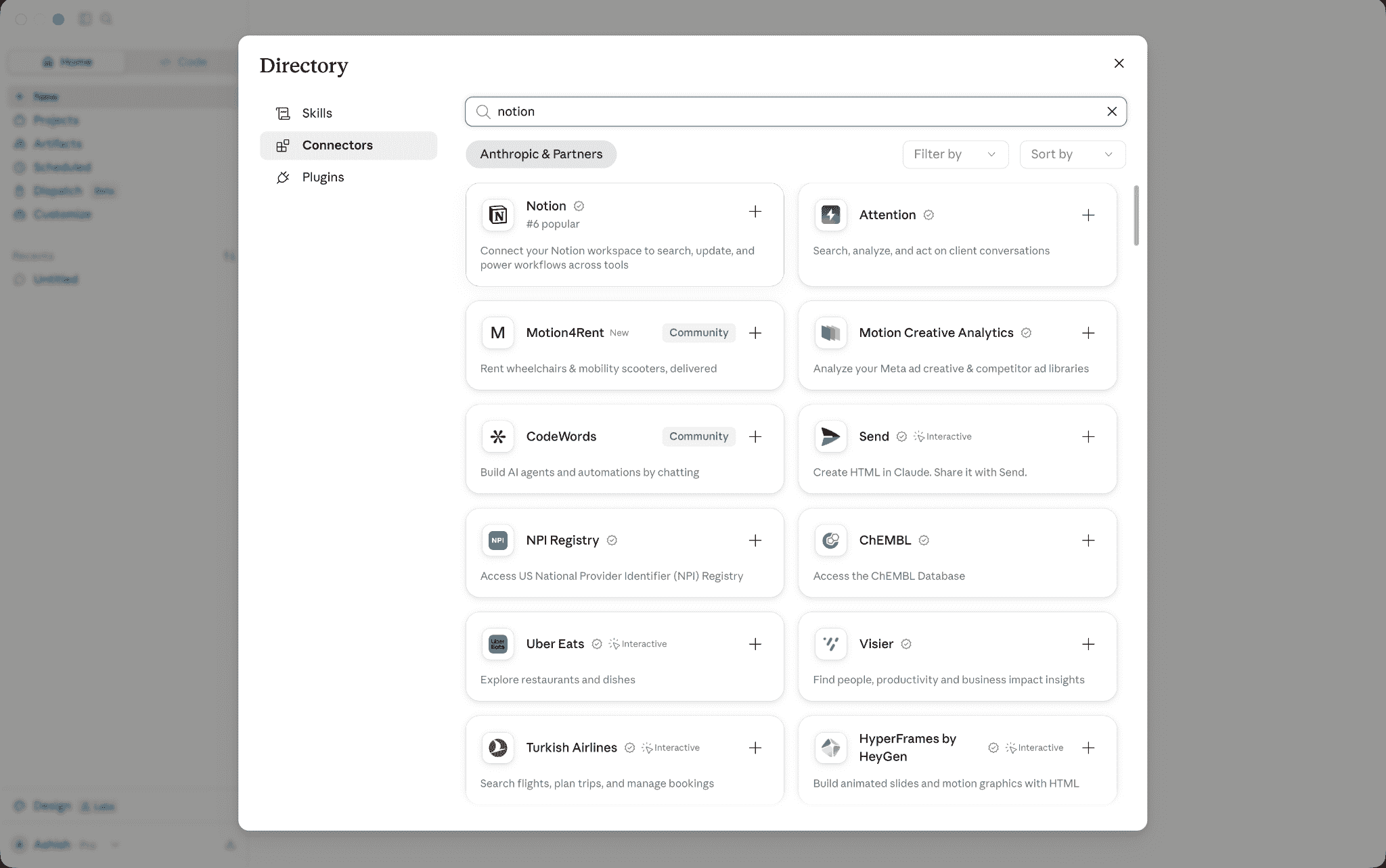
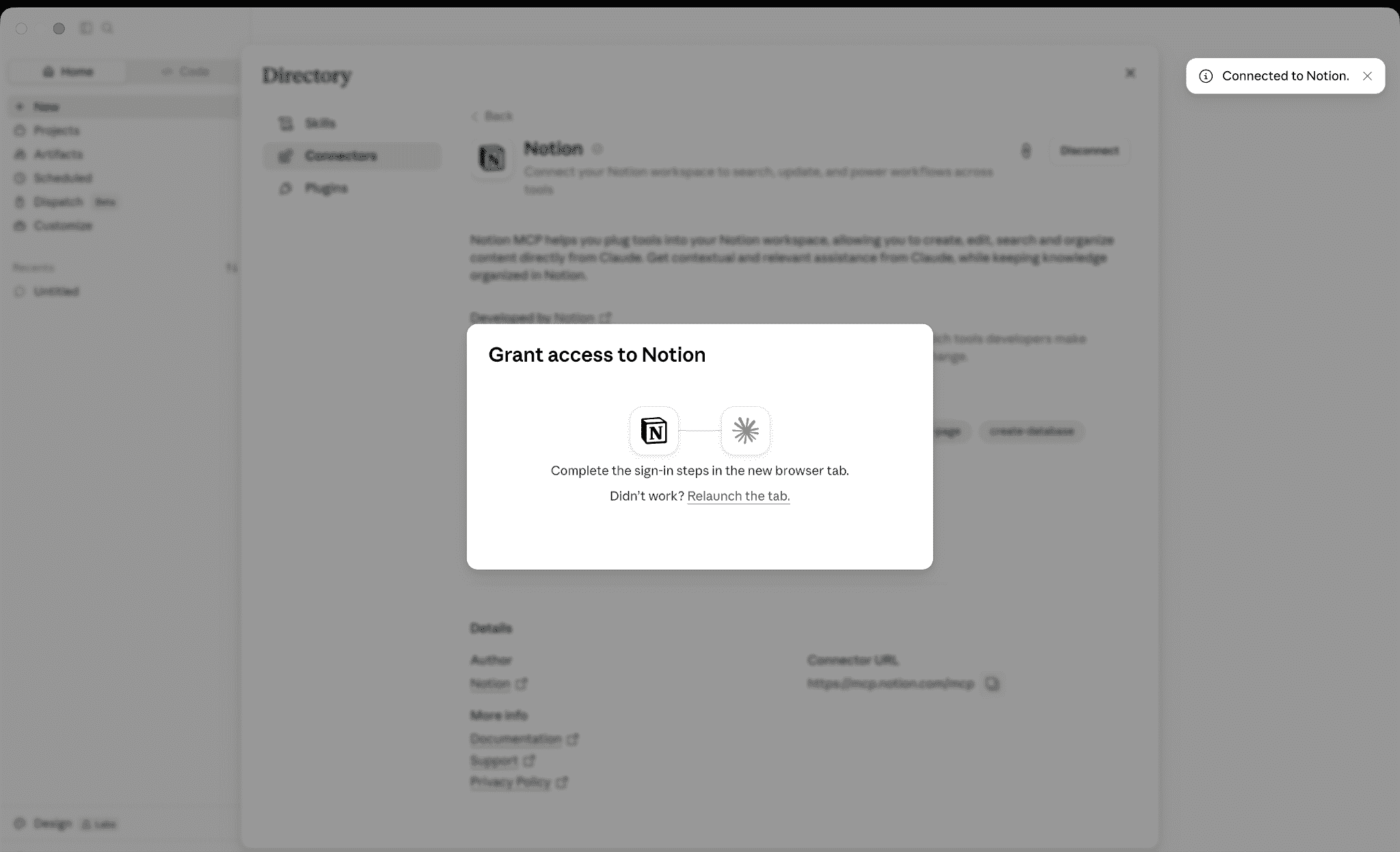
Step 3: Find Notion in the connector directory and click Connect. Claude opens a Grant access to Notion prompt and walks you through the OAuth sign-in in a new browser tab approve it there to link your workspace.
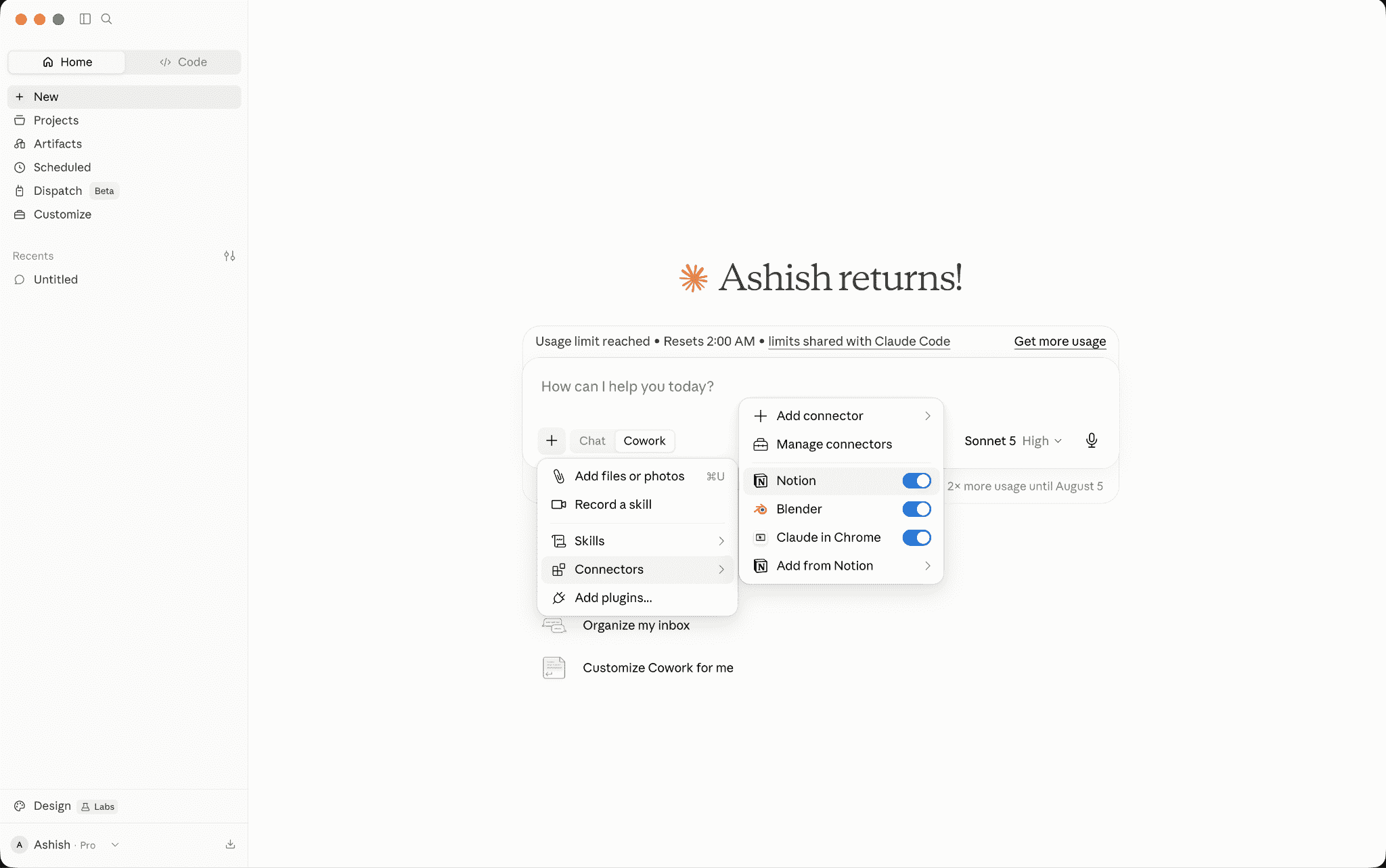
Step 4: Back in the connector menu, confirm Notion is toggled On. From here, you can also use Add from Notion to attach a specific page or database directly into a chat.
Key Features & Capabilities
- Inline Access: Mention Claude directly on any page, comment, or database entry to get real-time assistance without tabbing out of Notion.
- Page Summaries: Generate digests of lengthy specifications, database views, or missed discussion threads in seconds.
- Document & Vision Processing: Attach PDFs, spreadsheets, or whiteboard photos—Claude extracts text, parses key data, and generates structured Notion pages automatically.
- Content Structuring: Convert unorganized meeting notes into clean document layouts with headings, task breakdown tables, and assigned owners.
- Formula & Code Assistance: Write, debug, or explain Notion formulas (such as rollups and date calculations) directly on your page before publishing them.
- Cross-Page Search & Q&A: Query multiple database pages or workspace subfolders at once to pull status updates into a unified answer.
Tips for Using Claude in Slack
- Use clear prompts and provide relevant context.
- Start with simple tasks before using Claude for complex workflows.
- Review responses before sharing or acting on them.
- For important technical, business, legal, financial, or security-related information, verify Claude's response against appropriate sources.
- Treat Claude as an assistant within your workflow rather than a replacement for human judgment.
