

Claude can bring AI assistance directly into Slack, helping teams summarize conversations, extract decisions and action items, draft messages, answer questions, analyze supported files, and assist with technical problems.
- Summarize conversations, draft messages, answer questions, and organize information directly in Slack.
- Work with relevant conversations and shared content without moving between multiple applications.
- Use Claude in team conversations to create summaries, identify decisions, and organize action items.
- help understanding errors, reviewing code, and exploring possible solutions.
- Automate parts of everyday communication and information-processing workflows.
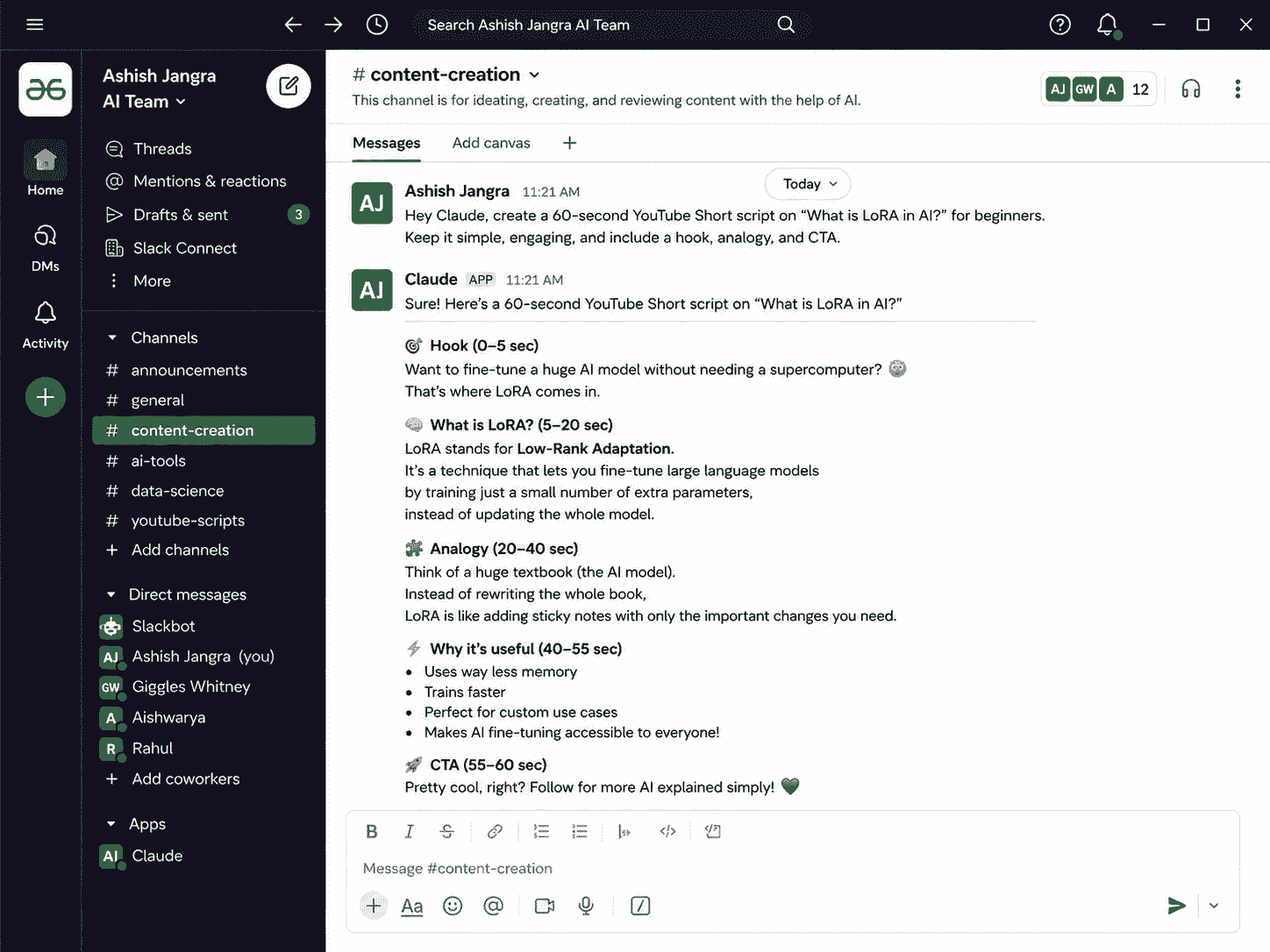
Installation and Setup
The installation process can vary depending on your Slack workspace, Claude account, and administrator settings. Follow the current installation instructions provided by Slack and Anthropic.
Step 1: Open the Slack App Directory and search for the official Claude integration from Anthropic.
Step 2: Select the Claude app and choose Add to Slack to begin the installation.
Step 3: Review the permissions requested by the integration. If you are satisfied with the access requested, authorize the connection. Your workspace administrator may need to approve the installation.
Step 4: Depending on your workspace configuration and the current integration, make Claude available in the channels or conversations where you want to use it.
Step 5: Complete the sign-in or authentication process if required to connect your Claude account with Slack.
Step 6: Try a basic request to confirm that Claude is working.
For example:
- @Claude summarize this conversation in three bullet points.
- A successful response confirms that the integration is ready to use.
Step 7: Let your team know that Claude is available and explain the types of tasks it can support, such as:
- Conversation summaries
- Action-item extraction
- Message drafting
- Technical questions
- Supported file analysis
If Claude cannot be installed or does not appear in your workspace, check with your Slack administrator to determine whether app installation or access is restricted.
Getting Started With Claude in Slack
Start with everyday tasks that are easy to review, such as summarizing a long thread, drafting a message, or extracting action items. Once your team is comfortable using Claude, you can expand it into technical troubleshooting, document analysis, project discussions, and other workflows.
- Use clear prompts and provide relevant context for better responses.
- Review Claude’s responses against appropriate sources before acting on important technical, business, legal, financial, or security-related information.
- Use Claude as an assistant within your existing workflow, not as a replacement for human judgment.
- Use Claude for repetitive information-processing and communication tasks to save time.
- Focus human effort on decision-making, collaboration, and other higher-value tasks.
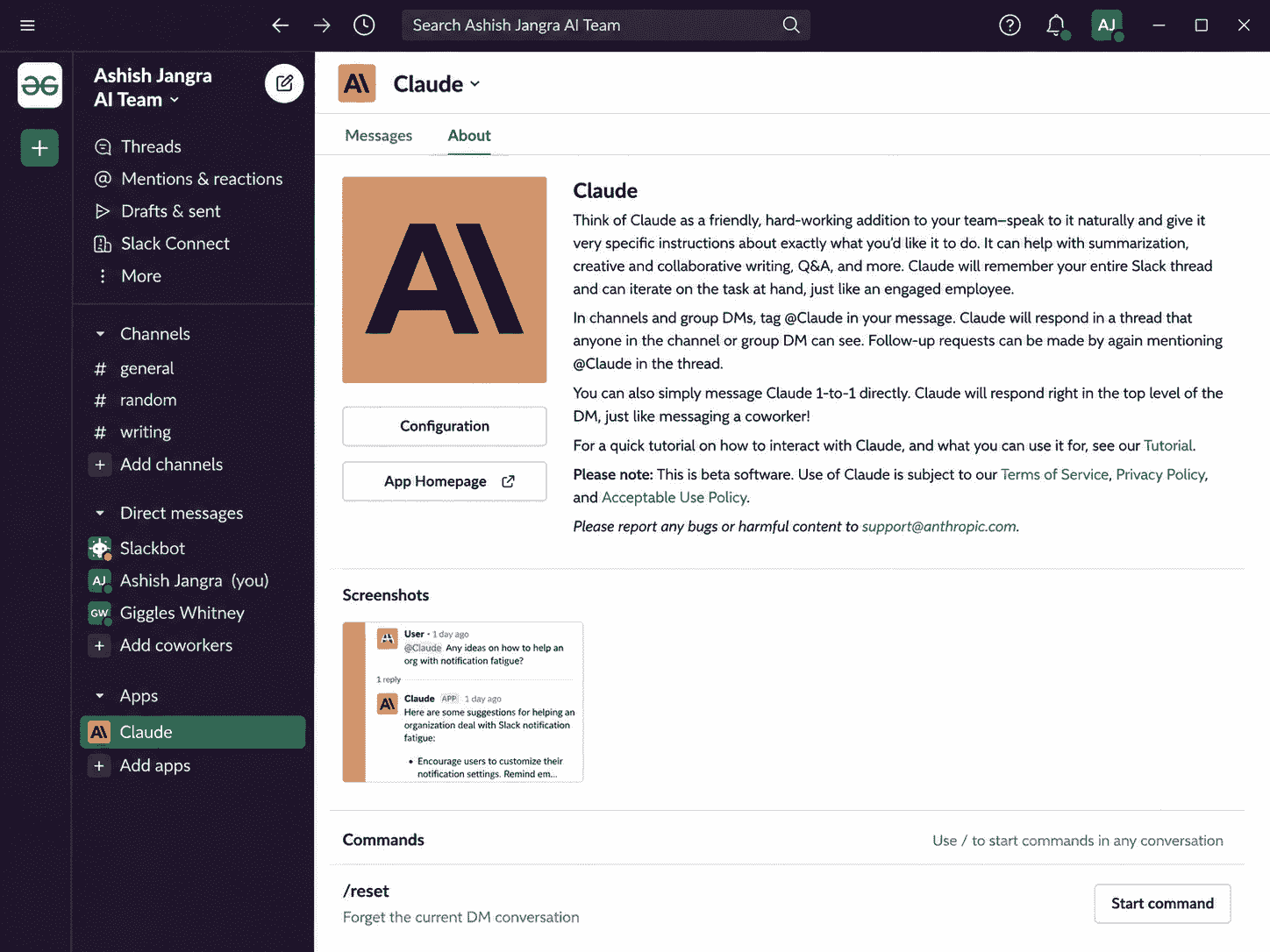
Real-World Scenarios
Claude can support different teams in their everyday Slack workflows. These examples show how teams can use it for communication, technical work, and information management.
Catching Up on Project Updates
A product manager returns to Slack after several hours and needs to understand what happened in a project channel.
Example prompt: @Claude summarize the important updates from #product-launches since yesterday at 6 PM and highlight decisions, blockers, and items that need my attention.
This gives the manager a focused summary instead of requiring them to review every message.
Debugging Technical Issues
A developer shares an error message in an engineering channel and asks Claude to investigate it.
Example prompt: @Claude explain this error, identify the likely cause, and suggest possible fixes.
The developer can use the response as a starting point for troubleshooting and verify the suggested solutions against the project's code and documentation.
Improving a Draft
A content or marketing team member can use Claude to refine an existing message.
Example prompt: @Claude make this announcement 30% shorter without removing the key points.
Claude can provide a more concise version that the writer can review and edit before publishing.
Extracting Decisions From Discussions
An operations team may have several decisions buried in a long Slack thread.
Example prompt: @Claude extract the three final decisions from this thread and list the owner and next step for each.
This creates a structured summary that makes follow-up easier.
Supporting Distributed Teams
Teams working across different time zones can use Claude to summarize important discussions that happened while some members were offline.
Example prompt: @Claude summarize the important decisions from this discussion and list anything that requires action from me.
This helps team members focus on the information they need when they return.
Best Practices
The quality of Claude's response depends largely on how clearly you describe the task. Give Claude enough context, explain what you need, and specify the format you want.
Thread Summaries
Instead of asking for a general summary, tell Claude what information you want.
Example: @Claude identify the three key decisions in this thread and list who is responsible for each.
This produces a focused response rather than a general summary.
Drafting Messages
Include the audience, purpose, and tone of the message.
Example: @Claude draft a message to the team about the new timeline. Keep it friendly but make the urgency clear.
Providing these details helps Claude create a draft that better matches your communication needs.
Code Debugging
Include the error message, relevant code, and what you were trying to accomplish.
Example: @Claude I received this error during deployment: [error]. Explain the likely cause and suggest how to fix it.
This gives Claude enough context to provide a more useful troubleshooting response.
Document Analysis
Tell Claude exactly what you want to extract from the shared document.
Examples:
- @Claude summarize this PDF and list the three most important risks.
- @Claude review this proposal and identify anything that is unclear.
Comparing Options
Frame your request around the factors you want to evaluate.
Example: @Claude compare these two tools for our use case and explain the main advantages, disadvantages, and risks of each.
Common Issues and Troubleshooting
If Claude Does Not Respond
Check that:
- Claude is installed in your Slack workspace.
- You have access to the integration.
- Claude is available in the channel or conversation.
- Your workspace administrator has not restricted the integration.
- You are using the correct way to interact with Claude.
If the problem continues, check your workspace settings or contact your administrator.
Responses Are Too Generic
Make your request more specific.
Instead of:
@Claude summarize this.
Try:
@Claude identify the three main decisions, one unresolved issue, and all action items from this discussion.
Claude Misses Important Context
Provide the relevant information directly and tell Claude what to focus on.
For example: @Claude use the relevant discussion above to identify only the final decisions and unresolved issues.
If the necessary information is not available through the integration, provide the relevant content in your request. Responses Are Too Detailed Specify the length you want.
Examples:
- @Claude summarize this in three bullet points.
- @Claude give me a one-sentence summary.
Installation or Access Problems
- If Claude cannot be installed or used in your workspace, your organization may require administrator approval or restrict Slack app installations.
- Contact your Slack workspace administrator to check the available permissions and settings.
