Can ChatGPT Create Videos? The Complete Guide to ChatGPT Video Creation
Learn how ChatGPT helps plan videos and how GlobalGPT’s Yukie uses multiple AI models to turn creative requests into content.
 Chloe Murphy
No, ChatGPT cannot create videos by itself. ChatGPT is a text‑based AI and cannot generate video files, animations, or visuals directly. However, it plays a crucial role in AI video creation by generating video ideas, scripts, storyboards, voiceover text, subtitles, and optimized prompts that AI video generators use to produce finished videos.
To streamline this workflow, many creators choose an all‑in‑one AI platform like GlobalGPT, which provides access to 100+ leading text, image, and video AI models in a single interface—at just 30% of the official cost.
What People Really Mean by “Can ChatGPT Make Videos”
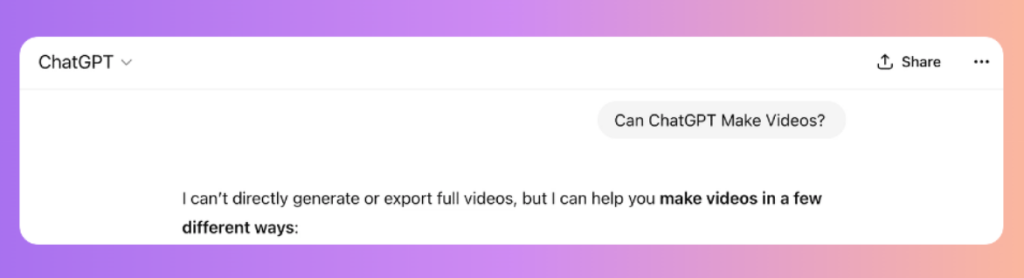
When users ask “can ChatGPT make videos,” they usually mean whether ChatGPT can help produce videos, not whether it can render MP4 or MOV files. In practice, ChatGPT acts as the creative brain, while dedicated AI video generators handle the visual production.
What ChatGPT Can Do for Video Creation
ChatGPT excels at the text and planning stages of video production, which are often the most time‑consuming parts.
| Capability | What ChatGPT Can Do | Practical Use Case |
|---|---|---|
| Generate video ideas and hooks | Brainstorms video topics, formats, and attention‑grabbing hooks | YouTube titles, TikTok hooks, short‑form content ideas |
| Write video scripts and dialogues | Creates complete scripts with structure and calls to action | Shorts, ads, tutorials, long‑form explainers |
| Create storyboards and scene descriptions | Turns scripts into scene‑by‑scene visual plans with shot types and pacing | Pre‑production planning and visual guidance |
| Produce voiceover text, subtitles, and captions | Generates narration, SRT subtitles, and SEO‑optimized descriptions | Voiceovers, captions, accessibility, video SEO |
What ChatGPT Cannot Do (Important Limitations)
Despite its usefulness, ChatGPT has clear boundaries.
ChatGPT Cannot Generate Video Files
It cannot render visuals, animations, or export video formats like MP4 or MOV.
ChatGPT Cannot Edit or Animate Videos
There is no timeline editing, visual effects, or real video rendering inside ChatGPT itself.
| Function | Can ChatGPT Do It? | Explanation |
|---|---|---|
| Generate video ideas | ✅ Yes | Creates topics, hooks, and concepts |
| Write video scripts | ✅ Yes | Long‑form and short‑form scripts |
| Create storyboards | ✅ Yes | Scene‑by‑scene visual descriptions |
| Generate voiceover text | ✅ Yes | Narration scripts and pacing |
| Create subtitles (SRT) | ✅ Yes | Subtitle and caption generation |
| Generate video files (MP4/MOV) | ❌ No | Cannot render video formats |
| Generate still images | ✅ Yes | Built-in image generation |
| Edit videos | ❌ No | No timeline or effects support |
Can ChatGPT Create Videos with AI Tools or Plugins?
Yes—indirectly. ChatGPT works best when paired with AI video generators.
ChatGPT handles:
Ideas, scripts, prompts, and structure
AI video tools handle:
Visuals, avatars, stock footage, voiceovers, and exports
Even when plugins are used inside ChatGPT, the actual video is generated by external video engines, not by ChatGPT itself.
Step‑by‑Step: How to Use ChatGPT to Make AI Videos
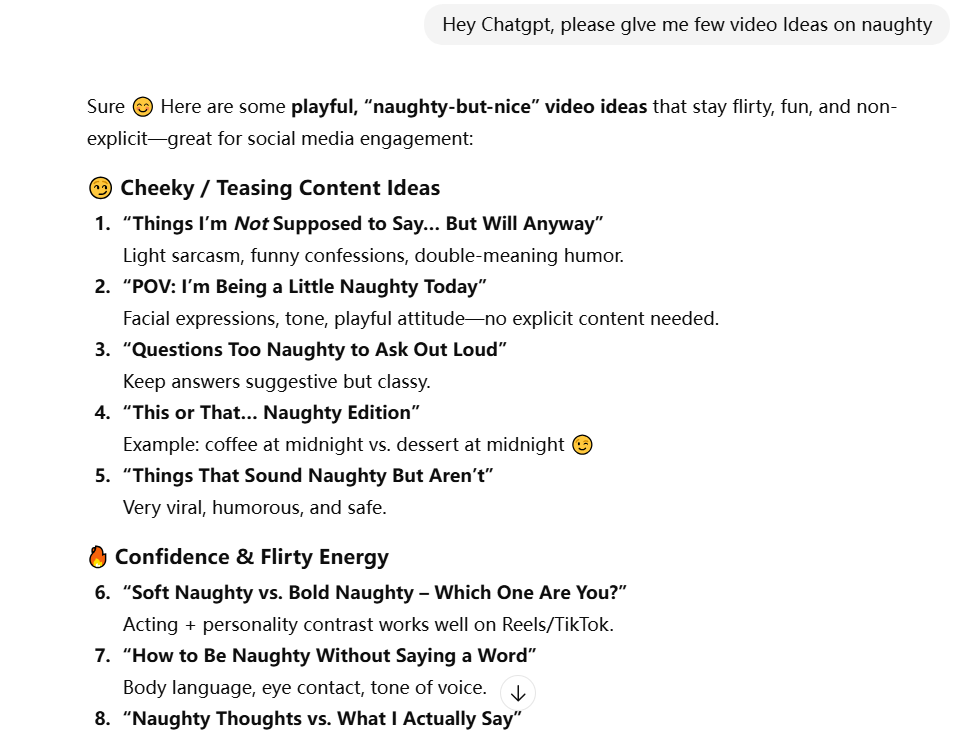
Step 1: Generate the Video Concept and Script
Use ChatGPT to define the topic, audience, hook, and full script.
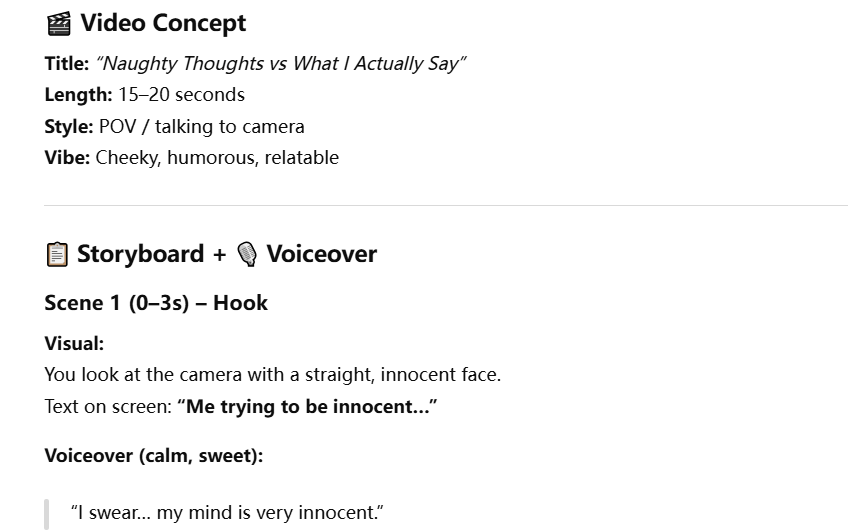
Step 2: Create a Storyboard and Voiceover
Ask ChatGPT to convert the script into scenes, visuals, and narration text.
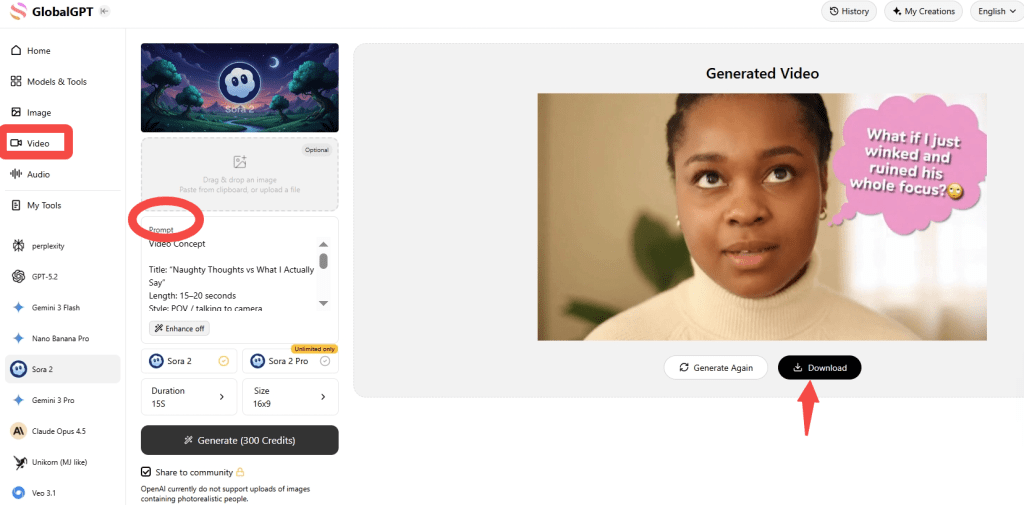
Step 3: Convert Text into Video Using AI Video Tools
Paste the script into a text‑to‑video or avatar‑based AI video generator.
Step 4: Edit, Export, and Publish
Add branding, captions, and export the final video for platforms like YouTube or TikTok.
Best AI Video Tools to Use with ChatGPT
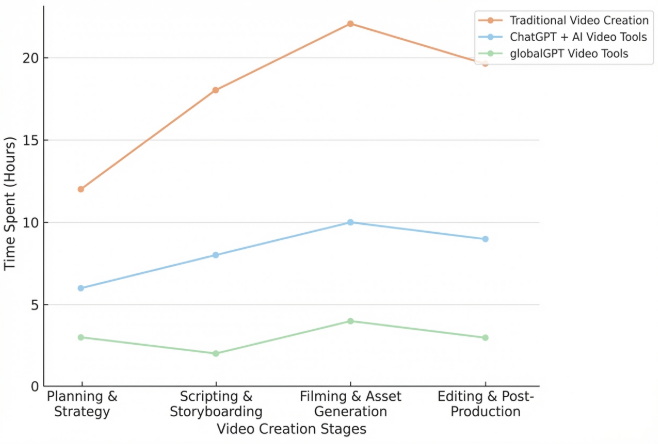
ChatGPT pairs well with:
Text‑to‑video AI tools (convert scripts into stock‑based videos)
Avatar‑based video generators (AI presenters with voiceovers)
Content repurposing tools (turn blogs into short videos)
This combination encompasses creative planning and video production. On GlobalGPT, you can enjoy all services with just one subscription.
Who Should Use ChatGPT for Video Creation?
ChatGPT is ideal for:
Content creators and YouTubers needing faster scripting
Marketers and businesses producing ads and explainer videos
Educators and course creators building training videos
Social media managers scaling short‑form content
Benefits of Using ChatGPT in Video Creation
Saves time on scripting and planning
Reduces video production costs
Improves creativity and consistency
Allows scalable video content creation
Drawbacks and Risks to Consider
Outputs can feel generic without customization
Over‑reliance on AI may reduce originality
Final quality depends on the chosen video tool
Create Videos with GlobalGPT’s AI Agent, Yukie
While ChatGPT plays a critical role in AI video creation—handling ideation, scripting, storyboards, and prompts—many creators quickly encounter a common limitation: switching between multiple tools, models, and platforms slows everything down.
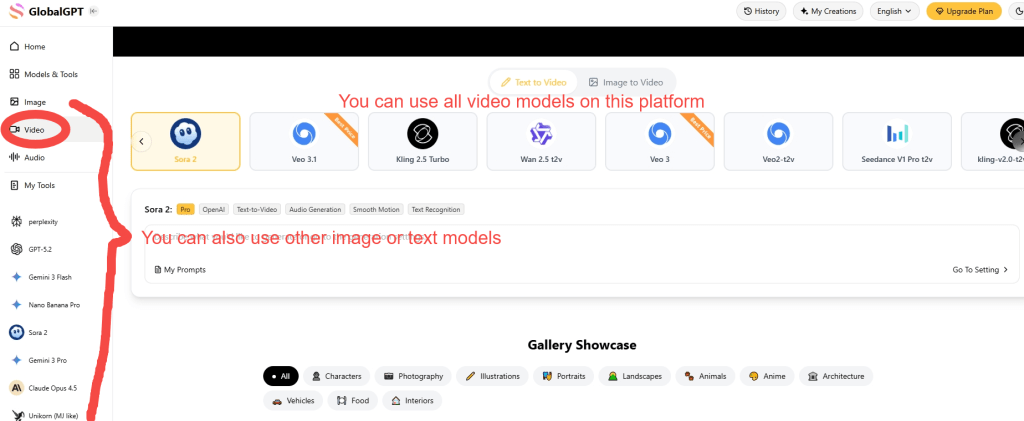
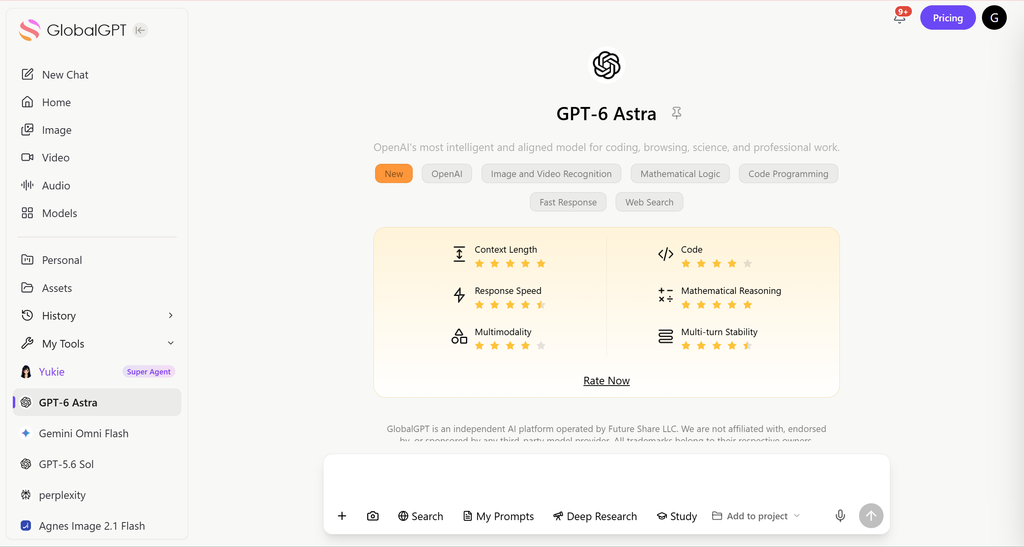
GlobalGPT brings 100+ AI models and tools into one platform. Yukie is GlobalGPT’s AI agent: describe the result you want, and it decides how to approach the task, including whether a video would help and which available models or tools to call. You do not have to turn every request into a manual sequence of script writing, image generation, and video generation.
Describe the Outcome and Let Yukie Work Out the Approach
For example, ask: “Help me promote my coffee brand on Instagram. We want a calm, premium feel, with a warm morning atmosphere. Create the content you think will communicate that best.” Yukie can assess the brief and decide whether to develop copy, visual assets, video, or a combination. If you specifically need a video, include its length, format, audience, and any brand assets in the same request.
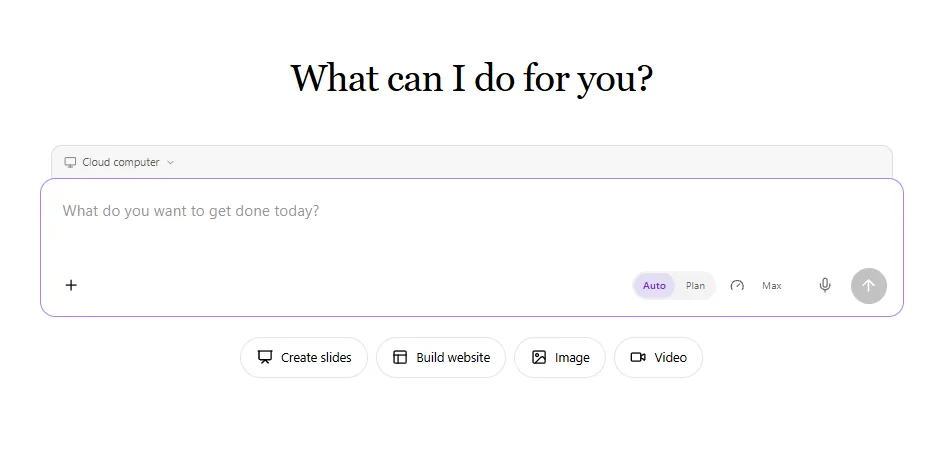
The advantage is that your goal stays at the center of the conversation. You can ask for a stronger hook, a different mood, or a revised visual direction without having to rebuild a separate workflow for each change. Yukie can call different models for different needs within GlobalGPT’s broader text, image, and video offering.
Use an Expert Yukie for Content Work
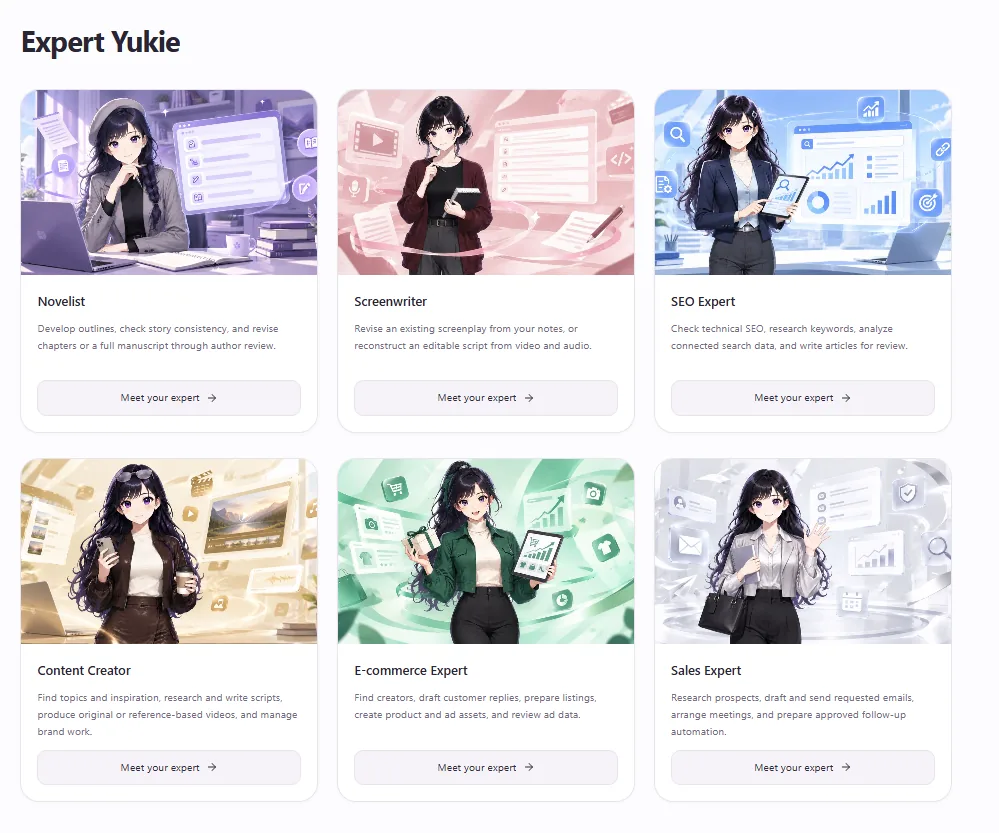
Expert Yukie offers focused starting points for different jobs. Content Creator covers topic research, scripts, original or reference-based videos, and brand work. Screenwriter focuses on revising screenplays from notes or reconstructing an editable script from video and audio. Pick the expert that fits the work, then explain the outcome you need.
What a GlobalGPT Video Model Can Produce
A separate GlobalGPT MCP test shows the video-generation side of this workflow. In that test, Codex called Seedance 2.5 through GlobalGPT MCP to generate a coffee scene. The result below is a real generated clip, rather than an interface demonstration.
For the connected-chat route, see how to generate AI videos from ChatGPT. For a browser-based agent experience, start directly with Yukie and describe the project you want to complete.
Tell Yukie what you want to create on GlobalGPT.
FAQs: Can ChatGPT Create Videos?
Can ChatGPT create videos by itself?
No, ChatGPT cannot generate videos directly.
Can ChatGPT make YouTube or TikTok videos?
It can write scripts and prompts, but an AI video tool is needed to create the visuals.
Do ChatGPT plugins make videos automatically?
Plugins connect ChatGPT to external video generators; the video is not created by ChatGPT itself.
Can Yukie decide when to create a video?
Yes. Yukie is GlobalGPT’s AI agent and can decide whether video is useful for your request, then call available models and tools. You can describe an overall goal or ask explicitly for a video with a particular format and style.
Final Verdict: Can ChatGPT Create Videos?
ChatGPT cannot directly create videos, but it is a powerful assistant for AI video creation. It handles ideation, scripting, storyboarding, and optimization, while AI video generators turn that text into finished videos. For most creators, combining ChatGPT with an AI video tool is the fastest and most effective workflow.