Generate AI Videos from ChatGPT: A Practical Workflow
Learn how to generate AI videos with ChatGPT, from scripts and shot prompts to the AI Video Maker plugin. Follow a practical GlobalGPT workflow, compare account and generation costs, and explore GPT and video models in one workspace.
 Luke Bennett
AI VIDEO · TWO PRACTICAL WORKFLOWS
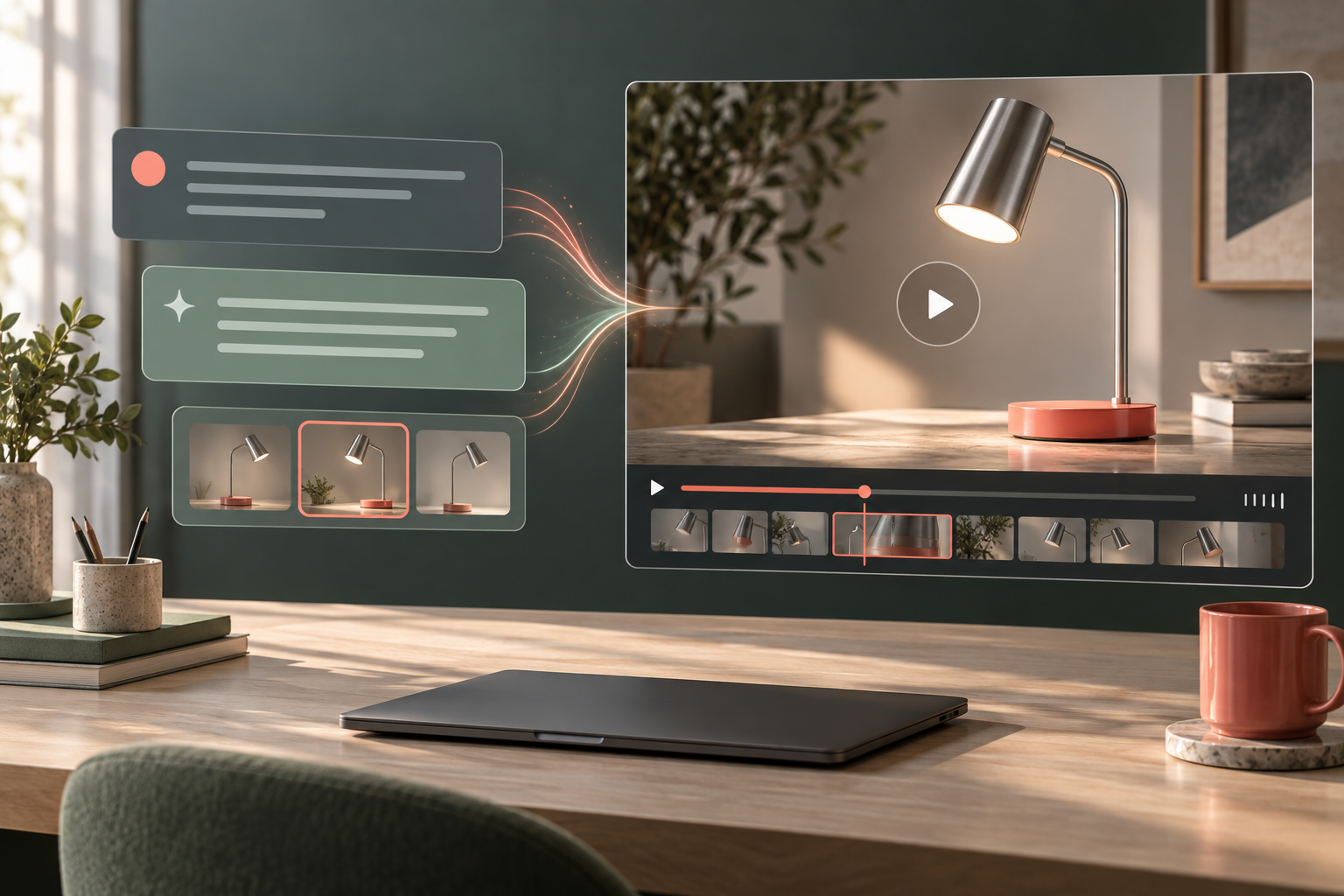
You can generate AI videos from ChatGPT by using it to develop the brief, script and shot prompts, then sending those instructions to a video generator. You can also install a video-generation plugin and submit the request from your ChatGPT conversation. This guide covers both routes, starting with the planning and generation workflow.
For an individual creator, GlobalGPT brings the first route into one website: develop the idea with a GPT model, open a video tool, generate the clip and review the result under one account. You do not have to keep moving between a separate chat website and a separate video website. The video model still has its own controls and credit cost, but the creative workflow stays on the platform.
Plan A: use ChatGPT to plan the video, then generate it
1. Define the result before writing the script
Specify who will watch, where the video will appear and what one thing the viewer should understand. If you are starting with the broader question, our can ChatGPT make videos article explains the available routes. For a desk-lamp product video, the goal might be to show a useful pool of light on a compact workspace. That is a visible benefit. Battery life, brightness ratings and discounts require actual product facts.
Set the final edit length and orientation here, but leave room for the generator’s supported clip lengths. A 15-second edit can use several shorter clips. Writing “15 seconds” in a prompt cannot create a duration setting that the tool does not support.
Prompt 1: Turn an idea into a production brief
2. Turn the brief into small, observable shots
Give each shot one main action. A light switching on, a page turning and a final product hold are easy to evaluate separately. Asking one short clip to establish the room, introduce a person, demonstrate a product and deliver a sales pitch makes failures harder to isolate.
| Shot | Intended edit time | Visible action / acceptance |
|---|---|---|
| 1. Product reveal | 0-5 seconds | Lamp switches on; whole object stays visible and stable |
| 2. Use in context | 5-10 seconds | A notebook page turns in the lit work area; believable contact and shadows |
| 3. Closing frame | 10-15 seconds | Quiet product hold; add a verified CTA in the editor |
These times describe an editing plan, not measured render performance or a promise of three matching generated clips. For a real product, carry an approved product reference into every supported generation. The two tutorial videos are separate illustrative concepts, not a matched campaign or a product-identity test.
3. Write a prompt that describes the shot
Use a clear order: subject, action, setting, framing, camera movement and lighting. OpenAI’s video documentation makes a useful distinction: the prompt describes the scene, while parameters such as size and seconds set the output format. This remains a helpful way to organize a brief even when you choose another generator.
Prompt 2: Write one controllable video shot
Keep the constraints connected to a visible requirement. “Whole lamp visible” is testable. A string of labels such as “award-winning, 8K, cinematic masterpiece” does not fix an unclear action, and writing “8K” does not set the export resolution.
Model-specific controls need model-specific instructions. The Veo 3.1 prompt techniques provide one example of adapting a general shot brief to a particular generator.
4. Set references, cost and output controls
Upload the image file through the generator or the supported connection. A reference filename written inside ordinary prompt text is not proof that the tool received the image. Confirm that the request actually includes it.
For product continuity, begin with one approved reference and modest motion. The Kling image-to-video guide explores reference-led animation. Exact input types and limits still depend on the model and route you use.
Check the aspect ratio, supported duration, output size and audio option, then request one clip. Keep its task ID and the exact prompt. Wait for the result before launching variations; a slow response alone is not evidence that the job failed.
5. Inspect, revise once, then edit
Watch the whole clip at normal speed, then inspect the beginning, middle and end. The first frame can look convincing while a base bends, a hand loses contact or the light direction changes later. Identify one concrete defect before rewriting the prompt.
Prompt 3: Diagnose a result before spending again
After selecting usable shots, trim them to the final pacing and add text in the editor. Keep claims, spelling, subtitles and the call to action editable. Listen to every audio track before adding music or publishing a voice line.
When a specific model is the next step, the Seedance 2.0 prompt examples offer additional prompt structure. That link refers to the named model version; its settings should not be assumed to apply to a different release.
Plan B: install AI Video Maker in ChatGPT
OpenAI presents AI Video Maker by InfoseekAI in its business plugin directory. Its examples focus on work such as product promos and campaign visuals: describe the asset in a conversation, then use the connected creative service to produce it.
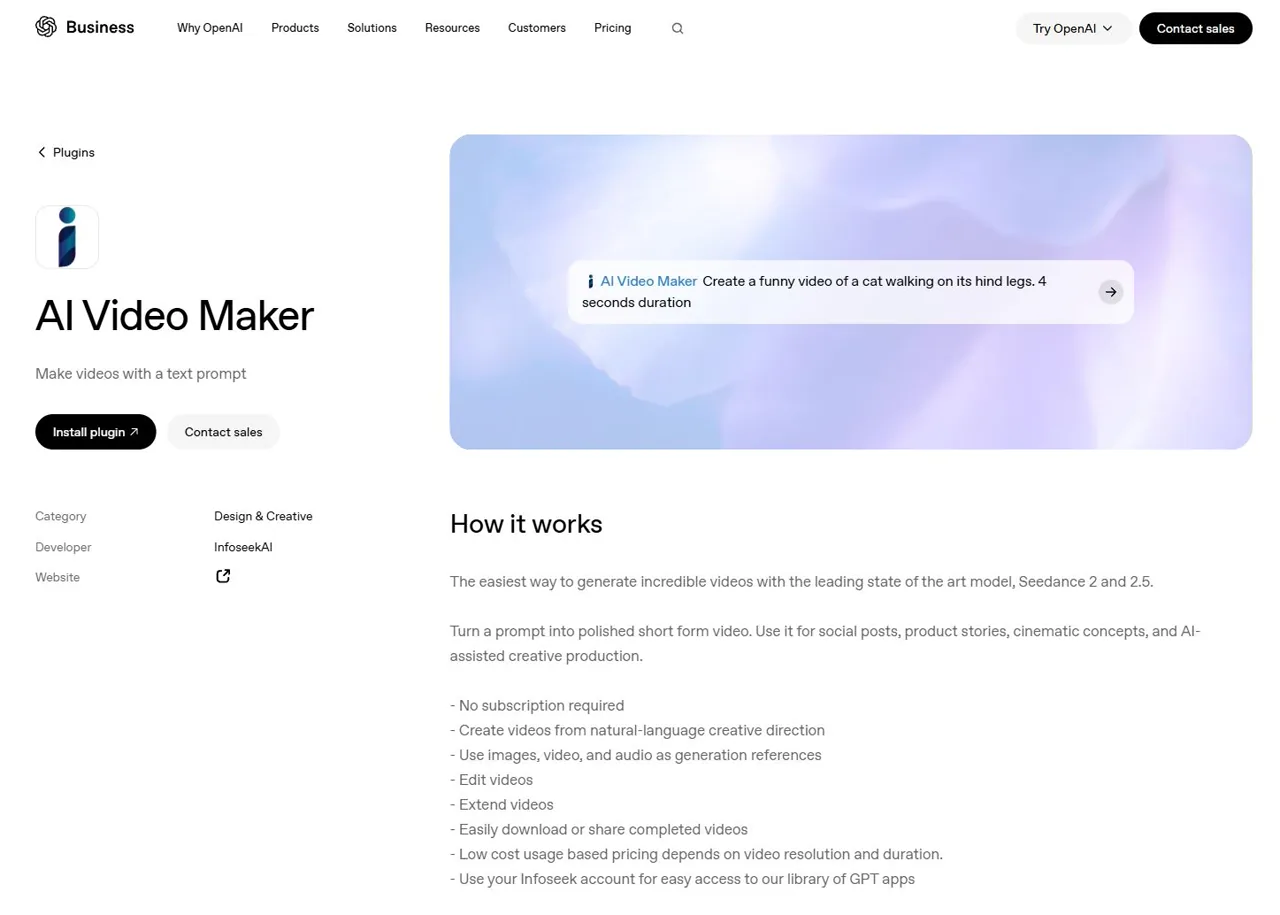
The listing names Seedance 2 and 2.5 and describes reference inputs, video editing and extension. Account access can depend on your plan and workspace settings. Some connections require administrator setup or approval.
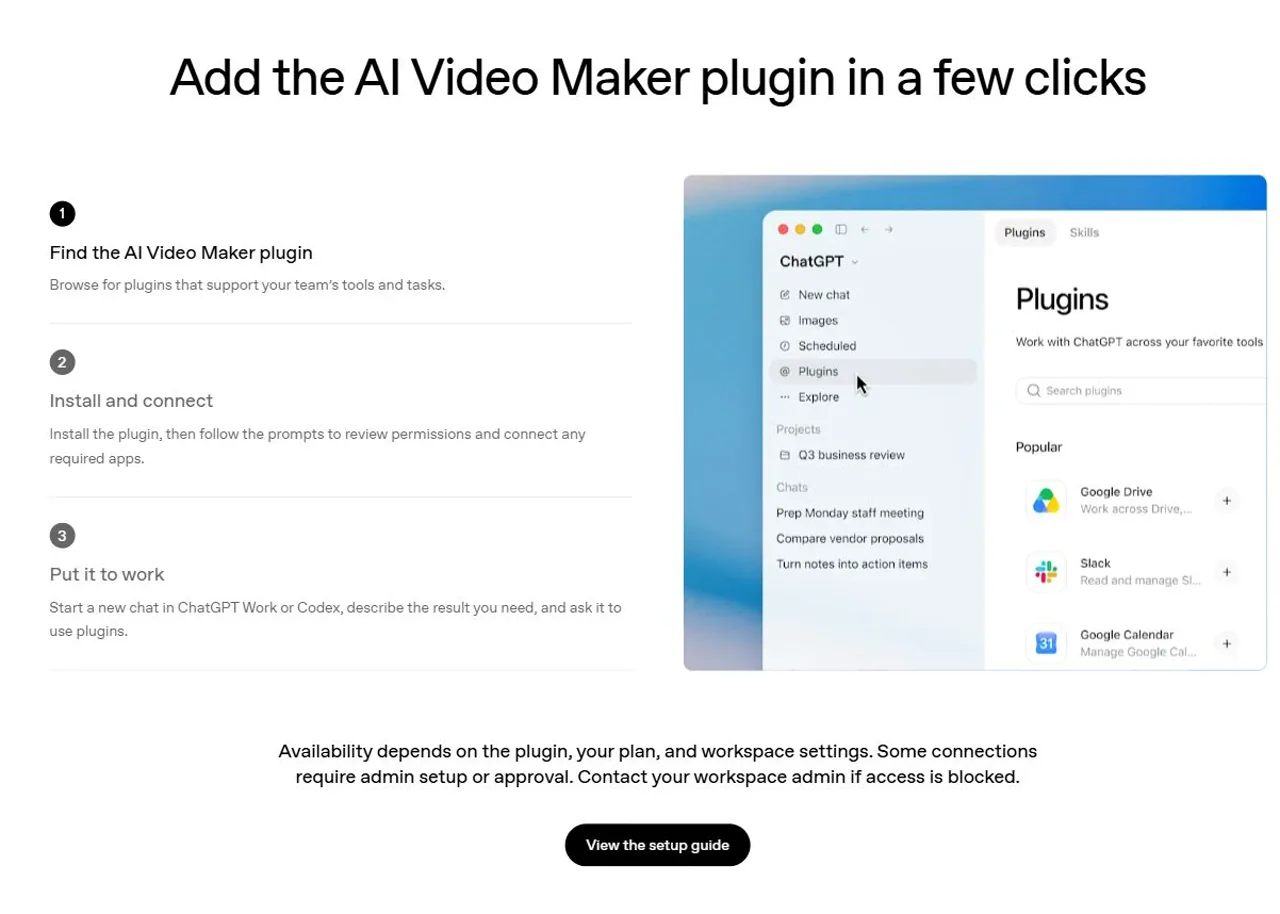
1. Install the plugin and connect its account
Open the plugin listing and follow the installation and connection prompts. OpenAI’s plugin setup guide explains that authentication can happen during installation or when you first use the tool. Start a new conversation after installation and ask ChatGPT to use the plugin.
You also need to connect the service that renders the video. In this case, that is an Infoseek account. Treat it as a separate provider account, with its own balance and generation charges.
2. Describe one short scene
Start with one visible action. A short request is easier to inspect than a complete advertisement with several cuts, dialogue and moving text. Here is an example you can adapt:
Use AI Video Maker to create a short product clip of a brushed-silver desk lamp with a coral circular base. The lamp switches on once on a pale-gray desk beside a window. Keep the whole lamp visible, use a fixed camera and preserve its shape. No people, logos or readable text. Request 16:9 and five seconds if supported. Show the settings and cost before generation.3. Attach references and review the generation
Upload a reference through the tool’s attachment controls. Infoseek’s AI Video Maker instructions show adding a storyboard to the generation widget, referring to the attachment in the prompt, then reviewing the settings before proceeding. Check the selected duration, resolution and audio options before submitting. Review the resulting clip for subject continuity and motion.
The steps above work across a chat assistant and a video generator. Our complete guide to ChatGPT video creation provides additional context on planning and rendering. In GlobalGPT, you can carry them out within one platform account: use a GPT model for the brief, then move to the built-in video workspace. That is the practical advantage for repeated projects—one site for the creative workflow instead of several URLs and separate service accounts.
Complete the planning and video workflow in GlobalGPT
We tested this workflow in a signed-in GlobalGPT workspace on September 7, 2026. GPT-6 Astra prepared the shot instructions. The video tool provided its own model selector and rendering controls. Here is the sequence we followed, including a handoff detail that is easy to miss.
1. Select GPT-6 Astra and describe one shot
From Home, select AI Models and GPT-6 Astra. We asked for a prompt under 90 words describing a silver desk lamp with a coral base, one switch-on action, a fixed camera and stable geometry. We also asked for the requested aspect ratio and duration to be listed separately, conditional on the video tool supporting them.

2. Take the finished prompt to Go to Produce
GPT-6 Astra returned a concise shot prompt and a separate settings note. A Video Generate panel appeared below the response with a Go to Produce control. That control opened the video generator, where the initial selected model was Seedance 2.0 Fast.


Check the transferred text before generating. In our run, the generator received the original question beginning “Help me create one short product video,” including the request to write a prompt. We replaced it with the actual shot prompt from GPT’s answer. Switching video models also cleared the prompt field, so we checked and pasted the finished text again after choosing the renderer.
Tested GPT output: the lamp shot
3. Choose the video model and verify its settings
We selected Seedance 2.5 for the text-only shot, left the optional start and end frames empty, and set 16:9, 5 seconds and 720p using the actual controls. Enhance Prompt and Native Audio were off. Share to community was also off. Selecting a model can change both the required inputs and the available settings.

The Generate button displayed 3,500 Credits for this configuration. We submitted one video request. This is the estimate shown in that account on the test date, not a universal price for GPT planning or every video model. Keep the generation request separate from the text-model response when checking costs.
4. Inspect the completed clip
The completed 5-second clip shows the lamp switching from off to a warm-white glow while the full object remains visible. The brushed-silver body and coral circular base stay recognizable from the opening through the final frame, with a substantially locked composition and no people, logos or generated text. This single result demonstrates the tested workflow, not guaranteed performance on other prompts.

Accounts and costs: what are you paying for?
A ChatGPT payment and a video-provider balance are separate expenses. If you already pay for ChatGPT, do not assume that payment funds an Infoseek video job. Infoseek says its video tool needs no subscription, but uses prepaid usage-based billing that depends on factors including resolution and duration.
| Cost layer | ChatGPT with AI Video Maker | GlobalGPT workspace |
|---|---|---|
| Chat and planning | Your ChatGPT account and any plan you choose to pay for | GPT and other chat models are available through GlobalGPT |
| Video rendering | Infoseek account balance; generation charged by usage | Generation uses the selected GlobalGPT model and account credits |
| Budget management | Track ChatGPT spending separately from Infoseek video spending | Manage the platform’s chat and creative usage in one account |
| Published price basis | No flat subscription required by Infoseek; no fixed per-clip figure shown in the public instructions reviewed | PRO displayed at $10.80/month equivalent in the annual view; $129.60 across 12 months |
For an occasional clip, paying by use can be sensible. For regular creation, account overhead becomes part of the decision: you may plan in one paid service, fund video generation in another and repeat that process as your toolset grows. Compare the complete workflow you will actually use, including retries.
The public Infoseek instructions reviewed here do not give a numeric quote for the lamp example, so there is no verified per-video saving to calculate against GlobalGPT. The useful comparison is a separate video balance versus an account that also covers your broader creative work.
If you already pay for ChatGPT, the plugin route can mean two places to fund: your ChatGPT subscription and the Infoseek balance that pays for video jobs. Connecting the plugin does not merge those bills. Your ChatGPT payment does not automatically buy the third-party video generation.
With GlobalGPT, you can use GPT and multiple creative models through one platform account. You still budget credits for video generation, but you can manage planning and production together. For creators who want an affordable all-in-one workflow rather than another separately funded tool, that is a strong reason to consider GlobalGPT.
Why we recommend GlobalGPT for an all-in-one creator workflow
If you are a solo creator making product clips, social posts or client concepts, we recommend considering GlobalGPT for its combination of model choice and a lower-budget entry into an all-in-one creative workspace. You can use GPT models for planning and open video tools under the same platform account, rather than building your workflow around separate services.
An affordable plan with more than video
The GlobalGPT pricing page, checked November 12, 2026, displays PRO at $10.80 per month equivalent in its annual view. At that displayed rate, 12 months totals $129.60, before any applicable taxes or fees. This is an annual commitment, not a $10.80 month-to-month offer. The page lists 240,000 credits per year and access to more than 20 video models, alongside chat, image and audio tools.
For a personal creative budget, the attraction is one platform covering several jobs. Generation still consumes credits; access to a model does not mean unlimited renders. Choose the plan around the tools you will use and the number of attempts you expect to make.
More options when your next video needs a different approach
GlobalGPT’s current catalog includes video options such as Seedance 2.5, Wan 3.0 Prime and Grok Imagine 1.5. You can compare the available settings in the workspace instead of treating one generator as the answer to every project. Our AI video generator comparison can help you narrow the choice.
One account, three ways to create
Stay on the website: GlobalGPT already includes GPT models such as GPT-6.1 Sol alongside video tools. Plan the scene, prepare the prompt and generate the footage within the same site, with one platform account instead of separate chat and video-service logins.
Keep working in ChatGPT with MCP: if you prefer your existing assistant, GlobalGPT documents a remote MCP connection that exposes chat, image and video tools. Connect your GlobalGPT account, request a video and check its task status through the supported client. For the setup steps, see how to make videos with ChatGPT through MCP. That gives you a connected route as well as the website; availability still depends on the client’s plan and workspace controls.
Use CLI for repeatable work: GlobalGPT’s command-line client also supports chat, image and video generation for terminal and agent workflows. For technical creators, this can reduce repetitive manual steps and fit generation into scripts or an existing agent workflow. See the GlobalGPT CLI setup in Codex for a worked example.
The choice is yours: use GlobalGPT directly for a one-stop creative workspace, connect it through MCP when you want to stay in your assistant, or use CLI for repeatable tasks. These routes use your GlobalGPT account and its credits; they do not turn paid video generation into free usage.
Fix common generation problems
| Problem | Check first | Next action |
|---|---|---|
| Only a script comes back | Whether a video-generation tool was called | Select the connected tool or open the generator |
| Reference is ignored | Whether the file was actually attached | Upload it using the tool’s reference input |
| Product changes shape | Camera movement and reference consistency | Reduce motion and keep one approved reference |
| Job seems stuck | The existing job status | Check that task before sending another paid request |
Separate a failed job from a completed clip that misses the brief. The AI video generation failure guide explains troubleshooting before another attempt.
If you deliberately use that older model, the Seedance 2.0 prompt examples remain model-specific reference material; do not transfer their settings to another release.
Frequently asked questions
Can I generate a video directly from a ChatGPT conversation?
Yes, when an available connected video tool supports the request. ChatGPT supplies the creative instructions, while the connected service renders the file. Confirm that you receive a playable video rather than only a script or pending job.
Does paying for ChatGPT cover AI Video Maker video charges?
Do not assume it does. Infoseek describes its video tool as usage-based and asks users to fund an Infoseek account. If you pay for ChatGPT, treat that payment separately from your third-party video balance.
Is GlobalGPT a useful option for individual creators?
Yes. We recommend considering it if you want GPT planning and multiple creative tools in one platform account. Its displayed annual PRO rate is $10.80 per month equivalent, or $129.60 across 12 months before any applicable taxes and fees. Video generation consumes credits.
Can GlobalGPT connect to ChatGPT?
GlobalGPT documents a remote MCP connection for ChatGPT and other supported clients. A CLI is also available for terminal and agent workflows. Access to custom connections depends on the client’s plan and workspace settings.
What should I check before another paid generation?
Check the selected model, supported inputs, duration, resolution and current credit quote. If a request appears stuck, inspect the existing task before submitting again.
Start with one scene you can judge clearly. Use the plugin if it fits your existing ChatGPT workflow; if you want a personal creative workspace with GPT and multiple video options, explore GlobalGPT and choose the tools that fit your budget.